
The Home Screen is the main dashboard where you can access all primary features, view important information & alerts.
To Get Started
- Log in to your account.
- Go to Home.

- When you are on the Home screen, the following interface will be displayed.

1. From User icon, you can add new user & switch between multiple users.
-
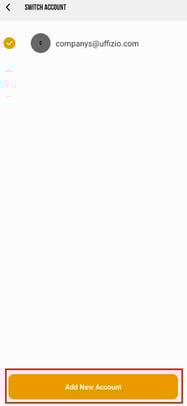
- To Add New User, Click on Add New Account.
- Enter the Username & Password for the account.
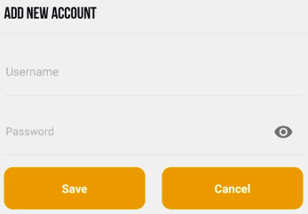
- Click on Save to save the Changes or Click on Cancel.
- To Add New User, Click on Add New Account.
2. From Vehicle, you can select the specific vehicle for which you want to view the data.
3. From the  SOS button, you can trigger the SOS Functionlaity.
Please Note: To use the SOS feature, you need to configure an Emergency Contact first.
4. From  Notification icon, you can access all the notifications.
5. you can view the vehicle running time for the day.
6. You can check whether GPS signal is being received from the device. It shows green when data is received and red when it is not.
7. You can view the vehicle’s Total distance, idle time, and stop time for the day. The data displayed will change based on whether the vehicle is running, idle, or stopped.
8. You can manually turn Parking Mode ON/OFF anytime, or set a schedule to activate it automatically based on your preferred time.
9. Vehicle Current Speed, Top Speed & Odometer reading are displayed.
10. You can access the vehicle’s Live Tracking directly from the widget for quick and easy monitoring.
11. You can view the Fuel Consumed & Carbon Emmision for the day.
Please Note: To get fuel consumption & carbon info, you need to configure, Distance Based Fuel Consumption, Value & Unit inside the vehicle configuration.
12. You can can acknowledge reminder & view upcoming reminder from the reminder widget.
Please Note: To configure Reminder, Click Here.
13. You can Access Home screen from this button.
14. You can Access History Playback from this button.
15. You can Access Profile from this button