
The Live Tracking screen shows the real-time location and movement of your vehicle. You can view its current position, status, and route updates instantly from the mobile app.
To Get Started
- Log in to your account.
- Go to Home > Live Tracking Widget.
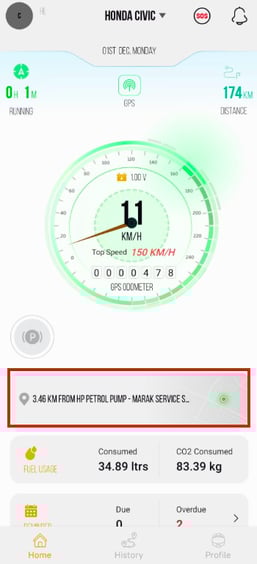
- Once you click on live tracking widget, the live tracking screen will open.
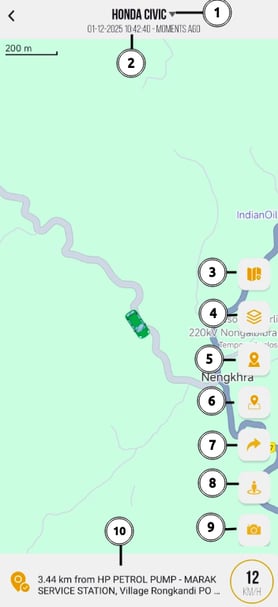
- You can select the specific vehicle for which you want to view the playback.
-
The timestamp indicating the latest data received from the device and updated on the server.
- Tap on Map
 icon to change the map.
 - Tap on Map Layout
 icon to to switch between Roadmap, Satellite, Hybrid, and other views based on the configured map.
 - Tap on the
 to add Address icon.
 - Tap on the add Geofence icon.
- Tap on
 Share icon to share live location of vehicle.
 - Tap on
 360 Icon to get the street view of the vehicle currrent location.
 - Tap on
 icon to click an image.
The Captured image will be visible in the playback screen's gallery option for the specific playback.