
A reminder rule is a feature that allows users to set up reminders for maintenance and renewal activities of the assets. Reminders can be set up for Car wash, General Servicing, driver license renewal, insurance renewal, and more.
Reminders can be categorized into three distinct types: Time-based Reminders and Distance-based Reminders.
Time-based Reminders are the reminders that are set on the basis of time period. For example, a user can set a reminder rule to notify them when a state permit is due for renewal every year.
Distance-based Reminders are the reminders that are set on the basis of distance travelled. For example, a user can set a reminder to notify them when a vehicle is due for a service after travelling every 1500 kilometers.
To Get Started
- Log in to your account.
- Go to Profile > Reminder.
Once you tap on Reminder, you will be redircted to the reminder oveview screen, where you will find all the configured reminders.
To Set a New Reminder
- Click on the
 button on the top right corner.
- The following page will open, you can now configure the reminder.
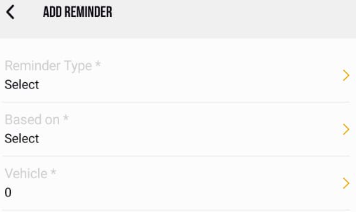
- From Reminder Type, select the type from the list.
- From Based on, select on the reminder should be based on Month or Distance.
Once you select Based on the additional feilds will be visible based on the selection.
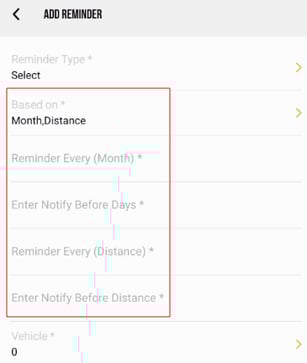
- Remind every (month): Specify the number of months in this field to receive reminders on a monthly basis.
- Enter Notify Before Days: To receive a notification several days prior to the end of the month, please enter the desired number of days in this field.
- Reminder Every (Distance): Please specify the distance at which you would like to receive a notification when your vehicle reaches a specified number of Distance.
- Enter Notify Before Distance: Please specify the distance at which you would like to be notified prior to your vehicle reaching the designated Distance mark.
- From Vehicle, select for which vehicle you want the reminder.
- Tap on vehicle and you will redirected to another screen.
- Tap on Add vehicle button to select the vehicle.
- once you select the vehicle the following screen will open.
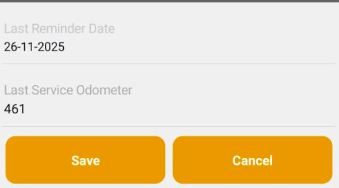
- From Last Reminder Date, Set the Reminder Start Date to begin the reminder and trigger notifications as planned.
- From Last Service Odometer, Specify the distance travelled by the Vehicle prior to the reminder start date when utilizing Distance-based Reminders.
- Click on save to Add the vehicle.
- Click on Cancel to discard the vehicle.
- Click on Save to save the reminder.
To Acknowledge the Reminder.
The system provides users with the ability to Acknowledge reminders, helping them stay updated on important tasks and deadlines while confirming their receipt of these notifications.
Navigate to  Home Screen.
- Click on the Reminder Widget.
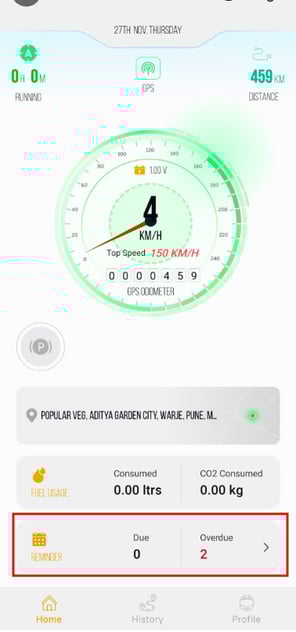
- Tap on the Reminder or Tap on Acknowledge.

- Selct the Date on which Reminder task was completed, this will help the system to decide the Next reminder cycle.
- Click on Acknowledge to lock the date.
- Click on Cancel to go back.

- Once the Acknowledge is completed the next reminder cycle will start.