
A reminder rule is a feature that allows users to set up reminders for maintenance and renewal activities of the assets. Reminders can be set up for vehicle maintenance, driver license renewal, insurance renewal, and more.
Users have the ability to create personalized reminder rules according to their unique requirements and can specify their desired timings for these reminders.
Reminders can be categorized into three distinct types: Time-based Reminders, Distance-based Reminders, and Work Hour-based Reminders.
Time-based Reminders are the reminders that are set on the basis of time period. For example, a user can set a reminder rule to notify them when a state permit is due for renewal every year.
Distance-based Reminders are the reminders that are set on the basis of distance travelled. For example, a user can set a reminder to notify them when a vehicle is due for a service after travelling every 1500 kilometers.
Work Hour-based Reminders are the reminders that are set on the basis of engine hours. For example, a user can set a reminder to notify them when an object is due for an oil change after every 200 engine hours.
Watch : How to configure Reminder.
To Get Started
- Log in to your account.
- Go to Settings > General > Reminder Rule.
To Set Reminder
- Click on the ➕ button on the taskbar.
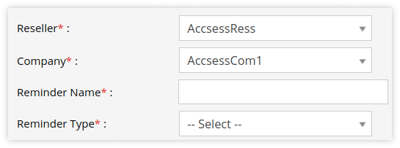
- Choose the Reseller and Company from the drop-down menu.
- Please provide a Name for the Reminder Rule to help you easily identify it later.
-
- Select the Reminder from the drop-down list.
- If your reminder is not listed, click Add a New Reminder Type from the dropdown. Select where you want it to be listed (Service or Renewal), then enter the name of the reminder you want to add. The new reminder will be created and added to the list.
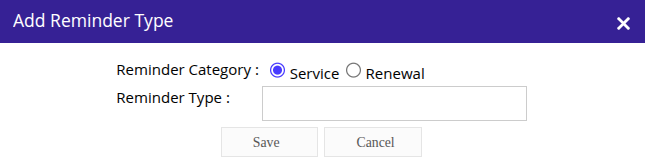
- If your reminder is not listed, click Add a New Reminder Type from the dropdown. Select where you want it to be listed (Service or Renewal), then enter the name of the reminder you want to add. The new reminder will be created and added to the list.
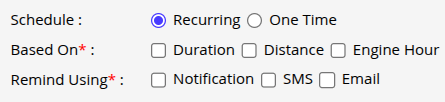
- Select the Schedule type for the reminder: Recurring or One Time.
- Select Recurring if you want the remider to repeat itself at the configured interval.
- Select One Time if you want the remider to be generated one time.
- From Based On, select how you want the reminder to be configured: Duration, Distance, or Engine Hour. You can select at least one option, or choose multiple options if required.
- Duration: Select this option if you want to configure the reminder rule based on time duration.
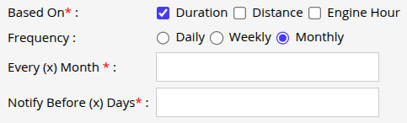
- In Frequency, Select Daily if you want the reminder to be generated daily.
- In Repeat Every (X) Days, Specify the number of days after which the reminder is to be triggered.
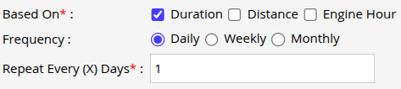
- In Repeat Every (X) Days, Specify the number of days after which the reminder is to be triggered.
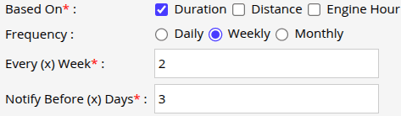
- Select Weekly, if you want the reminder to be generated based on week.
- In Every (x) Week, Specify the number of weeks after which the reminder is to be triggered.
- In Notify Before (x) Days, To receive a notification several days prior to the end of the week, please enter the desired number of days in this field.
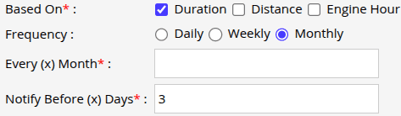
- Select Monthly, if you want the reminder to be generated based on week.
- In Every (x) Month, Specify the number of month after which the reminder is to be triggered.
- In Notify Before (x) Days, To receive a notification several days prior to the end of the month, please enter the desired number of days in this field.
- In Frequency, Select Daily if you want the reminder to be generated daily.
- Distance: Select this option if you want to configure the reminder rule based on the distance traveled by the vehicle.
- Every (x) Distance: Please specify the distance at which you would like to receive a notification when your vehicle reaches a specified number of kilometers.
- Notify Before Every (x) Distance: Please specify the distance at which you would like to be notified prior to your vehicle reaching the designated kilometer mark.
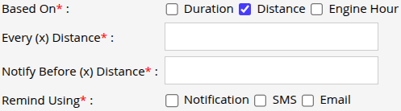
- Engine Hour: Select this option if you want to configure the reminder rule based on the vehicle’s engine running hours.
- Every (x) Engine Hour: Please specify the preferred time in hours to receive notifications when your vehicle reaches a specified number of engine hours.
- Notify Before Every (x) Engine Hour: Please specify the number of hours at which you would like to be notified prior to your vehicle reaches the desired engine hour.
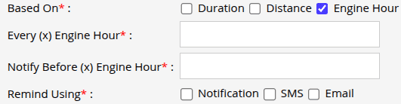
- Duration: Select this option if you want to configure the reminder rule based on time duration.
- Select the Reminder from the drop-down list.
-
- Select the method you want to get reminded from the Remind Using field.
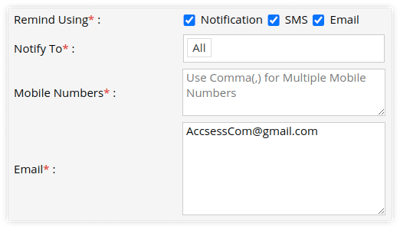
- Notification: Select Notification to notify subusers.
- Notify To: Select users from the dropdown list to whom you want to send reminder notifications.
- Notification: Select Notification to notify subusers.
- Select the method you want to get reminded from the Remind Using field.
-
-
-
- SMS: Add the mobile number in the provided text box on which you want to send the reminder. Use a comma (,) as a separator if you are adding multiple mobile numbers.
-
-
Please Note: SMS configuration is necessary.
-
-
- Email: Add the email address to which you want to send the reminder. Use a comma (,) as a separator if you are adding multiple email addresses.
-
Please Note: Email configuration is necessary.
-
- Define the below parameters for each object in the table located next to these reminder configuration fields to start the Reminder based on the specific date requirement.
.png?width=670&height=216&name=Frame%20659%20(1).png)
 You can download the sample file to update the data for the reminder rule vehicles such as date, engine hour or other information.
  You can upload the sample file from this icon.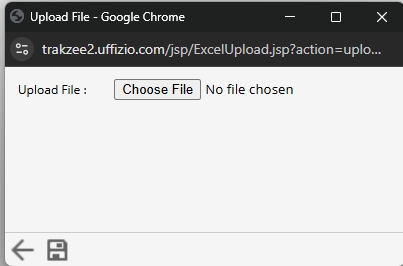
- Define the below parameters for each object in the table located next to these reminder configuration fields to start the Reminder based on the specific date requirement.
The fields displayed in the table may vary based on the Reminder type you select.
-
-
- Choose the specific Objects for which you would like to apply the reminder rule.
- Specify the Reminder Start Date to initiate the reminder and trigger the notification as scheduled.
- Distance Before Reminder Start Date: Specify the distance travelled by the object prior to the reminder start date when utilizing Distance-based Reminders.
- Engine Hour Before Reminder Start Date: Specify the engine hours that the object should have accumulated prior to the reminder start date when setting up Work Hour-based Reminders.
- Issue Date: Specify the Issue Date of the document.
- Expiry Date: Specify the Expiry Date of the document.
-
- Click on the Save 💾 icon to save the reminder rule.
To Add Reminder from Live tracking Screen
Reminders can also be conveniently added through the Tooltip widget on the Live Tracking screen, allowing users to set reminders for specific objects with ease.
- Log in to your account.
- Go to Tracking > Click on Object > Reminder Widget on Tooltip.
.png?width=238&height=243&name=Frame%20659%20(4).png)
- Click on the ➕ icon.
- Enter the details.
- Click on Save 💾.
Watch : How to Acknowledge reminder.
To Acknowledge the Reminder
The system provides users with the ability to Acknowledge reminders, helping them stay updated on important tasks and deadlines while confirming their receipt of these notifications.
- Log in to your account.
- Go to Tracking > Object List
- Click on Reminder icon
.png?width=423&height=59&name=Frame%20659%20(6).png)
- A pop-up window containing the reminders will open.
.png?width=670&height=127&name=Frame%20659%20(5).png)
- Enter the Acknowledge date and, if necessary, a brief Description, then proceed to save the record.
To add reminders from the mobile application, click here.
To download the reminders from the mobile application, click here.