
The Allocation screen is used to bind an E-Lock device with another device. This association links the lock to a specific vehicle/device in the system so that unlock operations and tracking can be managed properly. Once the devices are allocated, further unlock conditions can be configured in the Authorized Geofence settings.
To Get Started
-
Log in to your account.
-
Go to Settings > Elock > Elock Allocation.
Upon clicking on the Elock Allocation, you will be directed to the Elock Allocation Overview page, where you can easily view all the records.
To Configure Elock Allocation
- Click on the ➕ button on the taskbar.

- The detail screen for Elock Allocation will be displayed.
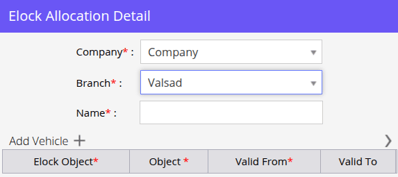
- Select the Company and Branch from the drop-down list.
- Specify a Name for reference
- To bind a vehicle (with GPS/other device) to an E-Lock vehicle, click on the ➕ button.

-
In ELock Object, select the vehicle with the E-Lock that you want to bind.
-
-
- In Object, select the vehicle (with GPS/other device) that you want to bind with the E-Lock.
- In Valid From and Valid To, select the date and time range during which both vehicles will remain binded.
- Click on the Save 💾 icon.
Please Note: User can configure the Authorized Geofence to set conditions for unlocking the E-Lock.