
This feature allows users to unlock E-Locks seamlessly within designated geofences, eliminating the need for traditional job creation. It streamlines operations for transporters, offering enhanced flexibility and efficiency in workflows.
Key Benefits:
- Secure, Location-Based Unlocking: Ensures E-Locks can only be unlocked within predefined geofence zones, enhancing security.
- Custom Geofence Mapping: Provides the flexibility to map objects to specific geofences, tailoring access control to routes or locations.
- Simplified Operations: Enhances operational efficiency by minimizing the need for manual job creation.
To Get Started
-
Log in to your account.
-
Go to Settings > ELock > Authorize Geofence.
Upon clicking on the Authorize Geofence, you will be directed to the Authorize Geofence Overview page, where you can easily view and manage all the records.
To Configure Authorize Geofence
- Click on the ➕ button on the taskbar.
.png?width=146&height=65&name=Frame%20654%20(74).png)
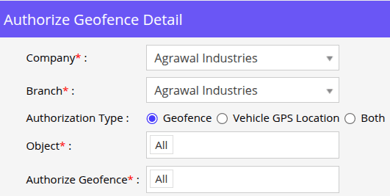
- The detail screen for Authorizing Geofences will be displayed.
-
- Select the Company and Branch from the drop-down list.
- In Authorization Type, Select the condition for unlocking the device.
- Select Geofence, to allow unlocking elock only within a specific geofence.
- From Authorize Geofence, select the geofence.
- Select Vehicle GPS Location, to allow unlocking elock when both the E-Lock and GPS device are within a defined range.
- From Location Tolerance, specify the radius within which both devices must be present.
- Select Both, to apply both conditions. The E-Lock will unlock only when the device is within the selected geofence and both devices are within the defined range.
- Select Geofence, to allow unlocking elock only within a specific geofence.
- Choose the desired Object from the list that appears based on your selection of the company and branch.
- Click on the Save 💾 icon.
To Download Authorized Geofence Records
-
Click on the XLS download button on the taskbar.
.png?width=146&height=65&name=Frame%20654%20(75).png)
-
A file in the XLS format will be downloaded.

-
You may distribute this file as needed or utilize it for your specific requirements.