
The Eco Driving or Driver Rating feature within the software empowers users to effectively monitor and assess driver performance. It is based on various factors such as harsh braking, fuel efficiency, and obedience to safety regulations and rules.
Driver rating uses the object's data to provide a complete view of the driver's performance. The user can set penalty points for the drivers based on their driving habits, considering parameters like harsh braking, harsh acceleration, speeding, idling, ADAS, and DMS violations. The system will assign scores to the drivers based on these points and provide the user with the driver rating.
Please Note: The Eco Driving/Driver Rating is included only in the Standard and Premium versions of the platform.
To Get Started
- Log in to your account.
- Go to Settings > Master > Eco Driving / Driver Rating.
After clicking on Eco Driving, you will be directed to the Driver Rating Overview screen, where you can have a look at all your Driver Rating records.
Watch : How to configure Eco Driving.
To Create Eco Driving
-
Click on the ➕ button on the taskbar.
-
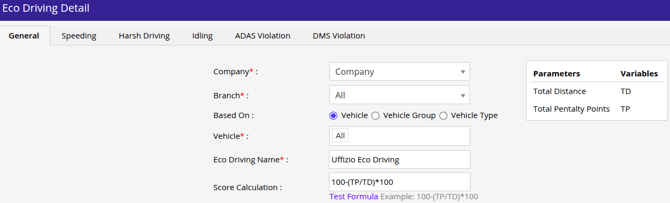
The configuration screen of Eco Driving will open.
Navigate to General
-
-
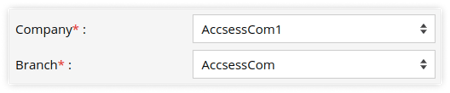
Select Company and Branch from the dropdown list.
-
To select the vehicles for which you want to configure the eco-driving, choose from the options available in the Based on field.
-
Object: Choose specific objects for which the driver ratings will be tracked.

-
-
-
-
-
Object Group: If you want to add driver rating to a certain group of objects, then select Object Group.

-
Select Object Group from the dropdown list.
-
Select Object from the dropdown list.
-
-
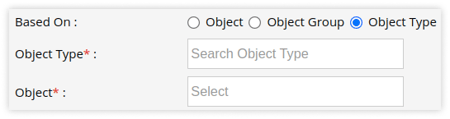
Object Type: If you want to add driver rating based on type of object, then select Object Type.
-
Select Object Type from the dropdown list.
-
Select Object from the dropdown list.
-
-
-
Enter the Eco Driving Name.
.png?width=455&height=60&name=Frame%20639%20(22).png)
- Score Calculation is used to rate the driver, the default formula used is 100-(TP/TD)*100 user's can change the formula as per their requirement.
- For custom formula the variable TD-Total Distance & TP-Total Penalty Points are mandatory to be used in formula.
- User can click on test formula to test the custom formula.

-
Navigate to Speeding
-
-
Speeding Consideration: Select the appropriate option to evaluate speeding for the purpose of assigning penalty points.
-
Custom: If you want to configure the penalty points based on the custom condition, choose this option.
-
Select the Overspeed Duration in minutes. If the vehicle continues to remain in the overspeed range for the configured duration, the penalty points will be assigned again, this will continue until the vehicle speed goes below the speed limit .
-
Enter the Speed Limit to be considered as a threshold for overspeeding.
-
Set the slider scale to select the Penalty Points for different speed ranges.
-2.png?width=565&height=472&name=Frame%20655%20(1)-2.png)
- Click on Show Calculation to review the calculation of the penalty points.
-
-
-
-
-
-
Alerts: If you want to configure the penalty points based on the alert specification, choose this option.
-
Alert Specification: Select the appropriate alert specification from the list.
-
-
-
Please Note: For Alert Specification list, user needs to configure OverSpeed & Zone Overspeed alert.
-
-
-
-
Based On: Choose the speeding criteria for Eco Driving:
- Vehicle Speed: Select this option if you want the speeding criteria to be based on the actual speed of the vehicle.
- Road Speed: Select this option if you want the speeding criteria to be based on the speed limit of the road the vehicle is traveling on.
-
-
-
Please Note: The Speed limit API needs to be purchased from the Map provider & needs to be select in the MAP configuration.
-
-
-
-
Add Tolerance: Specify the tolerance in % that allows the vehicle to exceed the speed limit configured in the alert or through the road speed API. This defines the permissible range beyond the set speed limit before the alert is triggered.
-1.png?width=594&height=467&name=Frame%20655%20(2)-1.png)
- Set the custom overspeed range & use the slider scale to select the Penalty Points for different speed ranges.
-
-
-
Navigate to Harsh Driving
-
- Set the slider scale to select the Penalty Points for different parameters such as harsh acceleration, harsh braking, harsh cornering, harsh acceleration in cornering, and harsh braking in cornering.
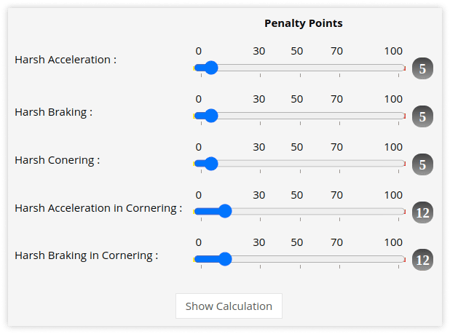
- Click on Show Calculation to review the calculation of the penalty points.
- Set the slider scale to select the Penalty Points for different parameters such as harsh acceleration, harsh braking, harsh cornering, harsh acceleration in cornering, and harsh braking in cornering.
Please Note: User need to configure the Harsh events alert as the system will assign the penalty points based on alerts. Each type of device may support a specific set of events, and it is possible that some devices may not support any events at all.
Navigate to Idling
-
- Select the Idle Duration in minutes. If the vehicle continues to remain in the idle state for the configured duration, the penalty points will be assigned again. This will continue until the vehicle is no longer in the idle state.
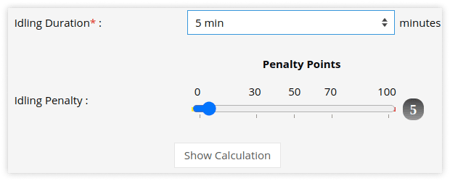
- Set the slider scale to select the Penalty Points for Idling.
- Click on Show Calculation to review the calculation of the penalty points.
- Select the Idle Duration in minutes. If the vehicle continues to remain in the idle state for the configured duration, the penalty points will be assigned again. This will continue until the vehicle is no longer in the idle state.
Please Note: User need to configure the Idle alert as the system will assign the penalty points based on alerts.
Navigate to ADAS Violation
-
- Set the slider scale to select the Penalty Points for forward collision alarm, forward collision warning, headway monitoring warning, pedestrian collision alarm, road sign violation, frequent lane change, etc.
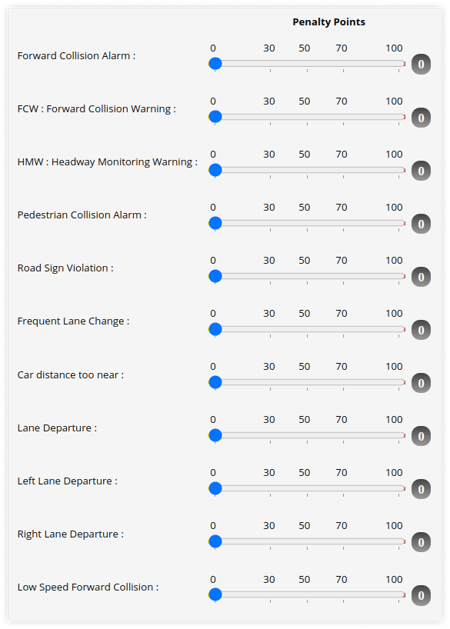
- Set the slider scale to select the Penalty Points for forward collision alarm, forward collision warning, headway monitoring warning, pedestrian collision alarm, road sign violation, frequent lane change, etc.
Please Note: User need to configure the ADAS events alert as the system will assign the penalty points based on alerts.
Navigate to DMS Violation
-
- Set the slider scale to select the Penalty Points for fatigue driving alarm, seat belt not fastened, driver on call, driver changed, smoking, eyes closed, etc.
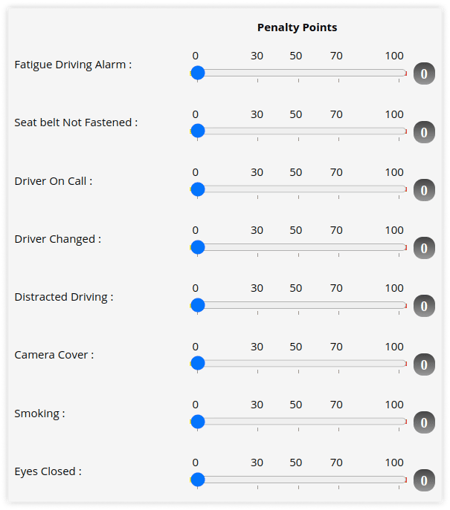
- Set the slider scale to select the Penalty Points for fatigue driving alarm, seat belt not fastened, driver on call, driver changed, smoking, eyes closed, etc.
Please Note: User need to configure the DMS events alert as the system will assign the penalty points based on alerts.
- Click on the Save 💾 icon.