The dashboard is the screen that allows users to see all the performance information and important data for all the vehicles in one place.
To open the dashboard, click on Menu > Dashboard in the application, as highlighted in the below-given image.
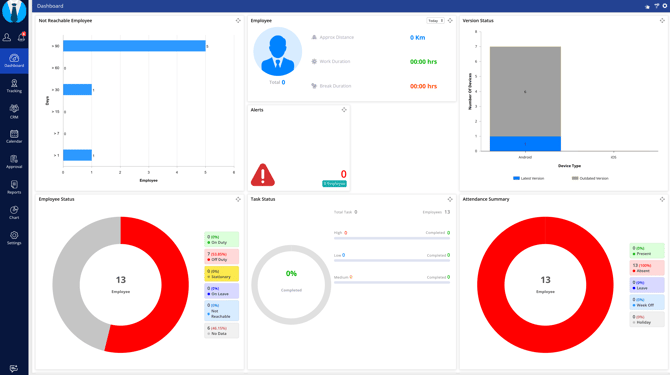
- The dashboard is for admin, reseller and the compnay. Using the dashboard, users can view the information related to activities on the account.
- The dashboards can be customised, in which the users can select the widgets that they want to view on the screen as per their requirements.
- Go to Dashboard >
 to customise the widgets users want to view on the dashboard.
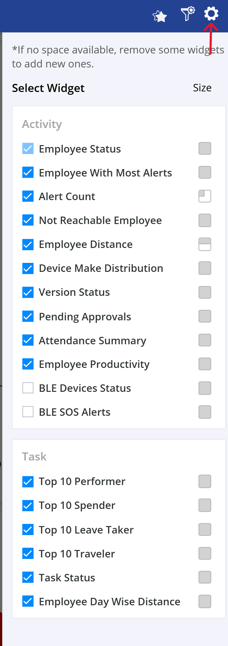
- Go to Dashboard >
- On the dashboard, the user gets activity & log widgets.
- Users can select particular Employee, the data of which they want to view on the dashboard.
- They can also filter the data on the basis of time duration as per requirements and preferences.
- Go to Dashboard >
 to filter the data that is to be viewed on the dashboard.
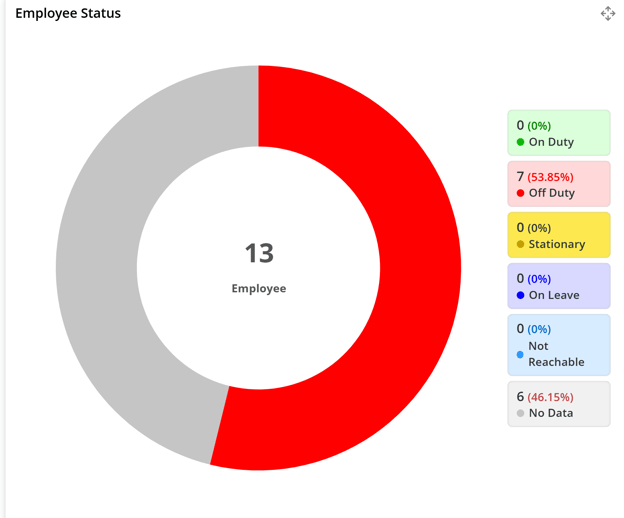
It is easy to identify trends and patterns of the fleet as the dashboard provides users with a graphical representation of all the data. Here, the users can view the data in the form of pie charts and bar graphs.
- While observing the dashboard, the widgets can easily be moved by using the
icon and dragging the widget on the required place.
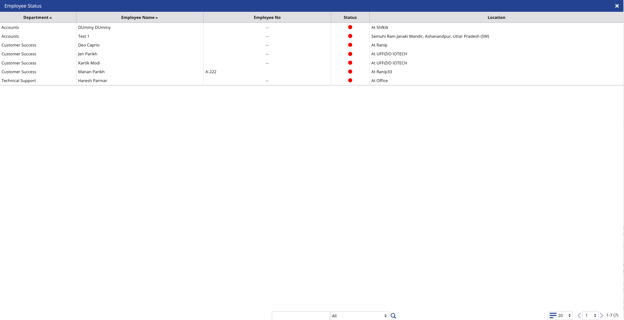
- For seeing the widget information in tabular format, this icon
can be used.
Example
- Click on the icon.
- The tabular formation detail would be shown in this format.