
In Petzee, a pet refers to any animal being monitored through a tracking device. Each pet is linked with an IoT device, allowing you to manage, track, and view their activity and location within the system.
To efficiently upload vehicle records, please follow these outlined steps.
To Get Started
- Log in to your account.
- Go to Profile > Pet.
Upon clicking on the Pet, users will be directed to the Vehicle Overview page, where they can easily view and manage all Vehicle records.
To Add Pet Individually
Click on the button on the top right corner.
-
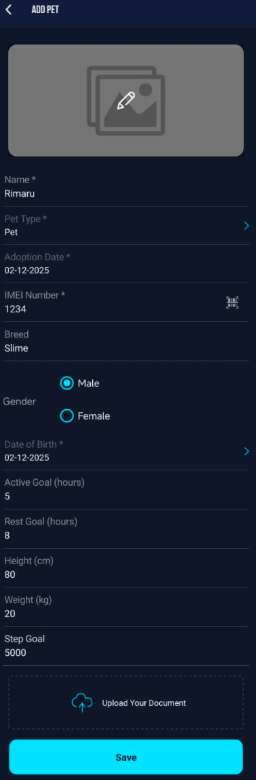
On the following page, you will need to add the Pet Details
-
Click on the
 icon to upload Pet photo
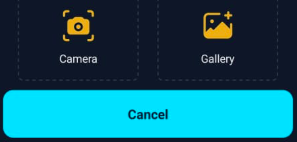
- Select Camera, if you want to click a photo through mobile's camera.
- Select Gallery, if you want to upload image from your phone's gallery.
-
Name: Write the Name of the Pet for identification.
-
Pet Type: Select your Type from Dog, Cat or Pet from the list.
- Adoption Date: Select the date on which the pet was adopted
- IMEI Number: Enter the GPS device IMEI number.
- Tap on
 scanner icon to scan the IMEI barcode.
- Tap on
-
Please Note: The IMEI Number must be addded in the Inventory of reseller subuser or else the system will show an error during sign up.
-
- Breed: Enter your pet’s breed.
-
Gender: Select your pet’s gender (Male or Female).
- Date of Birth: Select the D.O.B of your Pet.
- Active Goal (hours):Set the number of hours you want your pet to stay active each day.
-
- Rest Goal (hours): Set the daily rest duration you want your pet to achieve.
- Height (cm): Enter your pet’s height in centimeters.
- Weight (kg): Enter your pet’s weight in kilograms.
- Step Goal: Set the daily step target for your pet.
- Tap on
 Upload icon to upload document related to Pet.
-
Click on Save to save the Pet configuration.
Learn How to Edit Pet details.