
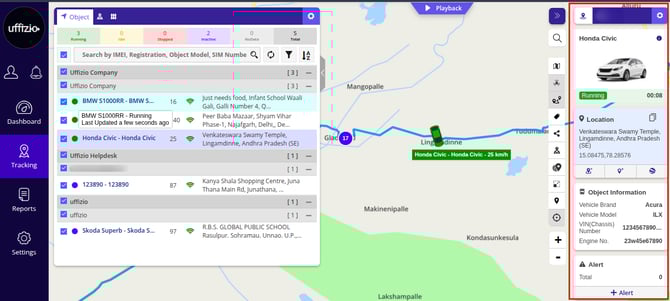
When the user clicks on an object from the object list, a tooltip will appear on the right side of the live tracking screen. This tooltip will display the real-time data of the current day on the various widgets, each showing information related to the different object's feature.
The user can customize these widgets to fit their specific requirements.
Please Note: The Live Tracking module on Web is limited to Admin, Reseller & related to subuser's.
To view the tooltip, go to Listing Panel > Object tab > Click on an object.
-
The tooltip will be displayed on the right side of the screen and will correspond to the object that has been selected from the object list, as illustrated in the image below.
-
The tooltip allows users to customize their view by selecting preferred widgets, providing information about various features related to the Vehicle according to individual needs.
-
Users have the flexibility to rearrange the widgets in a sequence that best suits their preferences.
To enable or select the preferred widgets, go to Tooltip > Click on  as highlighted in the image below:
-png.png?width=214&height=225&name=tooltip%20(1)-png.png)
The tooltip widgets will be displayed according to the selections made in the image provided below:

Multiple widgets from different categories can be selected based on the user's requirements and preferences.
Please Note: The "Object Tooltip Settings" icon will only appear if the parent user has given permission for it. This ensures that only authorized users can access and modify settings, enhancing security. Check how you can manage rights.
Below given are the categories and the widgets under them:
- Object information
- Vehicle Brand
This shows the Brand of the vehicle, that the user had selected. - Vehicle Model
This shows the Model of the vehicle, that the user had selected. - VIN(chassis) Number
This will display the VIN(chassis) Number the the user has configured. - Engine No
This will display the Engine Number the the user has configured.
- Vehicle Brand
- Alert
The total number of alerts generated on the object will be displayed here. The user can also add alerts from this widget.
Rest all the widgets are feature-oriented, which are explained in the corresponding feature documents.
- GPS Device Parameter
- Network Parameters
- Security
- GPS Device Information
There are a number of widgets available for the users to choose from, as per their requirements and preferences.