
The Playback History feature allows you to view the past routes and movements of your vehicle. You can select a date and track the vehicle’s activity directly from the mobile app.
To Get Started
- Log in to your account.
- Go to History.

When you tap on History, the History overview page will open, where you can view the playback for the current day.
History Overview Page
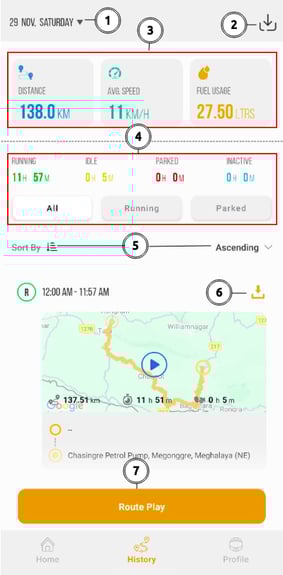
- You can select the specific date for which you want to view the playback.
- Tap on the
 Download icon to download the route timeline as a PDF or XLS file.
 - You can view the Total Distance, Average Speed, and Fuel Used for the selected date.
- You can view the Running, Idle, Parked, and Inactive time for the selected date.
- You can sort the playback in Ascending or Descending order.
- Tap on the
 Download icon to download the playback.
 -
Tao on Route Playback to play the entire route.
The downloaded video will be saved under Profile > Downloaded Videos.
- Tap on the play icon To view the History Playback.

- The following screen will open.

-
Tap to Play or Pause the playback.
- Tap on the Download icon to download the playback.
- Tap on Map Layout
 icon to to switch between Roadmap, Satellite, Hybrid, and other views based on the configured map.
 - Tap on Map
 icon to change the map.
 - Tap on Gallery
 icon to view the images captured during the trip from the Live Tracking screen.
 - Tap on Playback Settings
 icon to configure setting for playback.
Playback Settings
- Tap on Playback Settings iicon to configure the playback settings. the following screen will open.
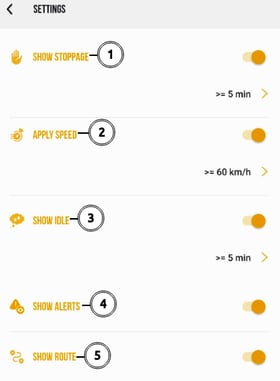
- Show Stoppage: you can use the toggle switch to turn the stoppage display ON or OFF. When enabled, you can select the minimum stoppage duration, For example, if you choose 5 minutes, all stoppage points longer than 5 minutes will be displayed in the playback.
- ApplySpeed: You can use the toggle switch to turn the speed highlight feature ON or OFF. When enabled, you can choose Greater Than or Less Than and then select the speed value. For example, if you choose More Than 60 km/h, the playback will highlight all segments where the vehicle speed exceeded 60 km/h.
- Show Idle: You can use the toggle switch to turn idle time display ON or OFF. When enabled, you can select the minimum idle duration. For example, if you choose 5 minutes, all idle points longer than 5 minutes will be displayed in the playback.
- Show Alerts: You can use the toggle switch to turn alert markers ON or OFF. When enabled, the playback will display alert events triggered during the trip.
- Show Route: You can use the toggle switch to turn the route display ON or OFF. When enabled, the full route path for the selected date will be highlighted during playback.