
In the context of our platform, an object refers to any entity or item that can be managed, tracked, or interacted with in the system through a tracking device configured with the Vehicle. vehicle typically represent physical devices, such as IoT hardware.
To efficiently upload vehicle records, please follow these outlined steps.
To Get Started
- Log in to your account.
- Go to Profile > Vehicle.
Upon clicking on the Vehicle, users will be directed to the Vehicle Overview page, where they can easily view and manage all Vehicle records.
To Add Vehicle Individually
- Click on the
 button on the top right corner.
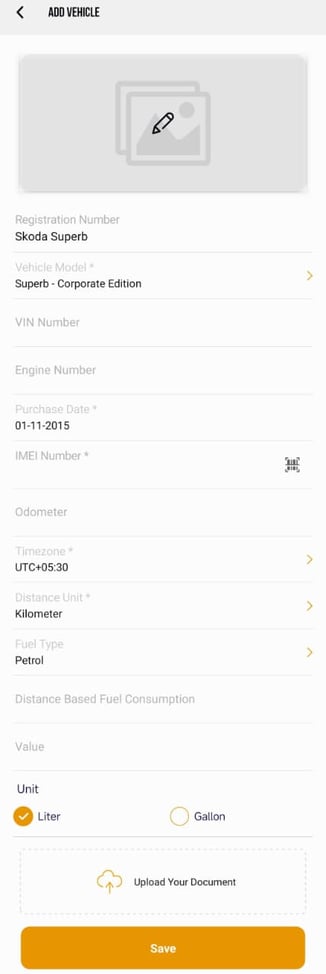
The following page will open, you now need to add the vehicle details.
- Click on the
 icon to upload vehicle photo
- Select Camera, if you want to click a photo through mobile's camera.
- Select Gallery, if you want to upload image from your phone's gallery.

-
Registration Number: Provide the registration number of the vehicle.
-
Vehicle Model: Select your vehicle model from the list.
- VIN Number: Enter the vehice's VIN number.
- Engine Number: Enter the Vehicle's Engine Number
-
Purchase Date: Select the date on which the vehicle was purchased.
- IMEI Number: Enter the GPS device IMEI number.
- click on
 icon to scan the IMEI QR.
- click on
- Odometer: Enter the Vehicle Odometer reading.
- Timezone: select the timezone that is set on the device.
- Distance unit: Select the unit from Kilometer, Miles or Nautical miles that you prefer.
- Fuel Type: Select the fuel that the vehicle uses.
- Click on the
Please Note: Distance based fuel Consumption, Value & Unit these three are used to estimate the amount of fuel consumed by the vehicle based on the distance it travels.
-
- Distance Based Fuel Consumption: Provide the distance the vehicle travels.
-
- Value: write the fuel consumption done for the distance travelled.
- Unit: Select the unit of fuel from Liter or Gallon
-
Click on Save to save the vehicle configuration.