
WhatsApp Bot configuration is performed using the WhatsApp Business Platform → Cloud API. The configuration requires creating a Meta Developer app, setting up WhatsApp, adding a payment method, registering a phone number, and obtaining the required API information.
The following steps describe the complete configuration process.
- Register at meta developer account using facebook personal account
Link : https://developers.facebook.com/- Click On Login
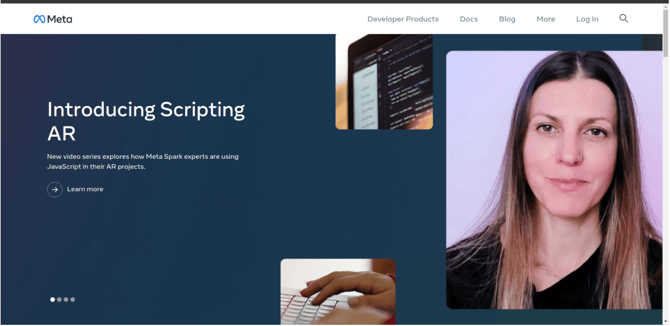
- Enter your Facebook personal account credential
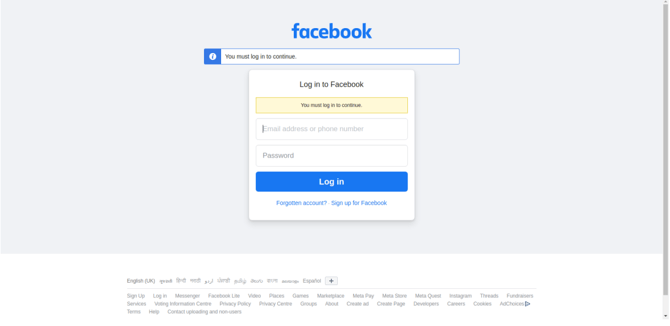
- Click On Login
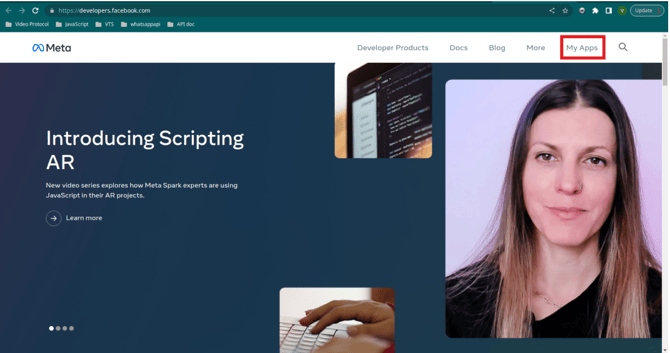
- Click on My Apps
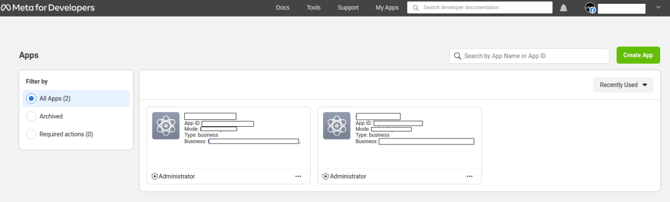
- Create App In Account
- Click on Create App
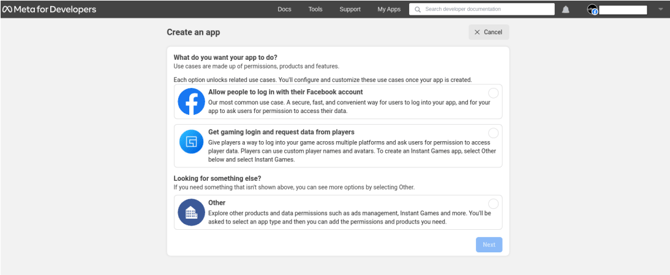
- Select “Other” option > next
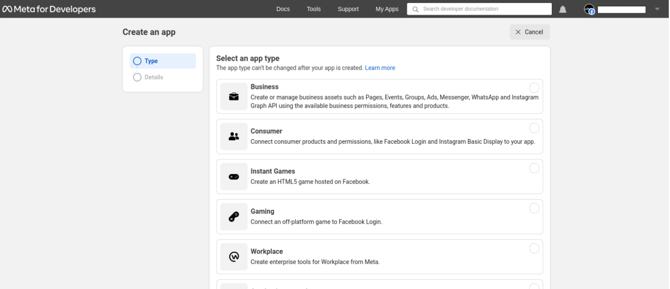
- Select app type “Business” > next
- Enter the name of your app, contact email and select business account
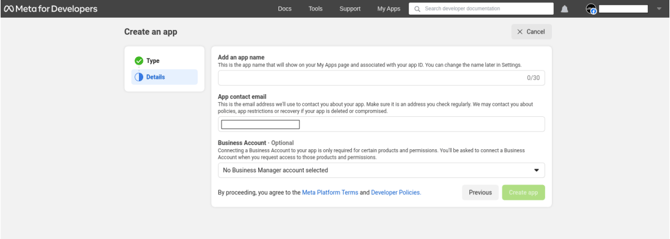
- Click on Create App
Note : business account is required for whatsapp message
- Select your app
- Add Basic Details for your app
- Settings > Basic
- Enter your Privacy Policy Link and save the changes
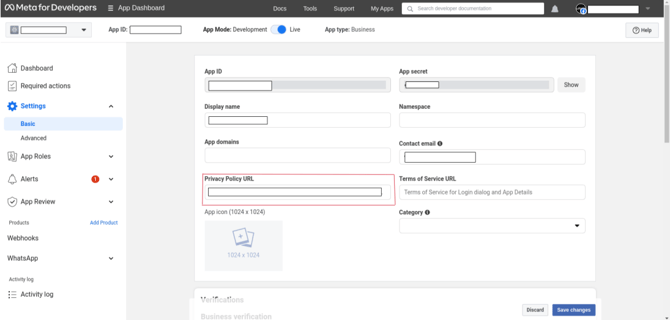
- Enter your Privacy Policy Link and save the changes
- Settings > Basic
- Change App Mode
- Development to Live
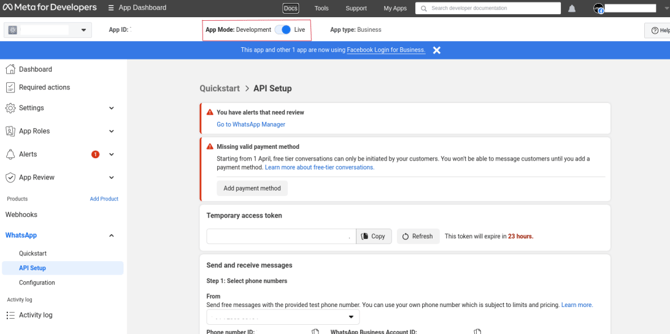
- Development to Live
- Setup your app
- Dashboard > Whatsapp > setup
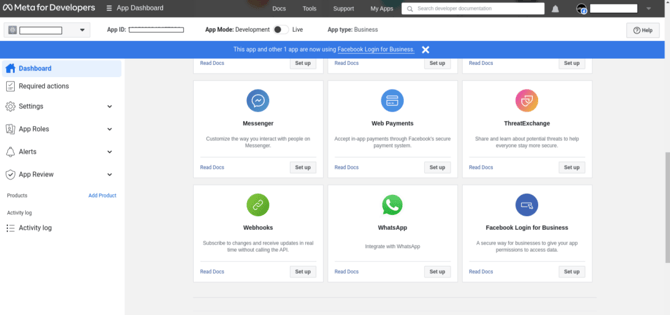
- Dashboard > Whatsapp > setup
- Inside WhatsApp > Click on API Setup
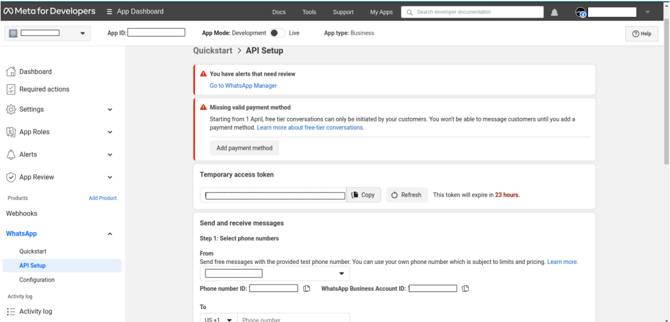
- Add Payment Method
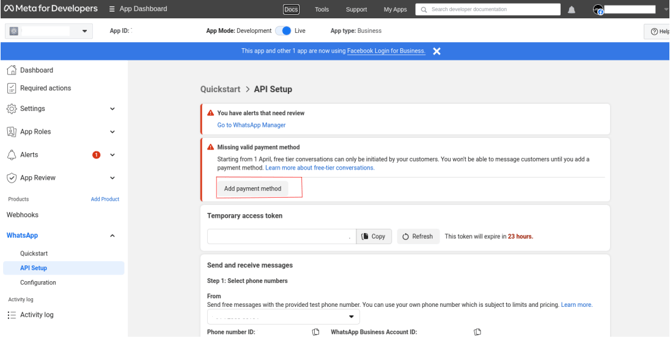
- Add You number from which you want to send message
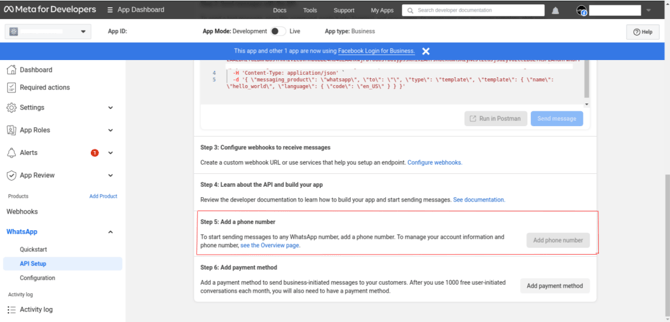
- Navigate to the WhatsApp > API Setup panel.
- On the right pane select Add phone number button under Step 5: Add a phone number.
- Use the display name guidelines to enter a display name for your phone number. This is the name that will show for your business phone number once approved.
- Select your Timezone. This will be used for WhatsApp Billing and analytics.
- Select a Category for your business and enter a Business description.
- Select Next to begin the phone number verification process
- Select your country code from the drop down and enter the phone number you would like to register.
- Select how you would like to receive your verification code, either by Text Message or Phone and click Next to continue. You will need access to the phone number before selecting Next to receive the verification code.
- Enter the verification code once received and click Next to continue.
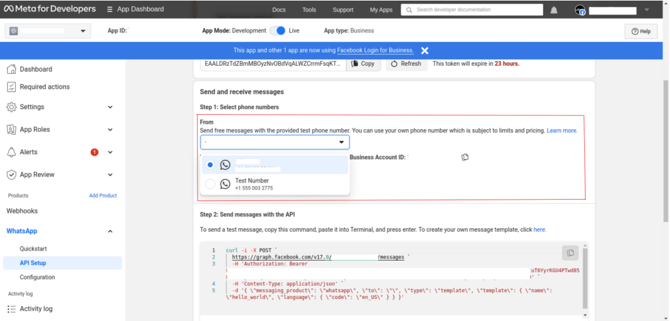
- The phone number will appear in the From drop down menu of the Send and receive messages section of the panel.Select the newly added phone number to begin sending messages
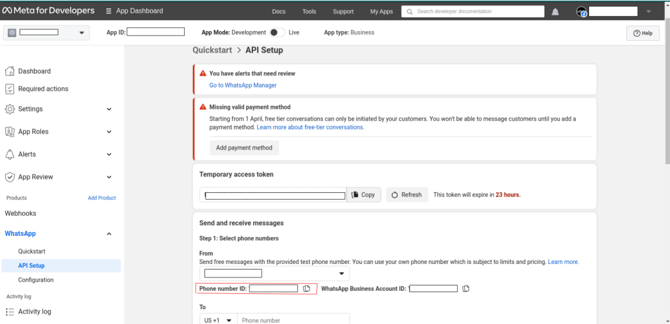
- Note your Phone number ID and Token for further use
Troubleshooting / Important Checks
- Issue: Unable to create WhatsApp app
Check: Ensure the app type is selected as Business. - Issue: WhatsApp messaging setup unavailable
Check: Verify that a Business Account is selected. - Issue: Unable to proceed with messaging
Check: Check whether the required payment method has been added. - Issue: Phone number cannot be verified
Check: Ensure you have access to the registered phone number and can receive the verification code. - Issue: Phone number not appearing in the From dropdown
Check: Verify that the phone number registration and verification process has been completed. - Issue: API credentials required
Check: Go to WhatsApp → API Setup and note the Phone Number ID and Token.
After successful configuration and phone verification, the Phone Number ID and Token can be recorded for further WhatsApp API integration.