
The Vehicle Registration screen allows you to register and manage vehicle information within the WASL system.
This module captures essential vehicle details — including IMEI number, plate information, assigned driver, and technical specifications — to enable real-time tracking and synchronization with WASL.
Only registered vehicles can be successfully linked, tracked, and validated under the WASL integration.
To get started
- Log in to your admin account.
- Go to Setting→WASL→Vehicle
- Click on the ➕ icon on the taskbar below.
To add a Vehicle
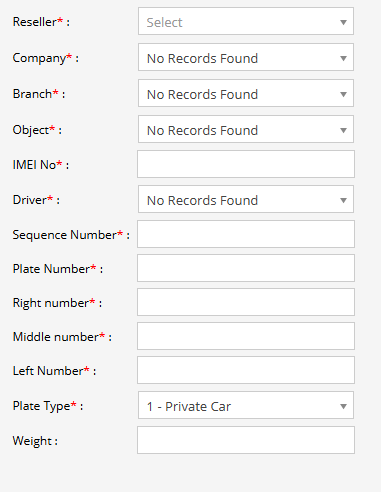
- Select the reseller managing the account.
- Choose the company under which the vehicle will be registered.
- Select the company branch associated with the vehicle.
- Select the tracking object created in the system (device-mapped vehicle entity).
- Enter the unique IMEI number of the GPS tracking device installed in the vehicle.This is mandatory for real-time tracking and WASL synchronization.
- Select the registered driver to assign to this vehicle.Only drivers already registered in the WASL module will appear in the dropdown.
- Enter the official vehicle sequence number which is available on plate number.
- Enter the complete plate number.
- Enter the right-side plate characters.
- Enter the middle plate characters.
- Enter the left-side plate characters.
- Select the appropriate plate type (e.g., Private Car, Commercial, etc.).
- Enter the vehicle weight if required for regulatory classification.
- Click on the Save 💾 icon.