
The Video tab on the Live Tracking screen provides a centralized view of all video telematics-enabled vehicles associated with the logged-in account. Users can monitor the live status of video devices, view available camera channels, and quickly access features such as Live Streaming, Video Playback, Video Download, Intercom and Snapshot Capture for each camera.
The video list is organized by Company and Branch, making it easy to monitor multiple video-enabled vehicles from a single screen.
To view the object tab, go to Listing Panel > Video tab.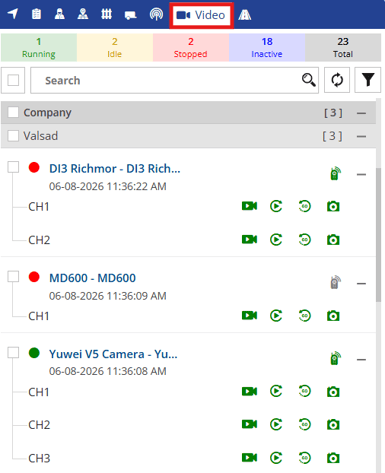
The video tab includes a variety of video features:
Object Status
Object status is displayed in a color-coded form on the vehicle status bar. Below given is the image of the object status bar, which shows the number of vehicles in each category:

Search Object
From here, a user can perform actions on the objects.
Below given are the actions that can be performed:
- Select/Unselect all objects: By clicking on the checkbox
 , a user can select or unselect all the vehicles at once.
 - Search Object: Using the search box, the user can easily search for specific objects by IMEI, Registration, Object Model, Sim Number, etc.

- Fetch: By clicking on the fetch button
 , the user can fetch latest data from the server.
 - Filter: The user can filter
 objects on the basis of Company-Branch or Device Type.
Object Information List
The following details can be accessed and viewed in the object information list.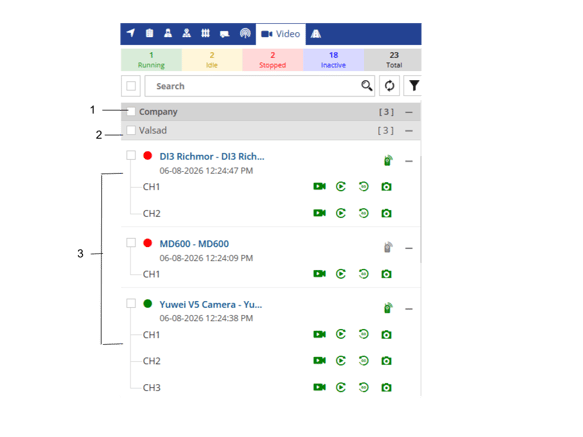
- Company Name: Displays the name of the company associated with the object.
- Branch Name: Displays the branch to which the object is assigned.
- Object List: The list of all the video enabled objects along with their details are displayed.
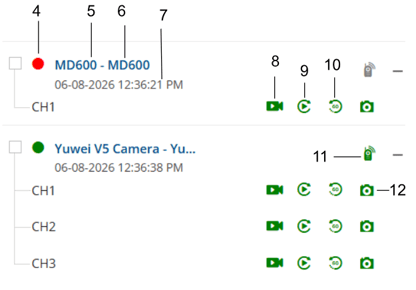
-
Object Status: Below given is the color code that denotes the status of that object:

Running
Vehicles with their Ignition ON and are in a moving state.
Idle
Vehicles with their Ignition ON but are not in a moving state for a specified period of time.
Stopped
Vehicles with their ignition OFF.
Inactive
Vehicles that have not sent any data to the server for specified period of time.
No Data
Vehicles that have not yet sent any live data to the server.
5. Object Number: Displays the license plate number or the unique identification number assigned to the object.
6. Object Name: Displays the specific name assigned to the object.
7. Last Data Updated: The timestamp indicating the latest data received from the device and updated on the server.
8. Live Streaming: Click the Live Streaming icon to open the live video stream for the selected camera channel.
9. Video Playback: Click on the playback button to open the video playback for the selected channel.
10. 60 Sec Playback: Click on the button to open the playback for previous 60 seconds.
11. Intercom: Click on the option to open the intercom (2 way communication ).
12. Snapshot: Click on the option to open the snapshot functionality.