
Reports in a fleet management system provide a structured summary of data and insights related to vehicle activity, performance, and usage. They consolidate and present information in a user-friendly format, enabling better decision-making and operational efficiency.
Uses of Reports
- Analyze vehicle performance, fuel efficiency, and driver behavior.
- Monitor fleet activity, including trip details, idle times, and maintenance schedules.
- Identify areas of cost savings, such as fuel consumption and route optimization.
- Gain insights into current operations for quick decision-making.
- Tailor reports to focus on specific parameters based on business needs.
To Open a Report, click on  > Reports in the mobile application and select the preferred report.
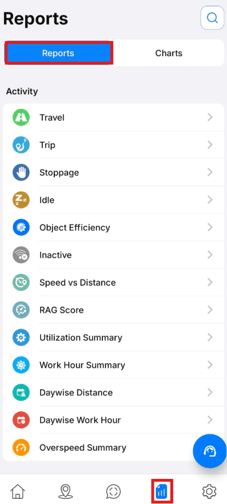
To Generate a report
-
Select the report to generate. once a report is selected the following screen will open.
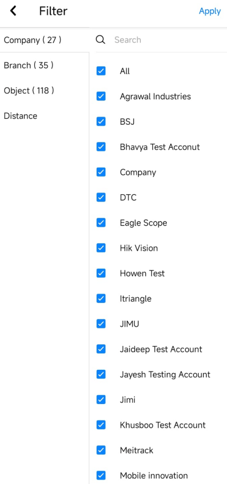
- Company: select the company for which the report is to be generated.
- Branch: Select the Branch for which the report is to be generated.
- Object: Select the Object for which the report is to be generated.
- Apply: Click on Apply on top right to generate the report.
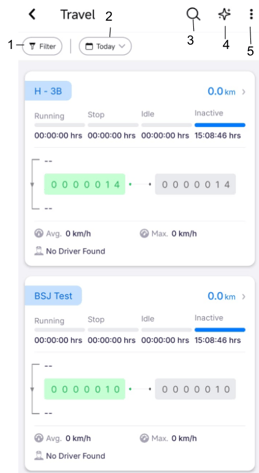
- Filter: Click to select the Company, Branch, and Object for which the report should be generated.
- Date Filter: Select the required date range to generate and view the report.
- Search: Enter a keyword to quickly locate specific records within the report.
- AI Analytics: Click to generate AI-powered insights and analysis for the selected report data.
- Select the AI model that will be used to generate insights and analyze the report data.
- Click Generate to create the AI-powered report based on the selected model and report data.
- Three Dots (More Options): Click to access additional actions, such as export, and view.
- Schedule: Tap to create a schedule for automatically sending a report.
- Export: Tap to download report in XLS or PDF format.
- View: Tap to change the report to Table or Card Format.