
The Trip Wise Event Report provides trip-wise information along with the events recorded during each trip. It helps users review trip start and end details, distance, running, idle, stop and inactive duration, speed, and event information for selected vehicles and alerts.
Benefits
- Review trip-wise vehicle activity.
- Track trip distance and duration.
- Monitor running, idle, stop, and inactive time.
- Review average and maximum speed during trips.
- Identify events recorded during a trip.
- View alert details, severity, duration, and location.
- Drill down from a trip to the individual events associated with it.
How to Access
- Report-->Activity--> Trip Wise Event
Filters
Use the available filters to generate the report: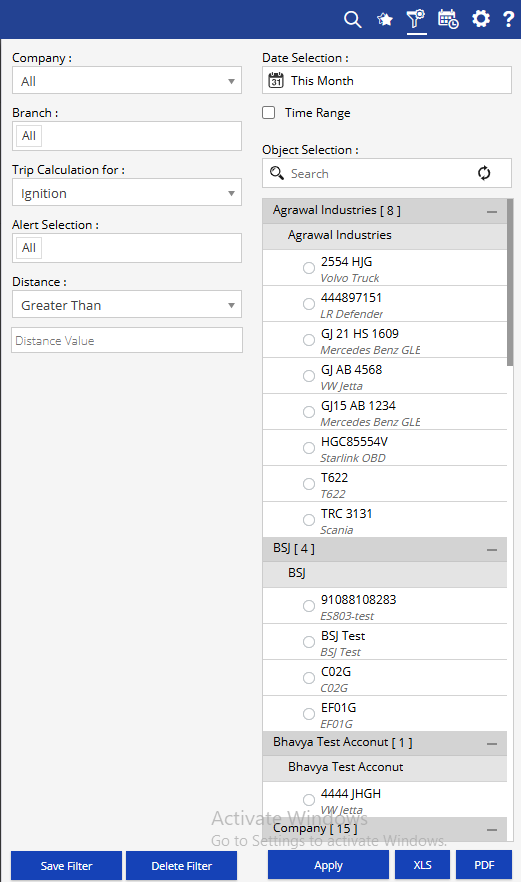
- Company: Select the required company.
- Date Selection: Select the required date or date range.
- Time Range: Enable to specify the required start and end time.
- Branch: Select the required branch.
- Trip Calculation for: Select the parameter used for trip calculation, such as Ignition.
- Alert Selection: Select the required alert.
- Distance: Select the distance condition and enter the required distance value.
- Object Selection: Search and select the required objects from the available hierarchy.
Additional options include Save Filter, Delete Filter, Apply, XLS, and PDF.
Report Layers
The Trip Wise Event Report has two layers: Trip Wise Event Summary → Trip Wise Event Detail.
Layer 1 – Trip Wise Event Summary
Provides trip-wise information for the selected objects.
Key information includes Company, Branch, Object, Start Time, Start Location, Start Odometer, Start Coordinate, End Time, End Location, End Odometer, End Coordinate, Driver, Distance, Running, Idle, Stop, Inactive, Speed AVG, Speed MAX, and Events.
Click the + icon against a trip to view the events recorded for that trip.
Layer 2 – Trip Wise Event Detail
Shows the individual events associated with the selected trip.
Key information includes Alert Date Time, Object, Driver, Contact No, Employee No, Alert, Severity, Alert Information, Duration, Location, and Coordinates.
How to Read
Read the report from trip-wise activity → individual event details.
Layer 1 – Trip Wise Event Summary
- Review the trip's start and end information.
- Check distance, running, idle, stop, and inactive duration.
- Review average and maximum speed.
- Check the number of events associated with the trip.
- Expand the trip to view its event details.
Layer 2 – Trip Wise Event Detail
- Review when the event occurred.
- Identify the alert and its severity.
- Review the alert information and duration.
- Check the location and coordinates where the event was recorded.
Take Action
- Apply filters based on date, time range, branch, trip calculation, alert, distance, and objects.
- Expand a trip to investigate the events recorded during it.
- Review Alert, Severity, and Alert Information to understand the event.
- Use the Location and Coordinates to identify where the event occurred.
- Export the report in XLS or PDF format.
Important Notes
- The report is generated based on the selected date, time range, trip calculation, distance, alert, and object filters.
- The Alert Selection filter can be used to focus the report on specific events.
- Event details are available by expanding the relevant trip.
- The information displayed in the event detail depends on the alerts and data received from the tracking device.