
The Travel Report provides a detailed view of vehicle travel activity for the selected date and objects. It helps users review distance travelled, running, idle, stop and inactive duration, speed, ignition activity, odometer readings, stoppages, alerts, and travel locations.
Benefits
- Monitor vehicle travel activity.
- Track running, idle, stop, and inactive time.
- Review distance and speed information.
- Analyze daily travel performance.
- Check vehicle start and end locations.
- Review individual travel records and tracking data.
- Identify stoppages, overspeed, and alerts.
How to Access
- Report-->Activity-->Travel
Filters
Use the available filters to generate the report: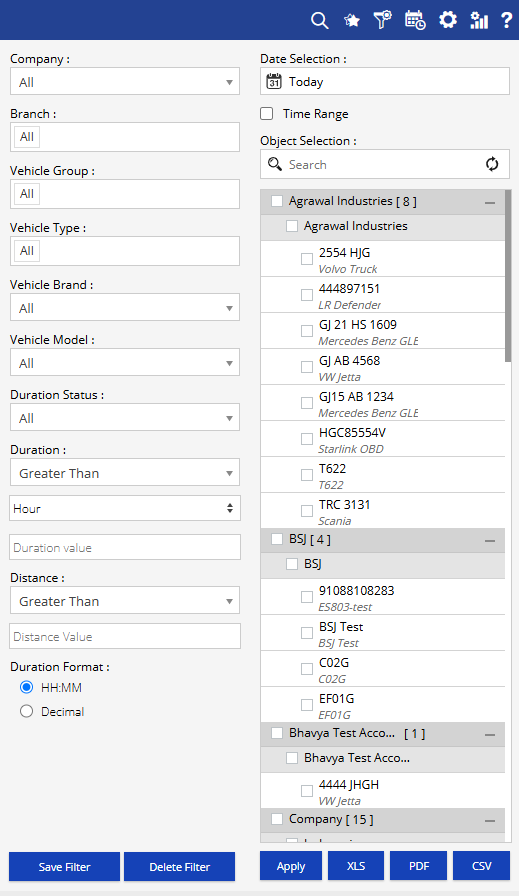
- Company: Select the required company.
- Date Selection: Select the required date or date range.
- Time Range: Enable to specify a particular time range.
- Branch: Select the required branch.
- Vehicle Group: Select the required vehicle group.
- Vehicle Type: Select the required vehicle type.
- Vehicle Brand: Select the required vehicle brand.
- Vehicle Model: Select the required vehicle model.
- Duration Status: Select the required duration status.
- Duration: Select the duration condition and enter the required value.
- Distance: Select the distance condition and enter the required value.
- Duration Format: Select HH:MM or Decimal.
- Object Selection: Search and select the required objects.
Additional options include Save Filter, Delete Filter, Apply, XLS, PDF, and CSV.
Report Layers
The Travel Report has three layers: Travel Summary → Travel Daily Summary → Travel Detail.
Layer 1 – Travel Summary
Provides an overall travel summary for the selected objects and date range.
Key information includes Company, Branch, Object, Object Brand, Object Model, Object Type, Driver, Employee No, IMEI No, Start Location, Start Odometer, First Ignition ON, Distance, Running, Idle, Stop, Inactive, Duration, Work Duration, Workday, Max Stoppage, No of Idle, Speed, Cost based on, Overspeed, Alerts, Approx Toll Cost, End Odometer, Last Ignition OFF, End Location, and Playback.
Click the + icon to view the daily travel summary.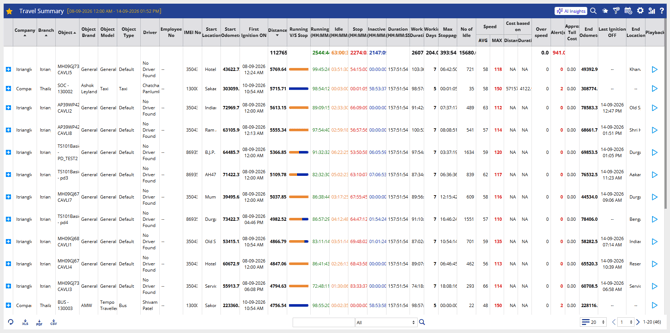
Layer 2 – Travel Daily Summary
Provides a date-wise travel summary for the selected object.
Key information includes Date, Day, Driver, Employee No, First Ignition ON, Start Location, Approx Distance, Running, Stop, Idle, Inactive, Running V/S Stop, Speed, Duration, Cost based on, Alert, Approx Toll Cost, Start Odometer, End Odometer, Last Ignition OFF, End Location, History, and Playback.
Click the + icon to view the detailed travel records for a selected date.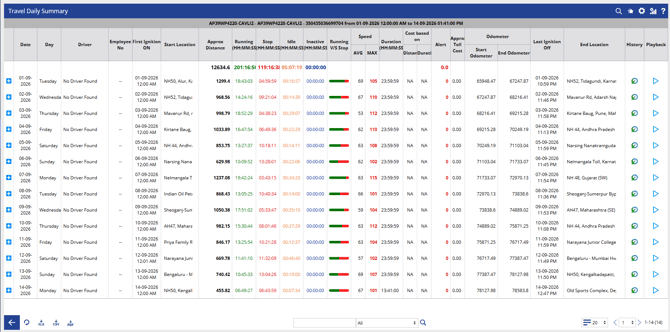
Layer 3 – Travel Detail
Shows individual travel records for the selected object and date.
Key information includes Object, Date, Time, IGN, Battery %, External Voltage, Location, Speed, Last Distance, Distance, History Data, Latitude, Longitude, No Of Satellite, and Map.
Use the Map option to view the recorded location.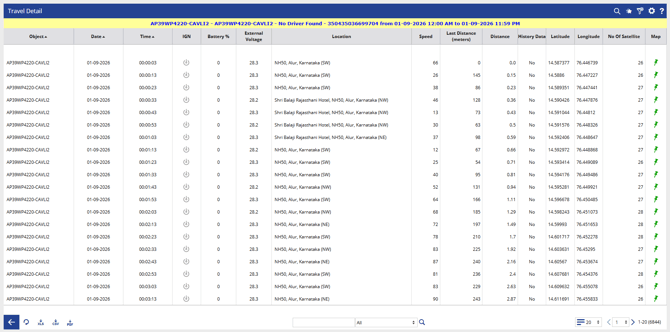
How to Read
Read the report from overall travel summary → daily travel summary → individual travel records.
Layer 1 – Travel Summary
- Review overall vehicle travel and performance.
- Check distance, running, idle, stop, speed, stoppage, and alert information.
Layer 2 – Travel Daily Summary
- Review travel activity for each date.
- Compare daily distance, running, idle, stop, speed, and duration.
Layer 3 – Travel Detail
- Review individual tracking records with time, location, speed, distance, ignition, battery, voltage, and GPS information.
Take Action
- Apply filters to focus on specific vehicles or travel conditions.
- Expand an Object to review its daily travel activity.
- Expand a Date to view individual travel records.
- Use Playback to review travel activity where available.
- Use Map to check recorded locations.
- Export the report in XLS, PDF, or CSV format.
Important Notes
- Report data is based on the selected date, time range, objects, duration, and distance filters.
- Duration Format can be displayed as HH:MM or Decimal.
- The availability of certain fields depends on the data received from the device and configured features.