
The Objects ADAS DMS Events Report provides a consolidated view of ADAS (Advanced Driver Assistance System) and DMS (Driver Monitoring System) events recorded for vehicles or objects during the selected period. It helps users monitor safety-related events at the vehicle level and track their review status.
The report provides a summary of total ADAS and DMS events, reviewed and unreviewed events, reviewed percentage, average review time, unique drivers, and repeat event count. Users can drill down into a selected vehicle to view individual events, their associated driver, event details, location, review information, and available evidence.
Benefits
- Monitor ADAS and DMS events recorded for individual vehicles.
- Track reviewed and unreviewed events to identify pending event reviews.
- Measure event review activity using reviewed percentage and average review time.
- Identify vehicles with recurring events using repeat event count.
- Identify the number of drivers associated with recorded events.
- Review individual events with their event type, date, time, and location.
- Access available video and image evidence for further investigation.
- Mark events as reviewed and maintain review records.
How to Access
- Report-->Driver-->Objects ADAS DMS Event
Filters
Use the available filters to generate the report: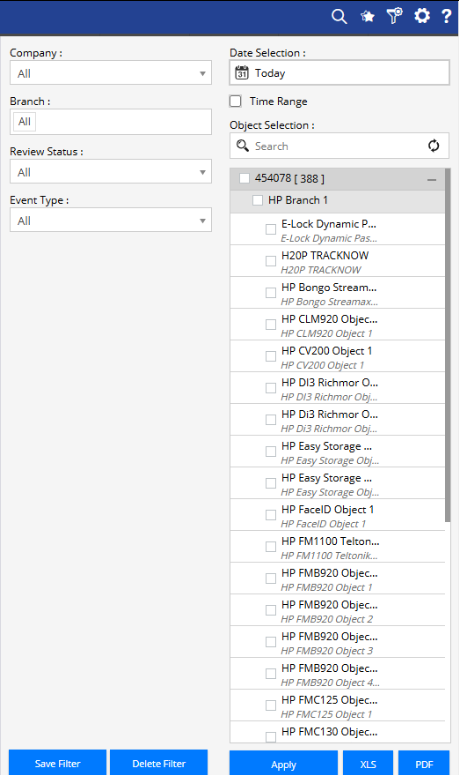
- Company: Select the required company.
- Branch: Select the required branch.
- Date Selection: Select the required reporting period.
- Time Range: Enable this option to specify a particular time range, where applicable.
- Review Status: Filter events based on their review status.
- Event Type: Select the required ADAS or DMS event type.
- Object Selection: Select the required vehicle or object.
Additional options include Save Filter, Delete Filter, Apply, XLS, and PDF.
Report Layers
The Objects ADAS DMS Events Report has two levels of information:
Layer 1 – Objects ADAS DMS Events
Provides a vehicle-level summary of ADAS and DMS events, including total events, reviewed and unreviewed events, review percentage, average review time, unique drivers, and repeat event count.
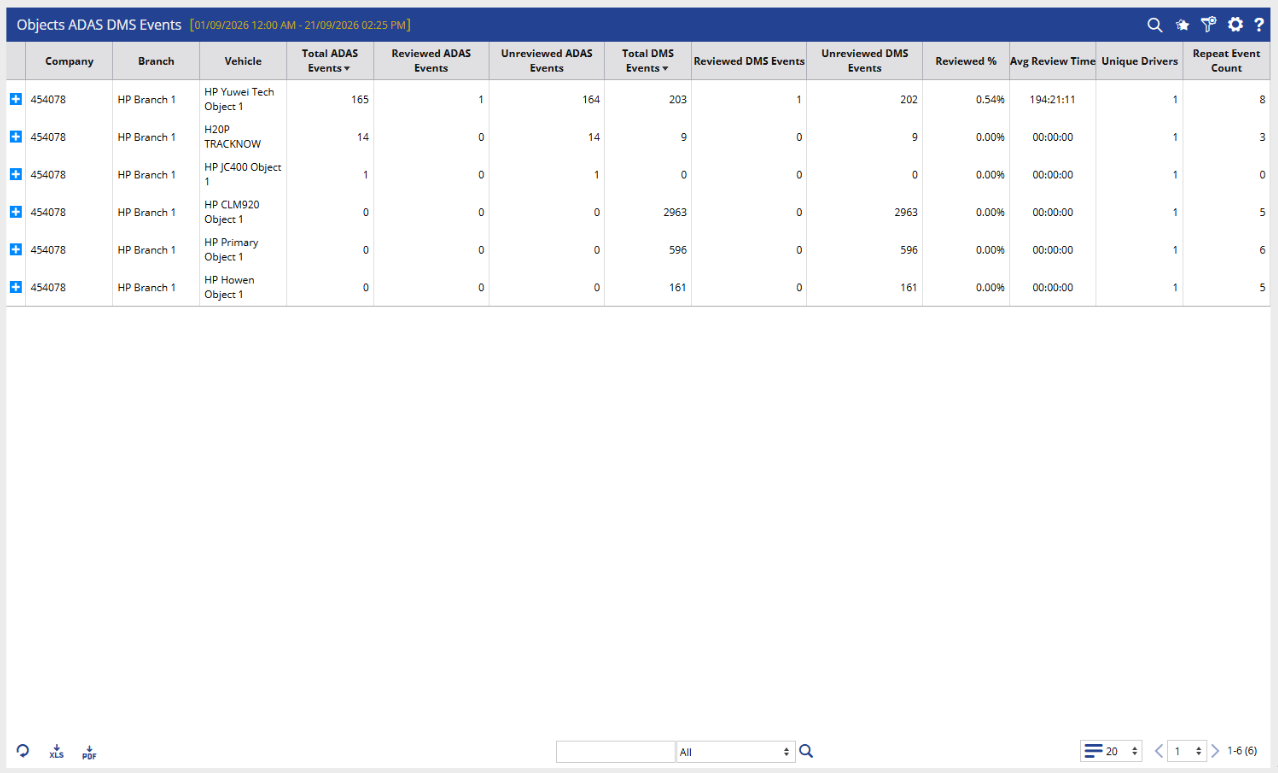
Layer 2 – Vehicle Wise Event Detail
Displays the individual events recorded for the selected vehicle, including the associated driver, event information, event date and time, location, review status, and available evidence.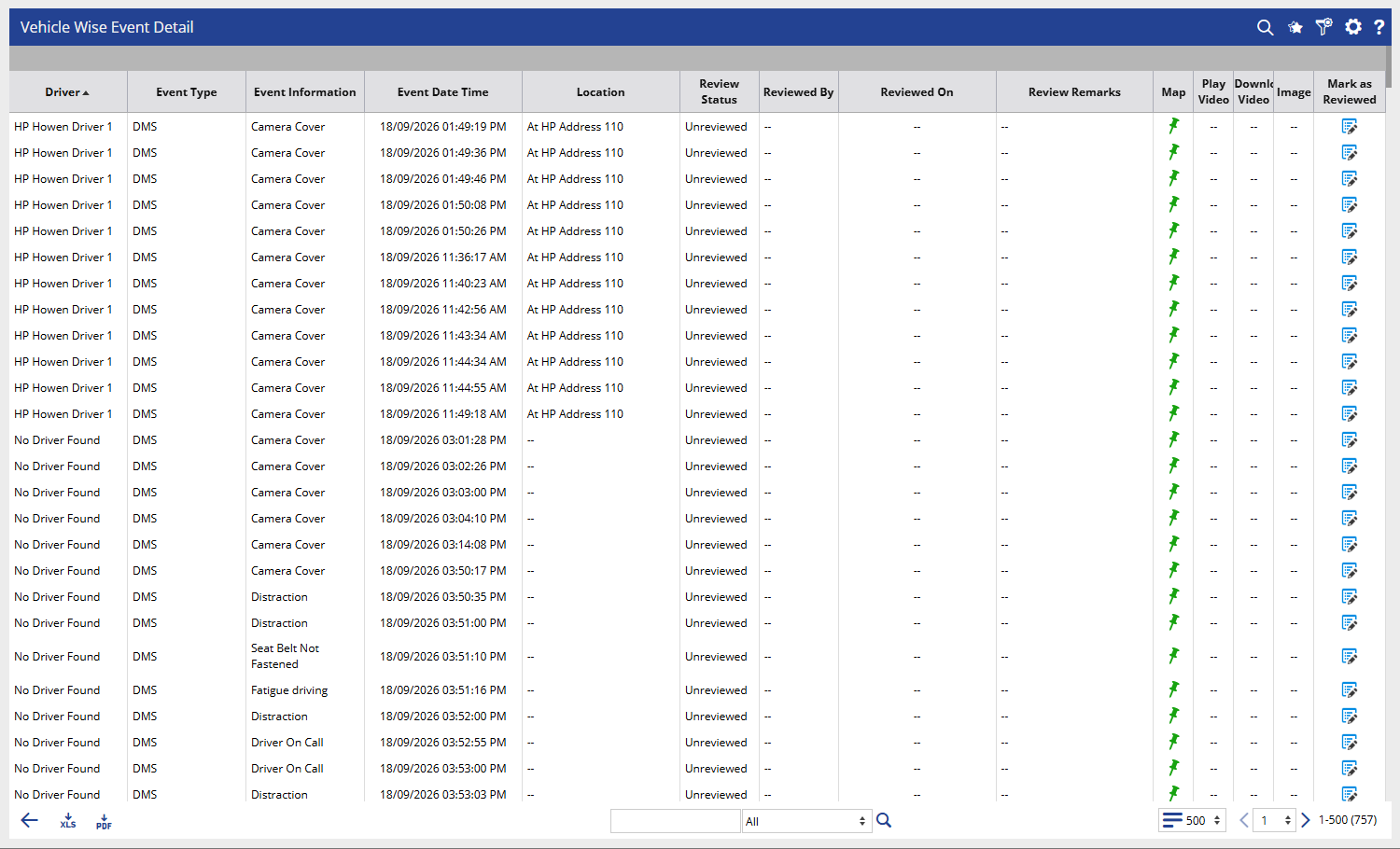
How to Read
Objects ADAS DMS Events
- Company shows the company associated with the vehicle or object.
- Branch shows the branch associated with the vehicle.
- Vehicle identifies the vehicle or tracking object for which events have been recorded.
- Total ADAS Events shows the total number of ADAS events recorded for the selected vehicle.
- Reviewed ADAS Events shows the number of ADAS events that have been reviewed.
- Unreviewed ADAS Events shows the number of ADAS events that are still pending review.
- Total DMS Events shows the total number of DMS events recorded for the selected vehicle.
- Reviewed DMS Events shows the number of DMS events that have been reviewed.
- Unreviewed DMS Events shows the number of DMS events that are still pending review.
- Reviewed % indicates the percentage of recorded events that have been reviewed.
- Avg Review Time shows the average time taken to review the recorded events.
- Unique Drivers indicates the number of distinct drivers associated with the events recorded for the vehicle.
- Repeat Event Count shows the number of recurring or repeated events recorded for the vehicle.
Vehicle Wise Event Detail
- Driver identifies the driver associated with the recorded event, where available. If a driver cannot be identified, the system may display No Driver Found.
- Event Type indicates whether the event is an ADAS or DMS event.
- Event Information provides details of the detected event, such as Camera Cover, Distraction, Seat Belt Not Fastened, Fatigue Driving, or Driver On Call.
- Event Date Time shows when the event was recorded.
- Location shows the location associated with the event, where available.
- Review Status indicates whether the event has been reviewed or remains unreviewed.
- Reviewed By shows the user who reviewed the event, where applicable.
- Reviewed On shows when the event was reviewed.
- Review Remarks displays remarks added during the event review.
- Map provides an option to view the event location on the map.
- Play Video allows users to play the event video when available.
- Download Video allows users to download the available event video.
- Image provides access to the image captured for the event, where available.
- Mark as Reviewed allows users to update the event's review status after reviewing it.
Take Action
- Select the required company, branch, date range, review status, event type, and objects to focus the report.
- Review Total ADAS Events and Total DMS Events to understand the volume of safety events recorded for each vehicle.
- Compare Reviewed Events and Unreviewed Events to identify events that still require attention.
- Check Reviewed % to monitor the progress of event-review activities.
- Review Avg Review Time to understand the time taken to process recorded events.
- Check Unique Drivers to identify how many drivers are associated with events for a vehicle.
- Review Repeat Event Count to identify recurring safety events.
- Use the + option to open the detailed events for a selected vehicle.
- Review the Driver, Event Type, Event Information, and Event Date Time to understand individual events.
- Use Map to review the location associated with an event.
- Use Play Video, Download Video, or Image when supporting evidence is available.
- Add Review Remarks when observations or comments need to be recorded.
- Use Mark as Reviewed after completing the event review.
- Export the report in XLS or PDF format for further analysis or sharing.
Important Notes
- The report is generated according to the selected company, branch, date selection, review status, event type, and object selection filters.
- ADAS and DMS event availability depends on the supported hardware, camera systems, and configured integrations.
- A vehicle may have events associated with multiple drivers during the selected period.
- No Driver Found may be displayed when the system cannot associate an event with a specific driver.
- Reviewed % reflects the review activity for the events included in the selected report criteria.
- Avg Review Time is calculated based on the available event-review records.
- Video and image options are available only when corresponding event evidence has been captured and stored.
- Review Status, Reviewed By, Reviewed On, and Review Remarks provide information about the event-review activity.
- The + option allows users to move from the vehicle-level summary to individual event records.
- Event types and available evidence may vary depending on the connected ADAS/DMS system and configuration.