
The Object Utilization Rate Report provides an overview of how effectively vehicles or other tracked objects are utilized during the selected period. It compares the object's working days, non-working days, working hours, outside working hours, and non-working hours based on the configured working schedule.
The report helps fleet managers understand whether objects are being used during their expected working periods and identify objects with low utilization or extended non-working periods.
Benefits
- Monitor object utilization during the selected reporting period.
- Compare working and non-working days for each object.
- Identify objects with low or zero utilization.
- Review the percentage of activity occurring during working hours and outside working hours.
- Identify objects that remain non-working for extended periods.
- Compare utilization across different branches, object groups, and vehicle groups.
How to Access
- Report-->Activity-->Object Utilization Rate
Filters
Use the available filters to generate the report: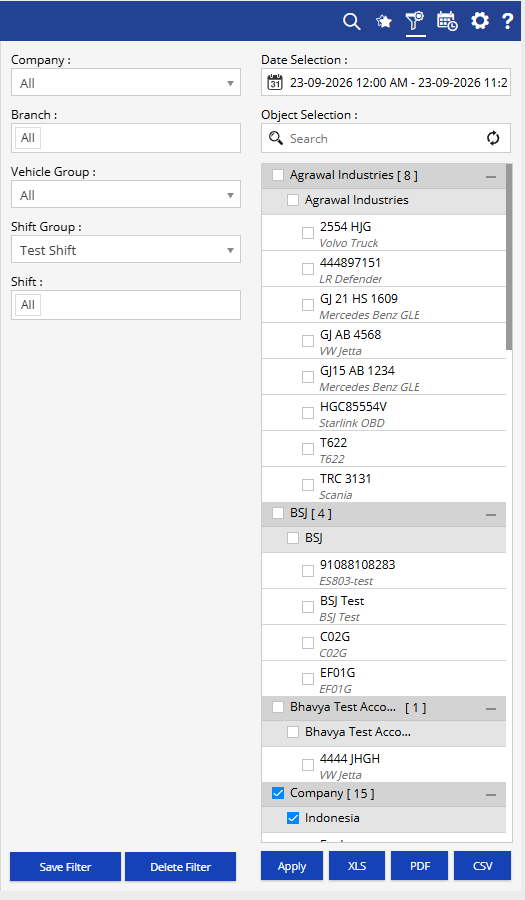
- Company: Select the required company.
- Branch: Select the required branch.
- Date Selection: Select the required reporting period.
- Vehicle Group: Select the required vehicle group to filter objects belonging to a specific group.
- Shift Group: Select the required shift group.
- Shift: Select the required shift for the selected shift group.
- Object Selection: Select the required objects or vehicles to include in the report.
Additional options include Save Filter, Delete Filter, Apply, XLS, PDF, and CSV.
How to Read
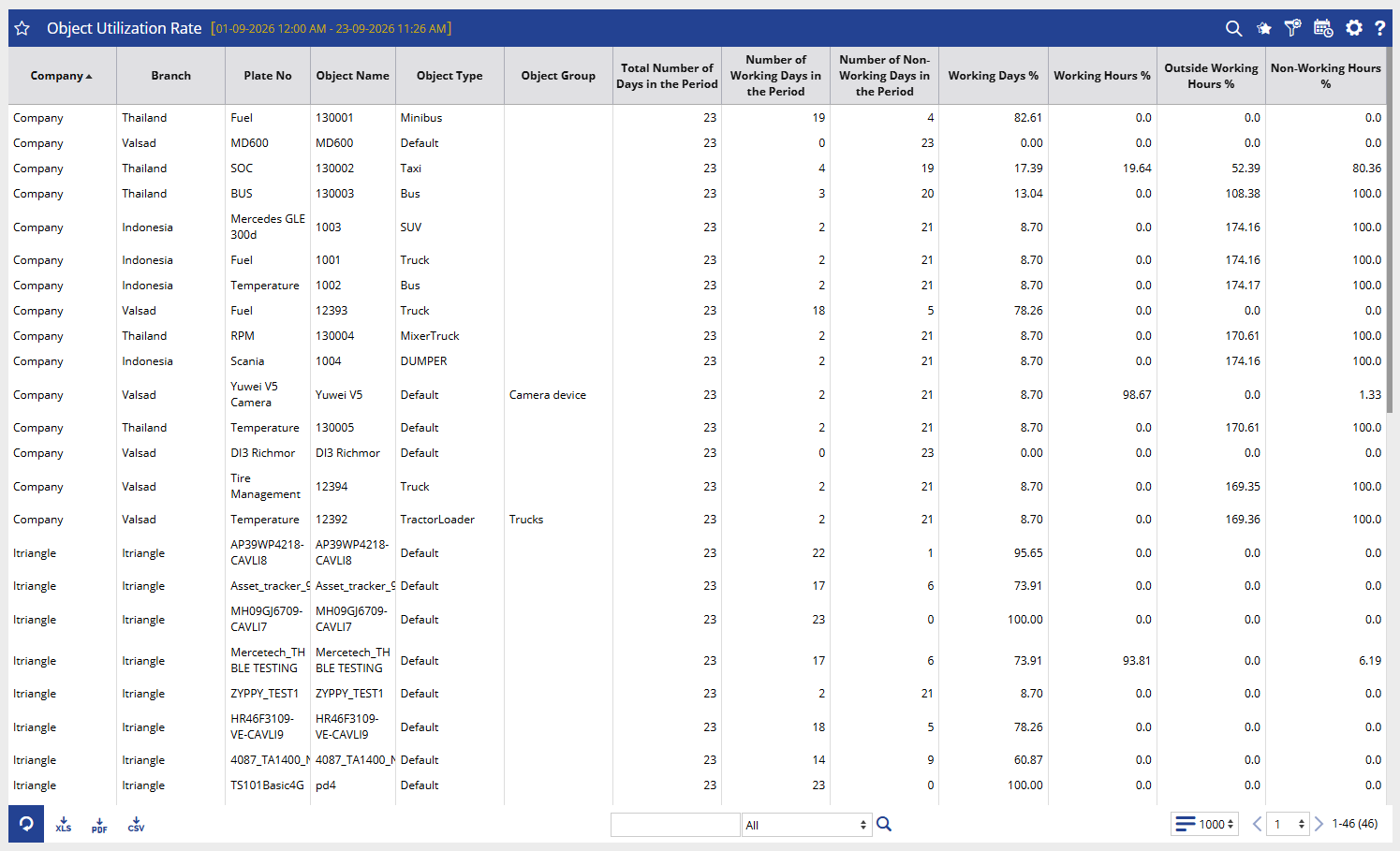
Each row represents an object or vehicle and provides an overview of its utilization during the selected period.
- Company identifies the company associated with the object.
- Branch shows the branch associated with the object.
- Plate No displays the vehicle registration or plate number.
- Object Name identifies the tracked object or vehicle.
- Object Type shows the type of vehicle or object, such as Bus, Truck, SUV, Taxi, or Default.
- Object Group displays the group assigned to the object, where configured.
- Total Number of Days in the Period shows the total number of days included in the selected reporting period.
- Number of Working Days in the Period shows the number of days on which the object was recorded as working.
- Number of Non-Working Days in the Period shows the number of days on which the object was recorded as non-working.
- Working Days % displays the percentage of days the object was utilized or working during the selected period.
- Working Hours % shows the percentage of recorded activity that occurred within the configured working hours.
- Outside Working Hours % indicates the percentage of activity that occurred outside the configured working hours.
- Non-Working Hours % shows the percentage of the selected period during which the object was recorded as non-working.
Take Action
- Select the required company, branch, date range, vehicle group, shift group, and shift to focus the analysis.
- Use Object Selection to review utilization for specific vehicles or tracked objects.
- Compare Working Days % across objects to identify differences in utilization.
- Review Working Hours % to understand whether objects are being used during their configured working schedules.
- Check Outside Working Hours % to identify activity occurring beyond the expected working schedule.
- Review Non-Working Hours % to identify objects that remain inactive for significant periods.
- Compare utilization across branches, object types, and object groups to identify operational patterns.
- Export the report in XLS, PDF, or CSV format for further analysis or sharing.
Important Notes
- The report is generated according to the selected company, branch, date selection, vehicle group, shift group, shift, and object filters.
- Utilization calculations depend on the working and shift configurations available for the selected objects.
- Working Days and Non-Working Days are calculated for the selected reporting period.
- Working Hours %, Outside Working Hours %, and Non-Working Hours % are based on the configured working schedule and recorded object activity.
- Objects without applicable working or shift configurations may display limited or zero utilization values.
- The report can be used to identify objects that are underutilized, inactive, or operating outside their planned working schedule.
- The availability and accuracy of utilization information depend on the object's tracking data and configured working/shift schedules.