
The Object Efficiency Report provides an overview of vehicle efficiency by comparing distance travelled and working hours against the defined minimum working hours and distance. It helps users evaluate how efficiently objects are being utilized during the selected period.
Benefits
- Monitor object efficiency.
- Compare actual distance with the defined minimum distance.
- Compare actual working hours with the defined minimum working hours.
- Identify objects performing above or below the defined minimum values.
- Review daily efficiency for individual objects.
- Analyze travel, idle, stop, and total working hours.
How to Access
- Report-->Activity-->Object Efficiency
Filters
Use the available filters to generate the report: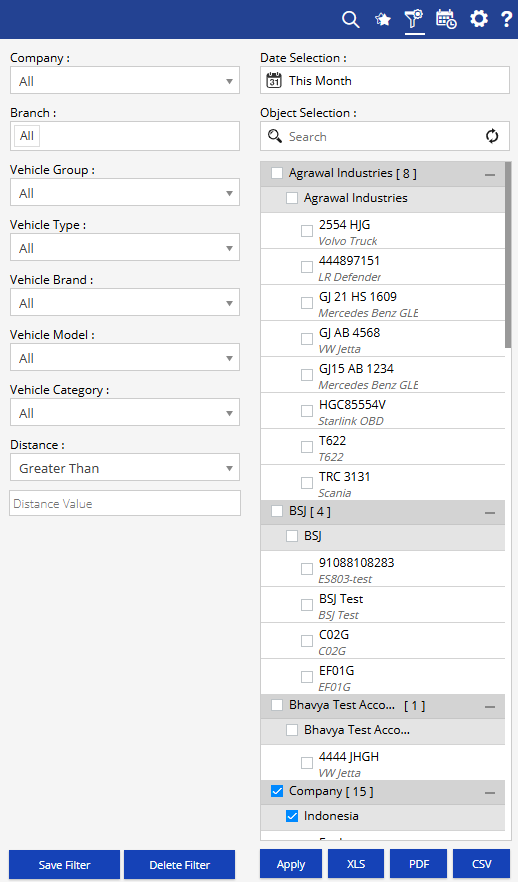
- Company: Select the required company.
- Date Selection: Select the required date or date range.
- Branch: Select the required branch.
- Vehicle Group: Select the required vehicle group.
- Vehicle Type: Select the required vehicle type.
- Vehicle Brand: Select the required vehicle brand.
- Vehicle Model: Select the required vehicle model.
- Vehicle Category: Select the required vehicle category.
- Distance: Select the distance condition and enter the required distance value.
- Object Selection: Search and select the required objects from the available hierarchy.
Additional options include Save Filter, Delete Filter, Apply, XLS, PDF, and CSV.
Report Layers
The Object Efficiency Report has two layers: Object Efficiency Summary → Object Efficiency Detail.
Layer 1 – Object Efficiency Summary
Provides an overall efficiency view for the selected objects.
Key information includes Company, Branch, Object No, Object Name, Object Category, Object Brand, Object Model, Distance, Per Day Km, Stop Duration, Idle Duration, Travel Duration, Total Working Time, Avg Working Hours, Minimum Working Hrs, Minimum Distance, Difference in Working Hrs, Difference in Distance, Efficiency (%) for Working Hrs, and Efficiency (%) for Distance.
Click the + icon against an object to view its daily efficiency details.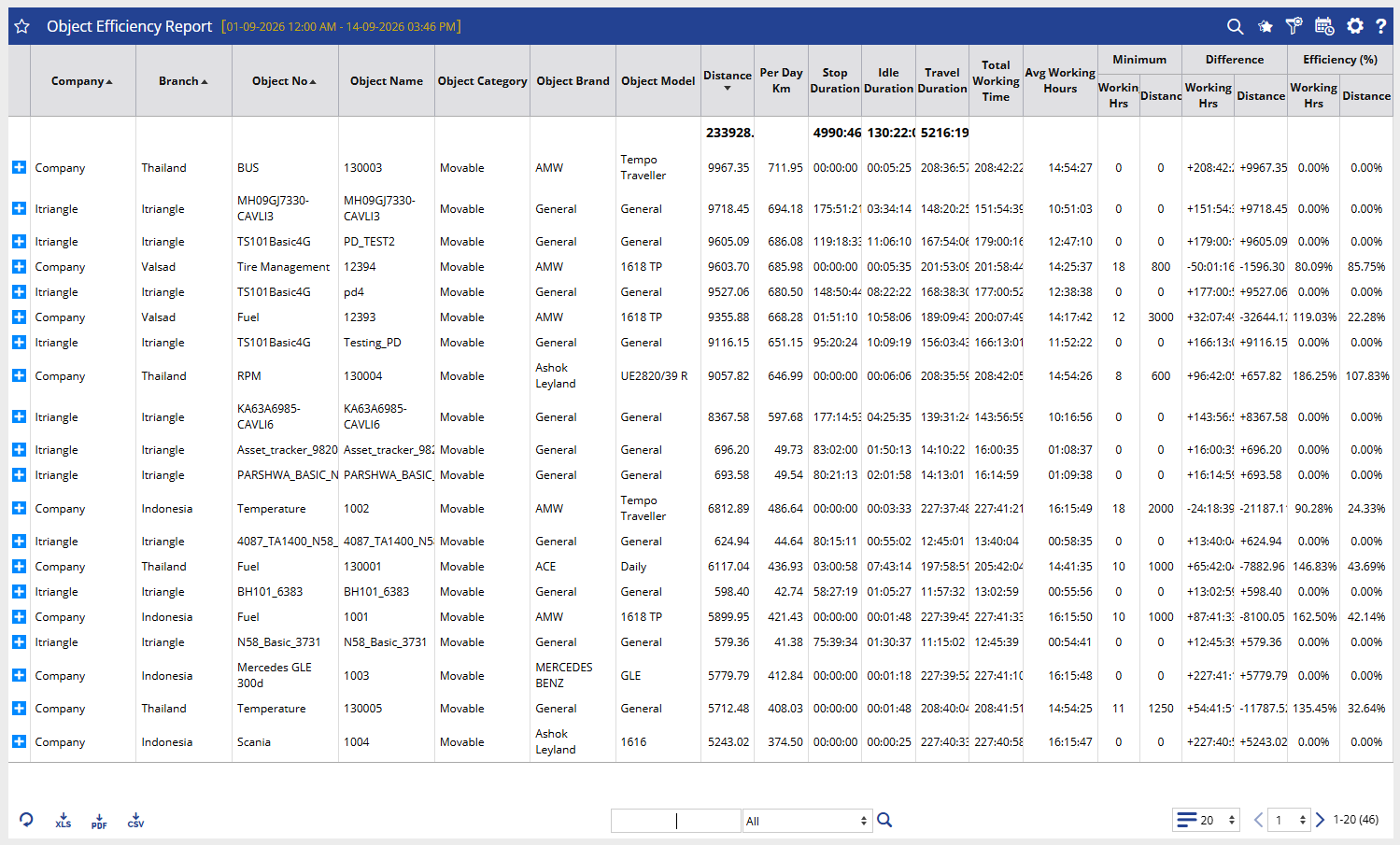
Layer 2 – Object Efficiency Detail
Provides date-wise efficiency information for the selected object.
Key information includes Date, Distance, Stop Duration, Idle Duration, Travel Duration, Total Working Hrs, Minimum Working Hrs, Minimum Distance, Difference in Working Hrs, Difference in Distance, Efficiency (%) for Working Hrs, and Efficiency (%) for Distance.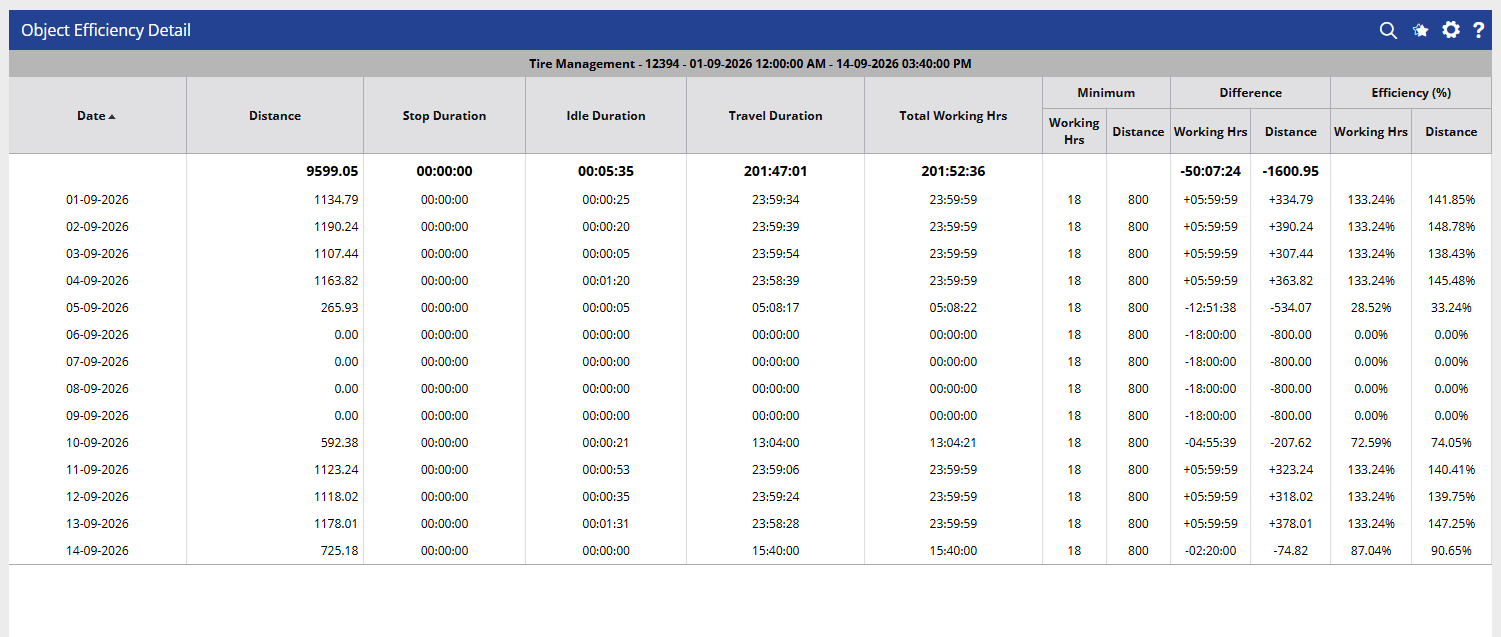
How to Read
Read the report from overall object efficiency → daily efficiency details.
Layer 1 – Object Efficiency Summary
- Review the object's total distance and working time.
- Compare actual values with Minimum Working Hrs and Minimum Distance.
- Check the Difference values to identify the gap against the defined minimums.
- Review efficiency percentages for working hours and distance.
- Expand an object to view its daily performance.
Layer 2 – Object Efficiency Detail
- Review efficiency for each date.
- Compare daily distance and working hours against the minimum values.
- Check the difference in working hours and distance.
- Review daily efficiency percentages.
Take Action
- Apply filters based on date, vehicle details, category, distance, and objects.
- Review objects with lower efficiency against the defined minimum values.
- Expand an Object to analyze its daily efficiency.
- Compare Efficiency (%) for working hours and distance to identify areas requiring attention.
- Export the report in XLS, PDF, or CSV format.
Important Notes
- Efficiency is calculated using the working hours and distance against the defined minimum values.
- The report displays separate efficiency percentages for Working Hrs and Distance.
- Difference values show the variation between the actual and minimum defined values.
- Daily efficiency details are available by expanding the relevant object.