
The Object Battery Status Report provides the battery status of selected objects by displaying their battery voltage, GPS status, last data update time, and current status. It helps users monitor object battery levels and identify objects that may require attention.
Benefits
- Monitor battery voltage of objects.
- Identify objects with low battery voltage.
- Check whether GPS data is being received.
- Review the last data update time.
- Monitor the current status of objects.
- Filter battery information for specific vehicles or objects.
How to Access
- Report-->Activity-->Object Battery Status
Filters
Use the available filters to generate the report: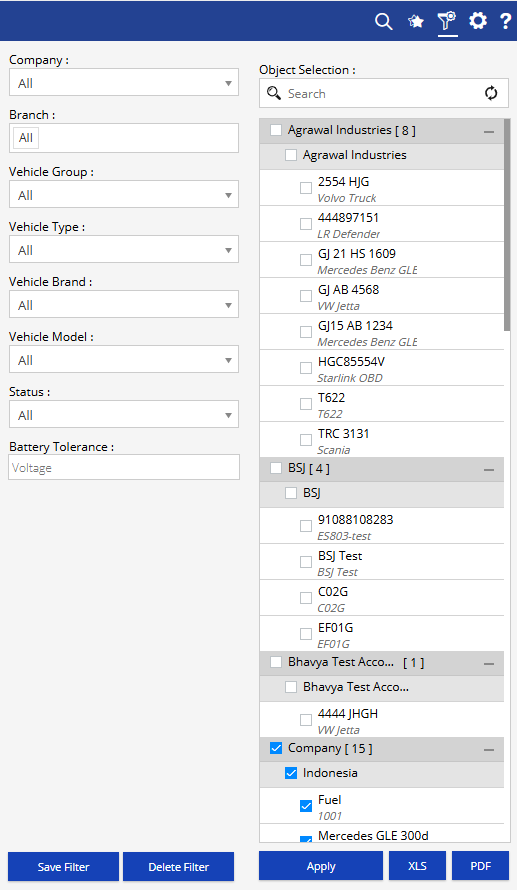
- Company: Select the required company.
- Branch: Select the required branch.
- Vehicle Group: Select the required vehicle group.
- Vehicle Type: Select the required vehicle type.
- Vehicle Brand: Select the required vehicle brand.
- Vehicle Model: Select the required vehicle model.
- Status: Select the required object status.
- Battery Tolerance: Enter the required battery voltage tolerance.
- Object Selection: Search and select the required objects from the available hierarchy.
Additional options include Save Filter, Delete Filter, Apply, XLS, and PDF.
Report Layers
The Object Battery Status Report has one layer: Object Battery Status.
Layer 1 – Object Battery Status
Provides the battery and connectivity status of the selected objects.
Key information includes:
- Company
- Branch
- Object
- Object Brand
- Object Model
- IMEI No
- Object Battery Voltage
- GPS
- Last Data Update
- Status
The GPS column displays the GPS connectivity/data status, while the Status column provides a visual status indicator for the object.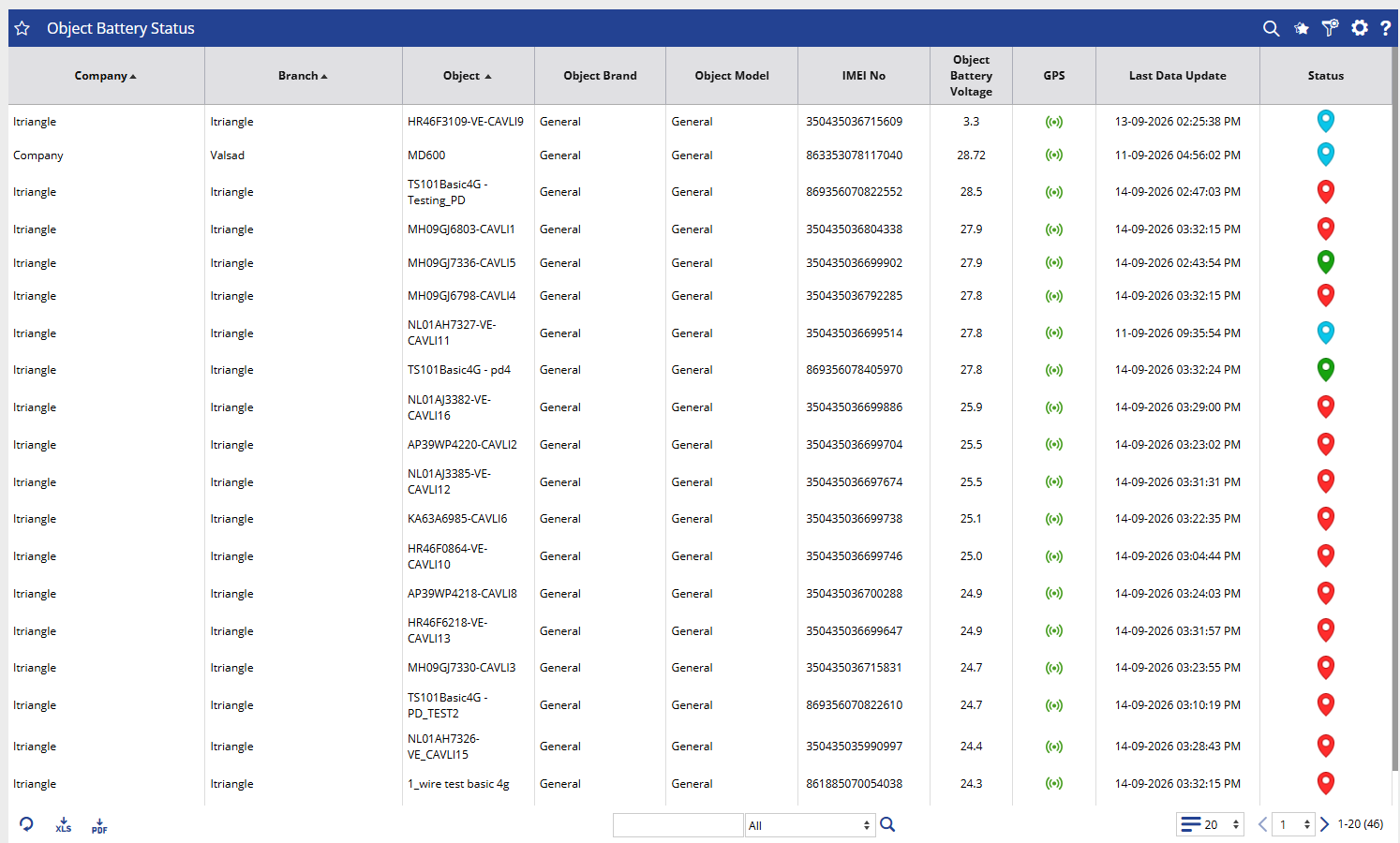
How to Read
Read the report by reviewing the object identification → battery voltage → GPS status → last data update → status.
Object Battery Status
- Identify the object using Company, Branch, Object, and IMEI No.
- Check the Object Battery Voltage to review the reported battery level.
- Check the GPS column to verify the displayed GPS status.
- Review Last Data Update to determine when the latest data was received.
- Check the Status indicator for the object's current status.
Take Action
- Apply filters to focus on specific companies, branches, vehicle groups, vehicle types, brands, models, or statuses.
- Use Battery Tolerance to filter based on the required battery voltage tolerance.
- Review objects with lower battery voltage for further attention.
- Check Last Data Update and GPS status when investigating object connectivity.
- Export the report in XLS or PDF format.
Important Notes
- The report displays the Object Battery Voltage received for the selected objects.
- Battery Tolerance is provided as a voltage-based filter.
- GPS and Last Data Update values depend on the data received from the tracking device.
- The Status is represented visually in the report.