
The Geofence Trip Report provides a detailed view of trips made by vehicles between geofences during the selected period. It helps users understand where a trip started and ended, the time spent travelling, distance covered, vehicle activity, fuel usage, and temperature information where applicable.
The report is particularly useful for analyzing trips in relation to defined geofences and reviewing operational and fuel-related information for each trip.
Benefits
- Track trips between defined geofences.
- Review start and end locations and timestamps.
- Analyze distance, running, idle, stop, and inactive durations.
- Monitor fuel consumption, refills, and fuel drain during trips.
- Review temperature readings where temperature data is available.
- Use Playback to review the vehicle's movement during the trip.
How to Access
- Report-->Geofence-Address-->Geofence Trip Report
Filters
Use the available filters to generate the report: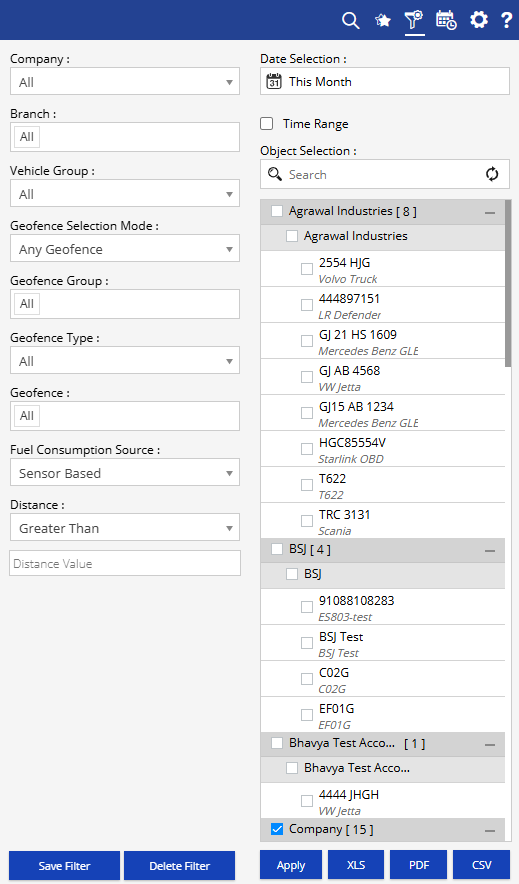
- Company: Select the required company.
- Date Selection: Select the required date or date range.
- Branch: Select the required branch.
- Vehicle Group: Select the required vehicle group.
- Geofence Selection Mode: Select how geofences should be considered for the report.
- Geofence Group: Select the required geofence group.
- Geofence Type: Select the required geofence type.
- Geofence: Select the required geofence.
- Fuel Consumption Source: Select the source used for calculating fuel consumption.
- Distance: Select the required distance condition and enter the distance value.
Additional options include Save Filter, Delete Filter, Apply, XLS, PDF, and CSV.
Report Layers
The Geofence Trip Report has two levels of information:
Layer 1 – Geofence Trip Report
Provides a summary of each trip between the selected geofences.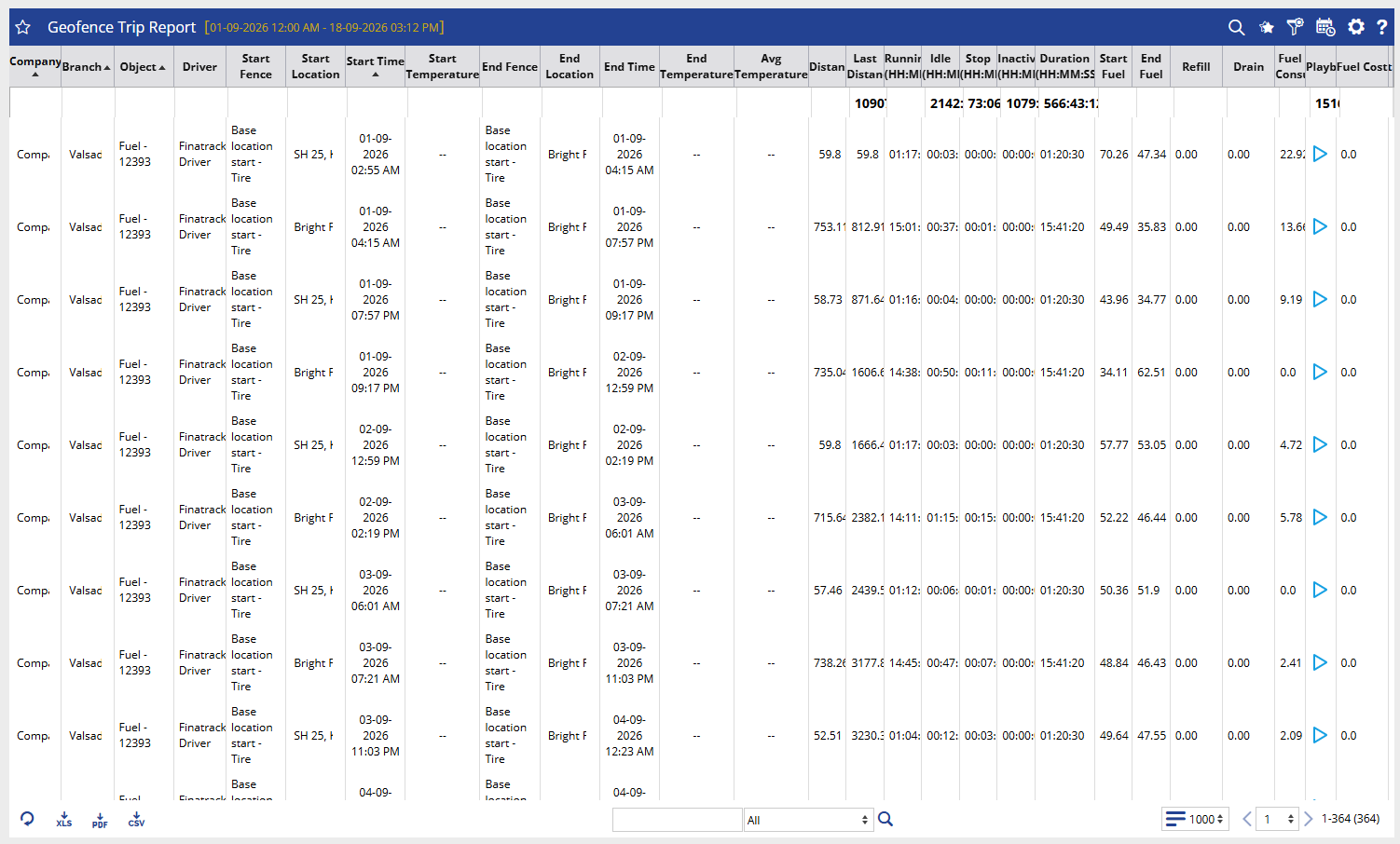
Layer 2 – Trip Details
The Playback option can be used to review the movement associated with an individual trip.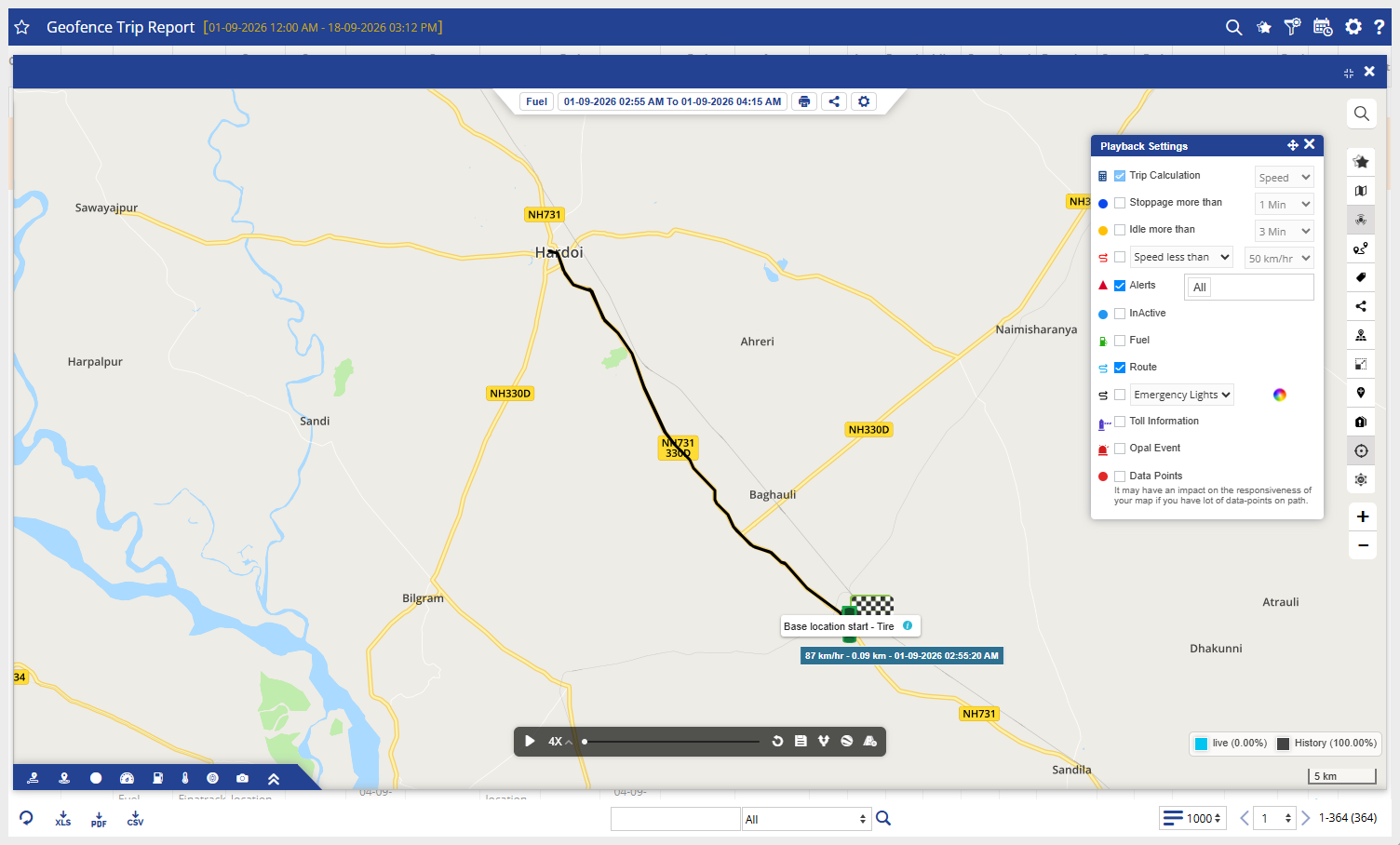
How to Read
Geofence Trip Report
- Company identifies the company under which the trip is recorded.
- Branch shows the branch associated with the vehicle.
- Object identifies the vehicle or tracking object for which the trip is generated.
- Driver shows the driver assigned to the vehicle during the trip.
- Start Fence identifies the geofence from which the trip started.
- Start Location shows the location where the vehicle started the trip.
- Start Time indicates the date and time when the trip started.
- Start Temperature displays the temperature recorded at the beginning of the trip, where temperature data is available.
- End Fence identifies the geofence where the trip ended.
- End Location shows the location where the vehicle reached at the end of the trip.
- End Time indicates the date and time when the trip ended.
- End Temperature displays the temperature recorded at the end of the trip, where temperature data is available.
- Avg Temperature shows the average temperature recorded during the trip, where applicable.
- Distance indicates the distance covered during the individual trip.
- Last Distance shows the cumulative/latest distance value associated with the trip record.
- Running shows the total time for which the vehicle was in motion during the trip.
- Idle indicates the time for which the vehicle remained idle during the trip.
- Stop shows the total time for which the vehicle was stopped during the trip.
- Inactive indicates the duration for which the tracking device was inactive or not reporting during the trip.
- Duration (HH:MM:SS) shows the total duration between the start and end of the trip.
- Start Fuel displays the fuel level recorded when the trip started.
- End Fuel displays the fuel level recorded when the trip ended.
- Refill shows the fuel added during the trip, if a refill event was detected.
- Drain shows the fuel lost or drained during the trip, if a drain event was detected.
- Fuel Consumption indicates the fuel consumed during the trip based on the selected fuel consumption source.
- Playback allows the user to review the vehicle's movement and trip activity for the selected record.
- Fuel Cost displays the calculated fuel cost associated with the trip, where applicable.
Take Action
- Apply geofence and object filters to focus the report on specific trips.
- Compare Start Fence and End Fence to understand the movement between locations.
- Review Distance and Duration to analyze trip efficiency.
- Check Running, Idle, Stop, and Inactive values to understand how the vehicle spent its trip time.
- Review Start Fuel, End Fuel, Refill, Drain, and Fuel Consumption to analyze fuel usage.
- Use Playback when detailed movement verification is required.
- Export the report in XLS, PDF, or CSV format for further analysis or sharing.
Important Notes
- The report is generated according to the selected date, object, and geofence filters.
- Start Fence and End Fence represent the geofences associated with the beginning and end of the recorded trip.
- Temperature-related fields are applicable when the selected vehicle has compatible temperature data.
- Fuel-related values depend on the selected Fuel Consumption Source and the data received from the tracking device.
- Running, Idle, Stop, and Inactive durations are calculated from the tracking data available for the selected trip.
- Playback availability depends on the historical tracking data available for the selected vehicle and period.