
The Geofence In/Out Summary provides a consolidated view of how many times vehicles or objects entered and exited each configured geofence during the selected period. It helps users monitor geofence activity and understand the frequency of visits to specific locations.
Benefits
- Monitor vehicle entries and exits across geofences.
- Track the number of visits to specific geofences.
- Compare entry and exit activity for different geofences.
- Identify frequently visited locations.
- Review detailed entry and exit records for a specific geofence.
How to Access
- Report-->Geofence-Address-->Geofence In/Out Summary
Filters
Use the available filters to generate the report: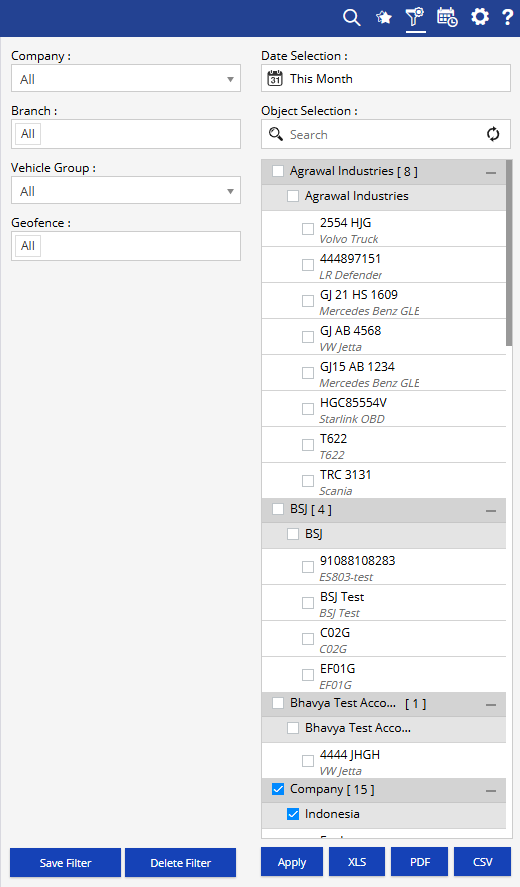
- Company: Select the required company.
- Date Selection: Select the required date or date range.
- Branch: Select the required branch.
- Vehicle Group: Select the required vehicle group.
- Geofence: Select the required geofence.
- Object Selection: Search and select the required objects from the available hierarchy.
Additional options include Save Filter, Delete Filter, Apply, XLS, PDF, and CSV.
Report Layers
The Geofence In/Out Summary has two layers:
Layer 1 – Geofence In/Out Summary
Provides the consolidated count of entries and exits for each geofence.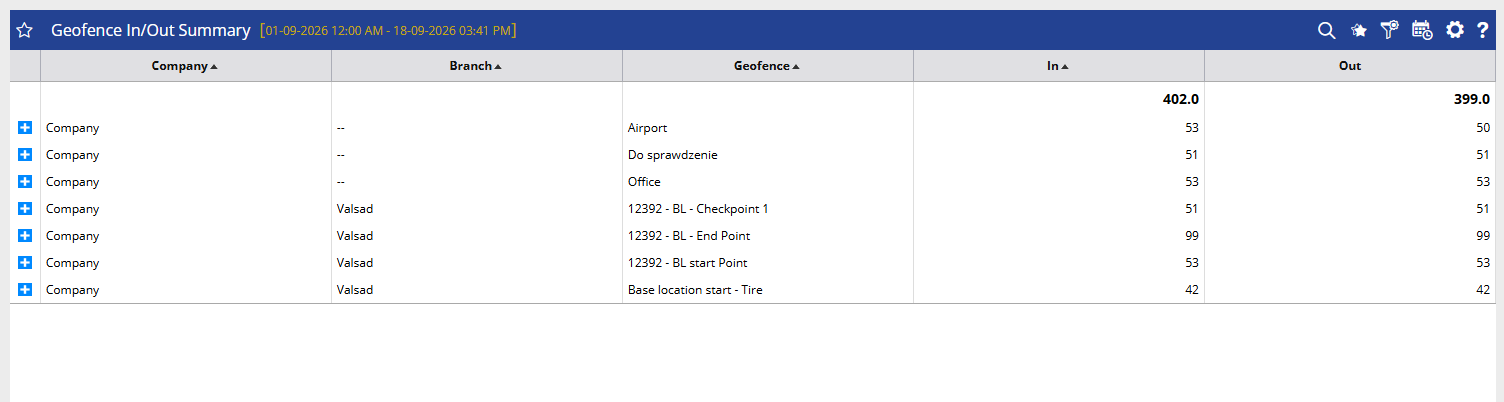
Layer 2 – Geofence In/Out Detail
Click the + icon against a geofence to view the detailed records of individual objects entering and exiting that geofence.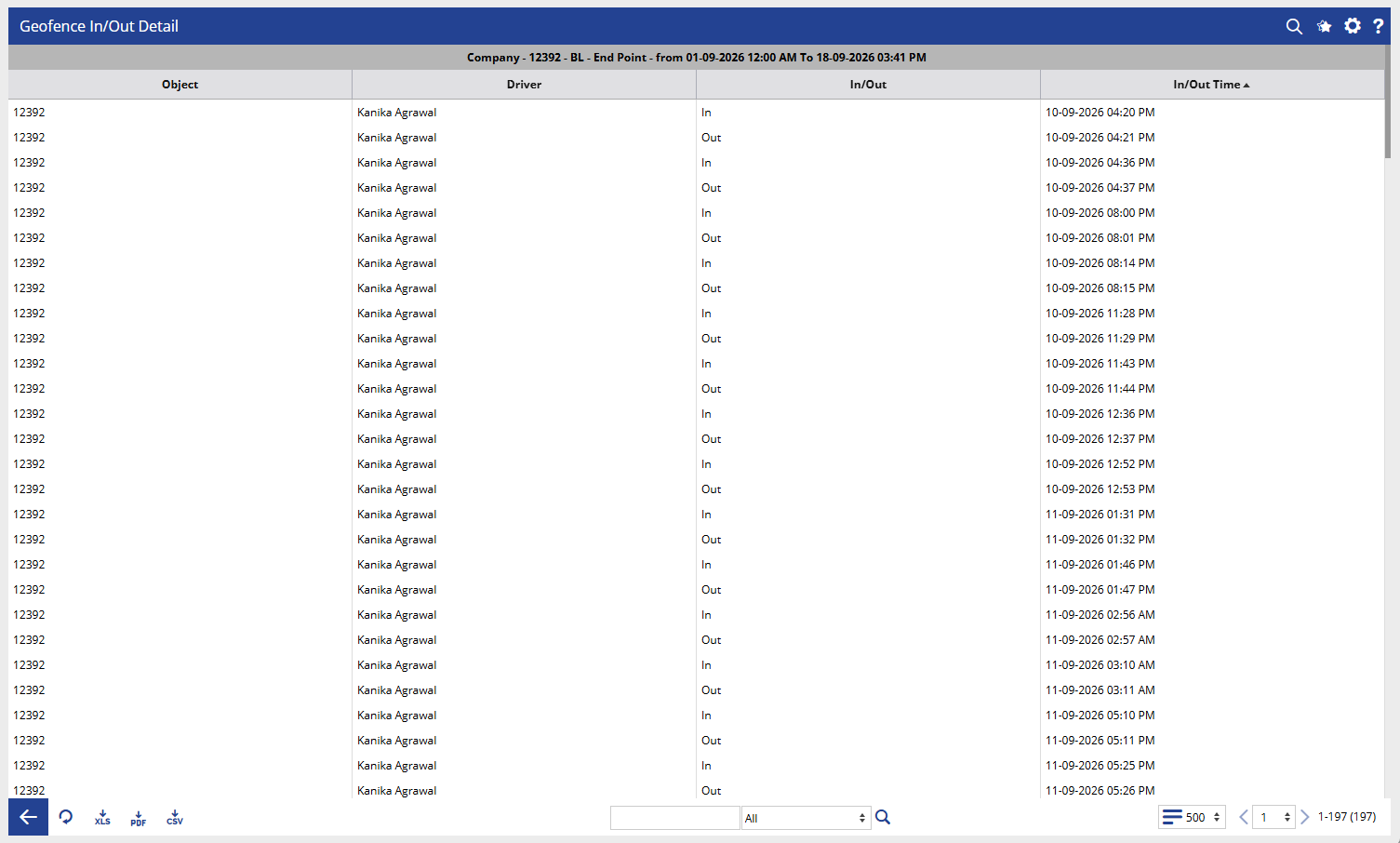
How to Read
Geofence In/Out Summary
- Company identifies the company under which the geofence activity is recorded.
- Branch shows the branch associated with the geofence.
- Geofence identifies the specific geofence for which entry and exit activity is summarized.
- In shows the total number of times objects entered the selected geofence during the selected period.
- Out shows the total number of times objects exited the selected geofence during the selected period.
Use the In and Out values to understand the overall movement through each geofence. For example, if a geofence shows 53 In and 50 Out, it indicates that 53 entry events and 50 exit events were recorded for that geofence within the selected period.
Geofence In/Out Detail
When the + icon is selected, the detail layer provides information for the individual object:
- Object identifies the vehicle or tracking object associated with the event.
- Driver shows the driver assigned to the object at the time of the event.
- In/Out indicates whether the recorded event was an entry into or exit from the geofence.
- In/Out Time shows the date and time when the entry or exit event was recorded.
The detail view can be used to verify the individual movements that contribute to the In and Out counts shown in the summary.
Take Action
- Apply Company, Branch, Vehicle Group, Geofence, and Object filters to focus on the required geofence activity.
- Compare In and Out counts to understand movement through each geofence.
- Expand a geofence using the + icon to verify individual vehicle movements.
- Review In/Out Time to identify when specific objects entered or exited.
- Export the report in XLS, PDF, or CSV format for further analysis or sharing.
Important Notes
- The report is generated according to the selected date, vehicle, and geofence filters.
- In and Out represent recorded geofence entry and exit events, not necessarily unique vehicles.
- The detail layer shows the individual events contributing to the summary counts.
- Entry and exit information depends on the tracking data received from the selected objects and the configured geofences.