
The Driver/Object Violation Report provides a consolidated view of driving and safety-related violations associated with drivers or objects during the selected period. It helps users monitor overspeeding, acceleration, braking, cornering, seatbelt violations, AC misuse, nonstop driving, night driving, idling, overstay, ADAS, and DMS-related events.
The report combines driving activity with violation data, allowing fleet managers to review distance travelled, running duration, average and maximum speed, and different types of recorded violations. Users can generate the report based on either Object or Driver.
Benefits
- Monitor driving and safety violations across drivers or vehicles.
- Identify speeding and risky driving events such as harsh acceleration, braking, and cornering.
- Track operational violations such as idling, nonstop driving, night driving, and overstay.
- Review ADAS and DMS-related events where supported.
- Compare driving activity with recorded violations for better fleet monitoring.
- Drill down into individual violation events to review the event time and location.
How to Access
- Report-->Driver-->Driver/Object Violation
Filters
Use the available filters to generate the report: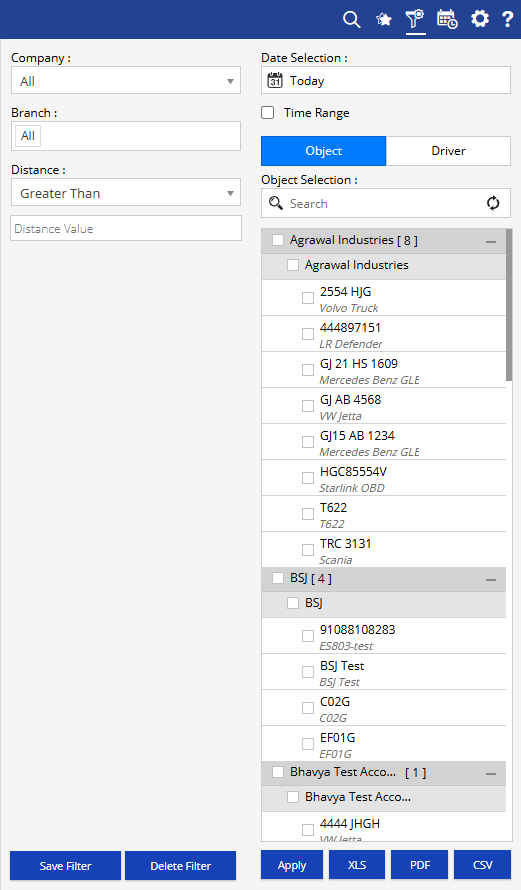
- Company: Select the required company.
- Branch: Select the required branch.
- Date Selection: Select the required reporting period.
- Time Range: Enable this option to specify a particular time range, where applicable.
- Distance: Select the required distance condition, such as Greater Than, and enter the required distance value.
- Object / Driver: Select whether the report should be generated based on Object or Driver.
- Object Selection / Driver Selection: Select the required objects or drivers based on the selected report mode.
Additional options include Save Filter, Delete Filter, Apply, XLS, PDF, and CSV, depending on the selected view.
Report Layers
The Driver/Object Violation Report has two levels of information:
Layer 1 – Driver/Object Violation
Provides a summary of driving activity and violations for the selected driver or object, including distance, running time, speed information, and different violation categories.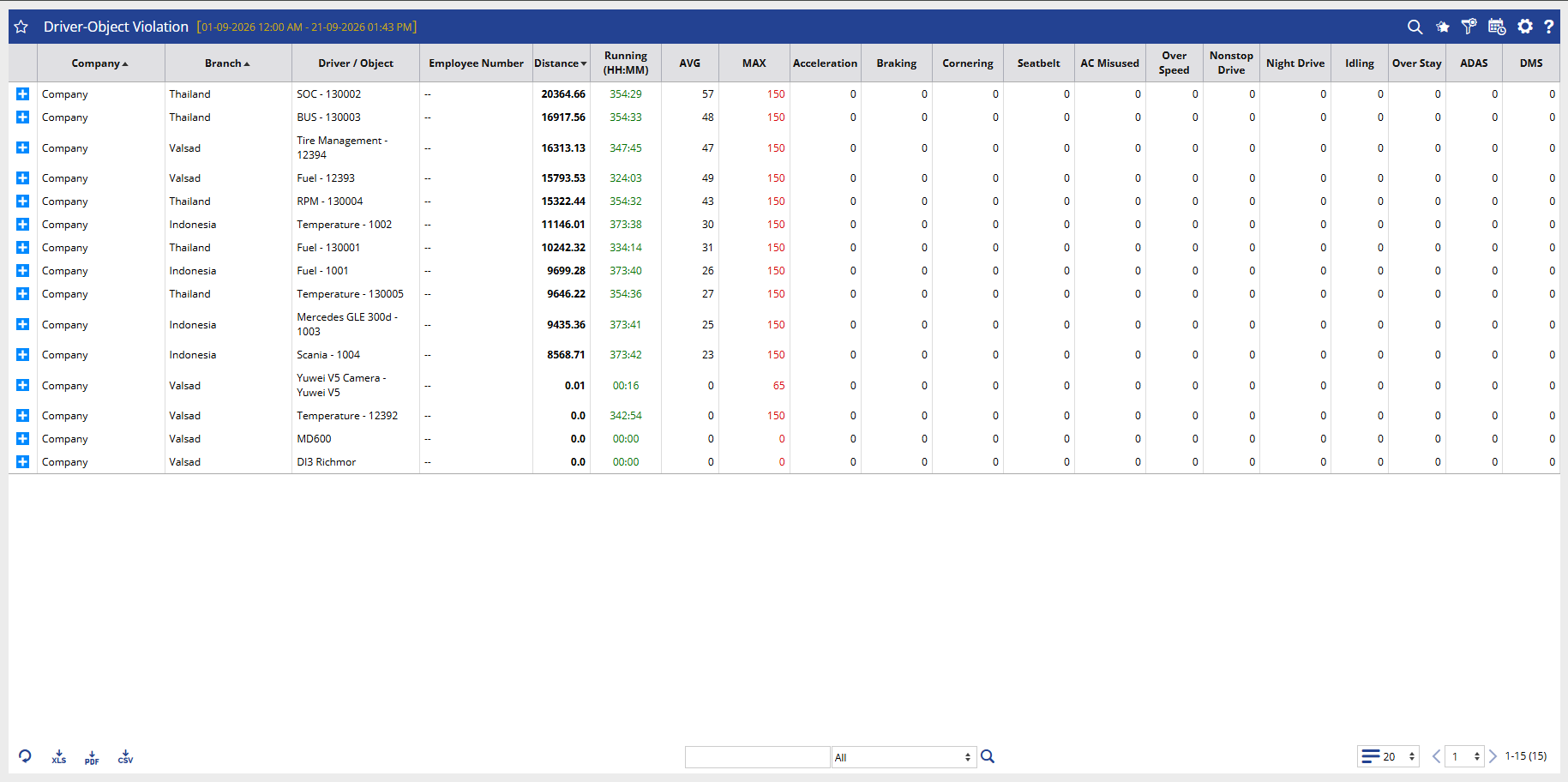
Layer 2 – Driver Violation Detail
Displays the detailed violation records for the selected object, including the violation information, event date and time, location, and map reference.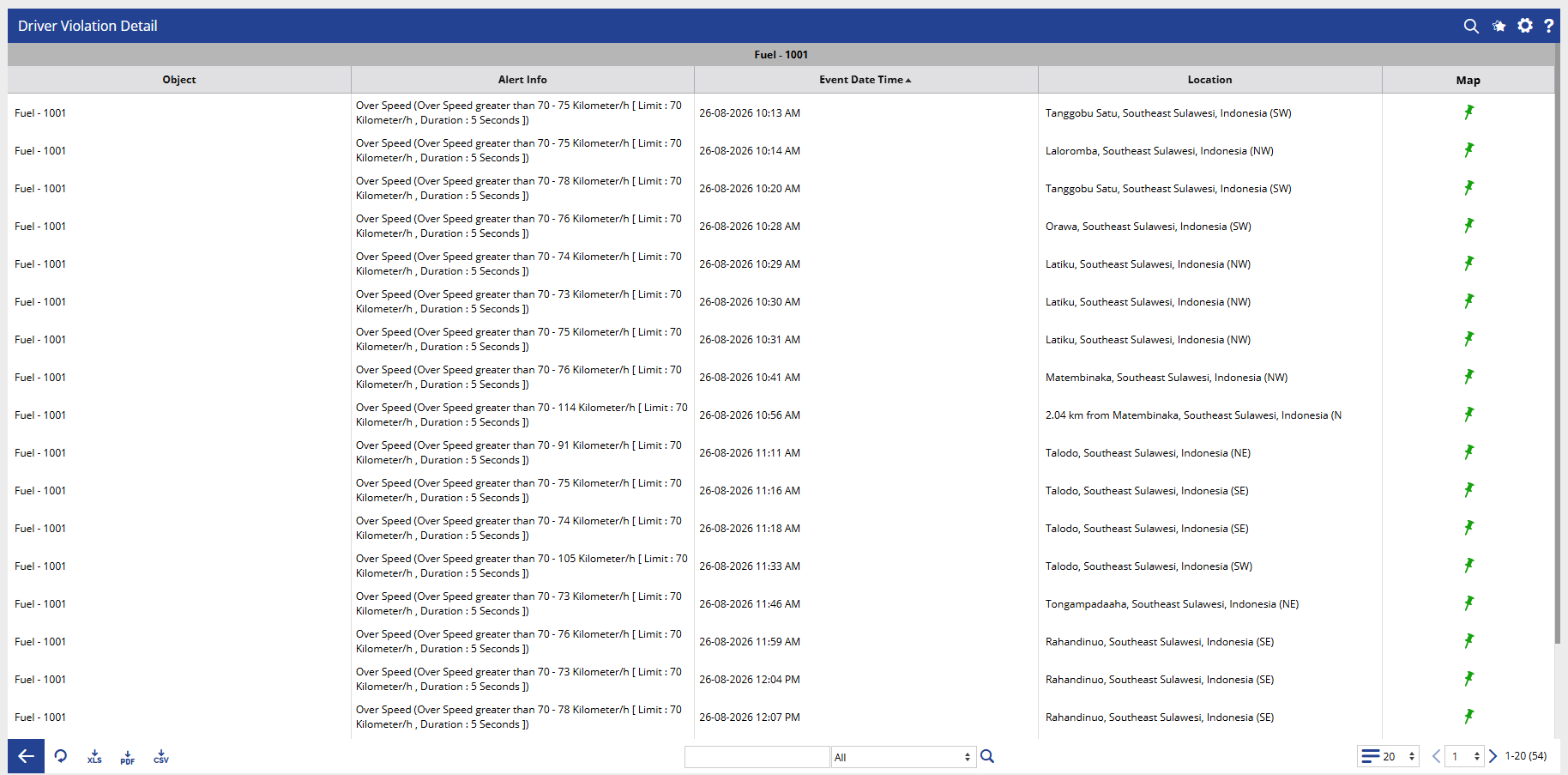
How to Read
Driver/Object Violation
- Company identifies the company associated with the driver or object.
- Branch shows the branch associated with the driver or object.
- Driver / Object identifies the driver or tracking object for which the violation data is displayed.
- Employee Number displays the employee number associated with the driver, where available.
- Distance shows the total distance travelled during the selected period.
- Running (HH:MM) shows the total running duration recorded during the selected period.
- AVG displays the average speed recorded.
- MAX displays the maximum speed recorded.
- Acceleration shows the number of acceleration-related violations.
- Braking shows the number of braking-related violations.
- Cornering shows the number of cornering-related violations.
- Seatbelt displays the number of recorded seatbelt violations.
- AC Misused shows the number of AC misuse events, where configured.
- Over Speed shows the number of overspeed violations recorded.
- Nonstop Drive displays violations related to continuous driving beyond configured limits.
- Night Drive shows the number of violations recorded during configured night-driving conditions.
- Idling shows the number of recorded idling violations.
- Over Stay displays the number of overstay violations.
- ADAS shows violations detected through the Advanced Driver Assistance System.
- DMS shows violations detected through the Driver Monitoring System.
Driver Violation Detail
- Object identifies the vehicle or tracking object associated with the violation.
- Alert Info displays information about the recorded violation, including the relevant violation condition and configured threshold where applicable.
- Event Date Time shows when the violation occurred.
- Location shows the location where the violation was recorded.
- Map provides an option to view the violation location on the map.
Take Action
- Select the required company, branch, date range, and distance condition to narrow the report.
- Choose Object or Driver depending on whether the analysis is required at vehicle or driver level.
- Review Distance, Running, AVG, and MAX to understand the driving activity during the selected period.
- Check Over Speed, Acceleration, Braking, and Cornering to identify specific driving behaviour events.
- Review Seatbelt, AC Misused, Nonstop Drive, Night Drive, Idling, and Over Stay to identify operational and safety-related violations.
- Check ADAS and DMS values to review events detected through connected driver-safety systems.
- Use the + option to open the detailed violation records for a selected driver or object.
- Review Alert Info, Event Date Time, and Location to understand individual violation events.
- Use the Map option in the detail view to review where a specific violation occurred.
- Export the report in XLS, PDF, or CSV format for further analysis or sharing.
Important Notes
- The report is generated according to the selected company, branch, date selection, distance condition, and driver/object selection.
- The report can be viewed using either Object or Driver mode.
- Violation counts depend on the events recorded during the selected reporting period.
- The availability of ADAS and DMS information depends on the relevant devices, integrations, and system configurations.
- Average and maximum speed values are calculated from the driving data available for the selected period.
- Violation thresholds and conditions, such as overspeed limits or nonstop driving criteria, depend on the configured system rules.
- The Driver Violation Detail provides event-level information for further investigation of recorded violations.
- Some violation categories may display no data when the corresponding feature, device, or configuration is not available.