
The Driver Work Hour Summary Report provides a consolidated view of driver working hours and driving activity during the selected period. It helps users understand how much time and distance a driver spends in work hours and non-work hours, along with overall running and stop activity.
The report provides a summary of distance, running time, stop duration, work hour distance and running time, non-work hour distance and running time, and first and last ignition timings. Users can drill down into a selected driver to view detailed work-hour records based on configured shifts.
Benefits
- Monitor driver working hours during the selected period.
- Compare work-hour and non-work-hour driving activity.
- Review distance and running time completed during and outside assigned work hours.
- Identify driver activity outside configured working shifts.
- Review first ignition and last ignition timings for better activity tracking.
- Drill down into daily shift-level details for a selected driver.
- Use Playback from the detailed view to review the corresponding vehicle activity, where available.
How to Access
- Report-->Driver-->Driver Work Hour
Filters
Use the available filters to generate the report: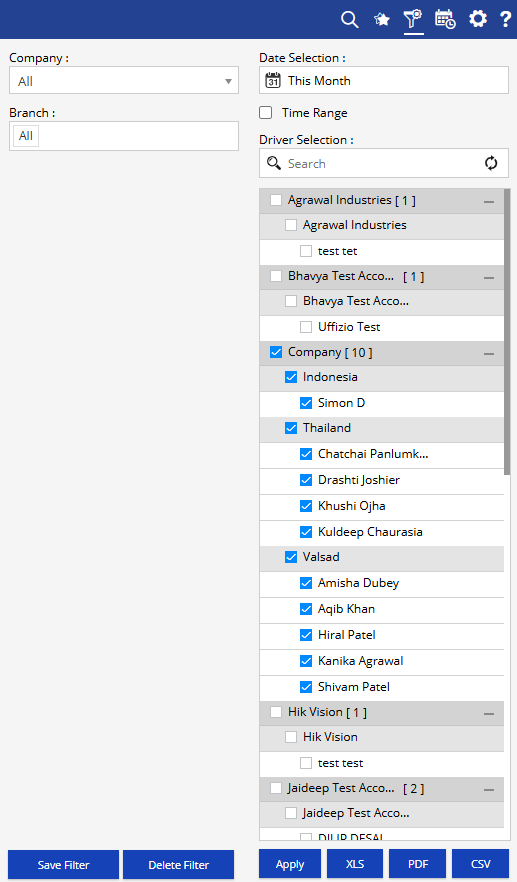
- Company: Select the required company.
- Branch: Select the required branch.
- Date Selection: Select the required reporting period.
- Time Range: Enable this option to specify a particular time range, where applicable.
- Driver Selection: Select the required drivers for whom the work-hour summary is required.
Additional options include Save Filter, Delete Filter, Apply, XLS, PDF, and CSV.
Report Layers
The Driver Work Hour Summary Report has two levels of information:
Layer 1 – Driver Work Hour Summary
Provides a summary of driver activity, including total distance, running and stop duration, work-hour and non-work-hour activity, and ignition timings.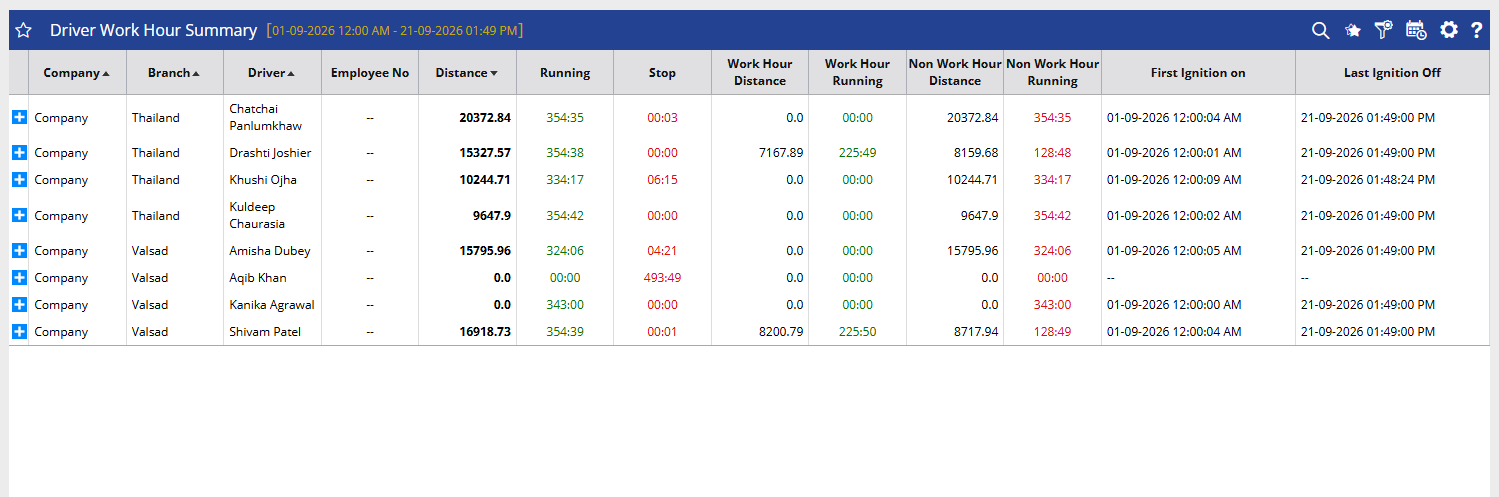
Layer 2 – Driver Work Hour Detail
Displays detailed shift-wise records for the selected driver, including shift name, shift timings, object, distance, running time, stop duration, and playback availability.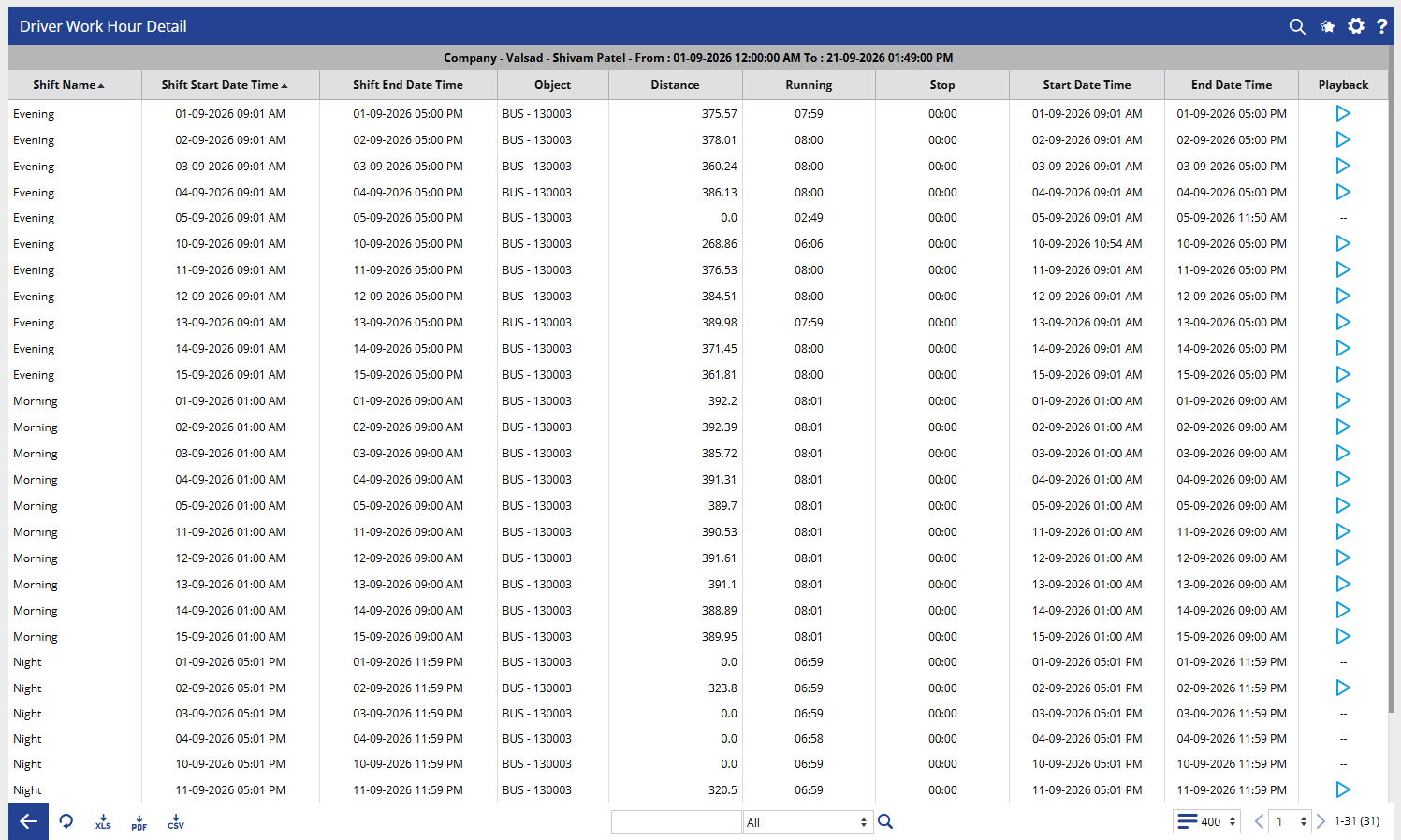
How to Read
Driver Work Hour Summary
- Company identifies the company associated with the driver.
- Branch shows the branch associated with the driver.
- Driver identifies the driver for whom the work-hour information is displayed.
- Employee No displays the employee number associated with the driver, where available.
- Distance shows the total distance travelled during the selected period.
- Running shows the total running duration recorded for the driver.
- Stop displays the total stop duration recorded during the selected period.
- Work Hour Distance shows the distance travelled during the driver's configured work hours.
- Work Hour Running shows the running duration recorded during configured work hours.
- Non Work Hour Distance shows the distance travelled outside the configured work hours.
- Non Work Hour Running shows the running duration recorded outside the configured work hours.
- First Ignition On shows the first recorded ignition-on time during the selected period.
- Last Ignition Off shows the last recorded ignition-off time during the selected period.
Driver Work Hour Detail
- Shift Name identifies the configured shift associated with the record, such as Morning, Evening, or Night.
- Shift Start Date Time shows the start date and time of the configured shift.
- Shift End Date Time shows the end date and time of the configured shift.
- Object identifies the vehicle or tracking object associated with the driver.
- Distance shows the distance travelled during the selected shift.
- Running displays the running duration recorded during the shift.
- Stop shows the stop duration recorded during the shift.
- Start Date Time indicates when the recorded activity period started.
- End Date Time indicates when the recorded activity period ended.
- Playback provides an option to review the vehicle's activity for the selected record, where available.
Take Action
- Select the required company, branch, date range, and drivers to focus the report.
- Review Distance, Running, and Stop to understand the driver's overall activity.
- Compare Work Hour Distance and Work Hour Running with Non Work Hour Distance and Non Work Hour Running to identify activity performed outside configured working hours.
- Check First Ignition On and Last Ignition Off to understand the driver's overall daily activity window.
- Use the + option to open the detailed work-hour records for a selected driver.
- Review the Shift Name and Shift Start/End Date Time to understand activity against the configured shift.
- Compare Distance and Running across shifts to analyze driver activity during different work periods.
- Use Playback to review the vehicle activity associated with a specific shift, where available.
- Export the report in XLS, PDF, or CSV format for further analysis or sharing.
Important Notes
- The report is generated according to the selected company, branch, date selection, and driver filters.
- Work Hour and Non Work Hour values depend on the shifts or working-hour configurations available for the driver.
- Activity recorded outside the configured working period is reflected under Non Work Hour Distance and Non Work Hour Running.
- First Ignition On and Last Ignition Off are based on the ignition activity recorded during the selected reporting period.
- The detailed view displays records according to the configured shift timings.
- A driver may have multiple detail records when multiple shifts or dates are available within the selected period.
- Playback availability depends on the availability of relevant vehicle tracking data.
- If work-hour configuration or shift information is not available, corresponding work-hour values may not be populated as expected.