
The Driver Allocation Report Summary provides a record of driver-to-object allocations within the selected period. It helps users track which object was allocated to a driver, when the allocation occurred, when it was deallocated, and who performed the allocation.
The report provides a summary view of driver allocation activities, making it easier to monitor current and past driver assignments.
Benefits
- Track driver-to-object allocations.
- View allocation and deallocation dates and times.
- Identify the object allocated to each driver.
- Identify who performed the allocation.
- Review allocation activity for a selected period.
How to Access
- Report-->Driver-->Driver Allocation Report
Filters
Use the available filters to generate the report: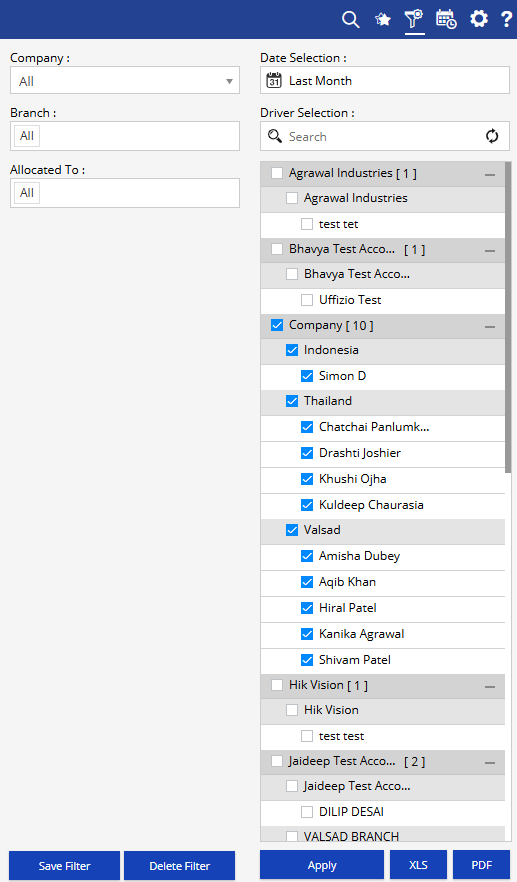
- Company: Select the required company.
- Branch: Select the required branch.
- Date Selection: Select the required reporting period.
- Allocated To: Select the required object or allocation target.
- Driver Selection: Select the required drivers.
Additional options include Save Filter, Delete Filter, Apply, XLS, and PDF.
Report Layers
The Driver Allocation Report Summary provides information at a single summary level.
Layer 1 – Driver Allocation Report Summary
Displays the driver allocation records, including the company, branch, driver, allocated object, allocation date and time, deallocation date and time, and the user who performed the allocation.
How to Read
- Company identifies the company associated with the driver allocation.
- Branch shows the branch associated with the driver.
- Driver identifies the driver involved in the allocation.
- Allocated To shows the object or vehicle allocated to the driver.
- Allocation DateTime shows when the object was allocated to the driver.
- Deallocation DateTime shows when the object was removed or deallocated from the driver. A blank or
--value indicates that the allocation has not been deallocated within the available record. - Allocated By identifies the user who performed the allocation.
Take Action
- Select the required company, branch, date range, drivers, and allocation target to narrow the report.
- Review Driver and Allocated To to verify driver-to-object assignments.
- Check Allocation DateTime to identify when an assignment was created.
- Review Deallocation DateTime to determine whether and when the assignment ended.
- Check Allocated By to identify the user responsible for creating the allocation.
- Export the report in XLS or PDF format for further analysis or record keeping.
Important Notes
- The report displays allocation records based on the selected company, branch, date selection, driver, and allocation filters.
- Allocation DateTime represents the date and time when the driver was assigned to the selected object.
- Deallocation DateTime represents the date and time when the assignment was removed, where applicable.
- A missing or
--Deallocation DateTime indicates that no deallocation time is recorded for that allocation. - The report can contain multiple allocation records for the same driver when different objects are assigned or when allocation activities occur at different times.