
The Driver Activity Report provides a consolidated view of driver activity during the selected period. It helps users review distance traveled, running time, idle time, stop duration, driving duration, average and maximum speed, overspeed events, alerts, and assigned objects for each driver.
The report also allows users to drill down into individual driver activity and view object-wise work hours and driver trips for more detailed analysis.
Benefits
- Monitor driver activity and driving duration.
- Review distance traveled by each driver.
- Analyze running, idle, and stop durations.
- Track average and maximum driving speeds.
- Identify overspeed and alert activity.
- Review objects assigned to each driver.
- Drill down into object-wise work hours and individual trips.
How to Access
- Report-->Driver-->Driver Activity
Filters
Use the available filters to generate the report: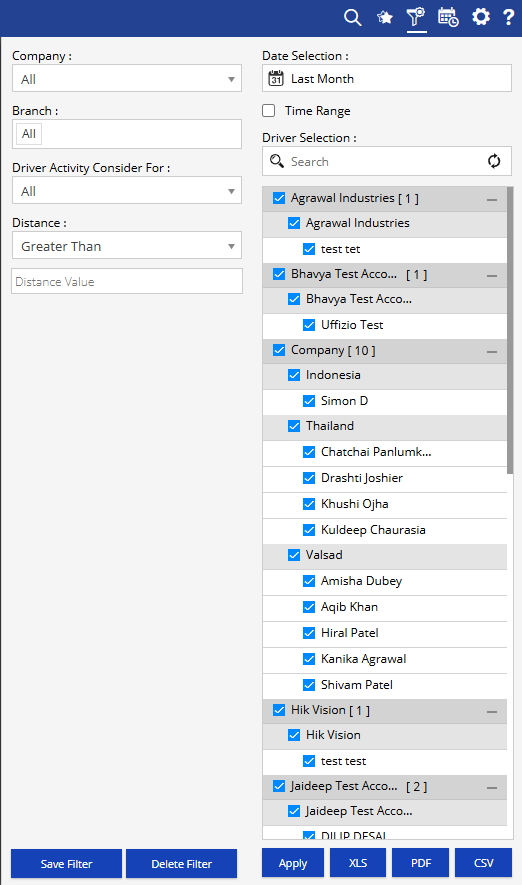
- Company: Select the required company.
- Branch: Select the required branch.
- Driver Activity Consider For: Select the required driver activity criteria.
- Distance: Select the distance condition, such as Greater Than.
- Distance Value: Enter the required distance value.
- Date Selection: Select the required reporting period.
- Time Range: Enable this option when a specific time range is required.
- Driver Selection: Select the required drivers.
Additional options include Save Filter, Delete Filter, Apply, XLS, PDF, and CSV.
Report Layers
The Driver Activity Report has three levels of information:
Layer 1 – Driver Activity
Provides a summary of activity for each driver, including distance, running, idle, stop duration, speed, overspeed, alerts, and assigned objects.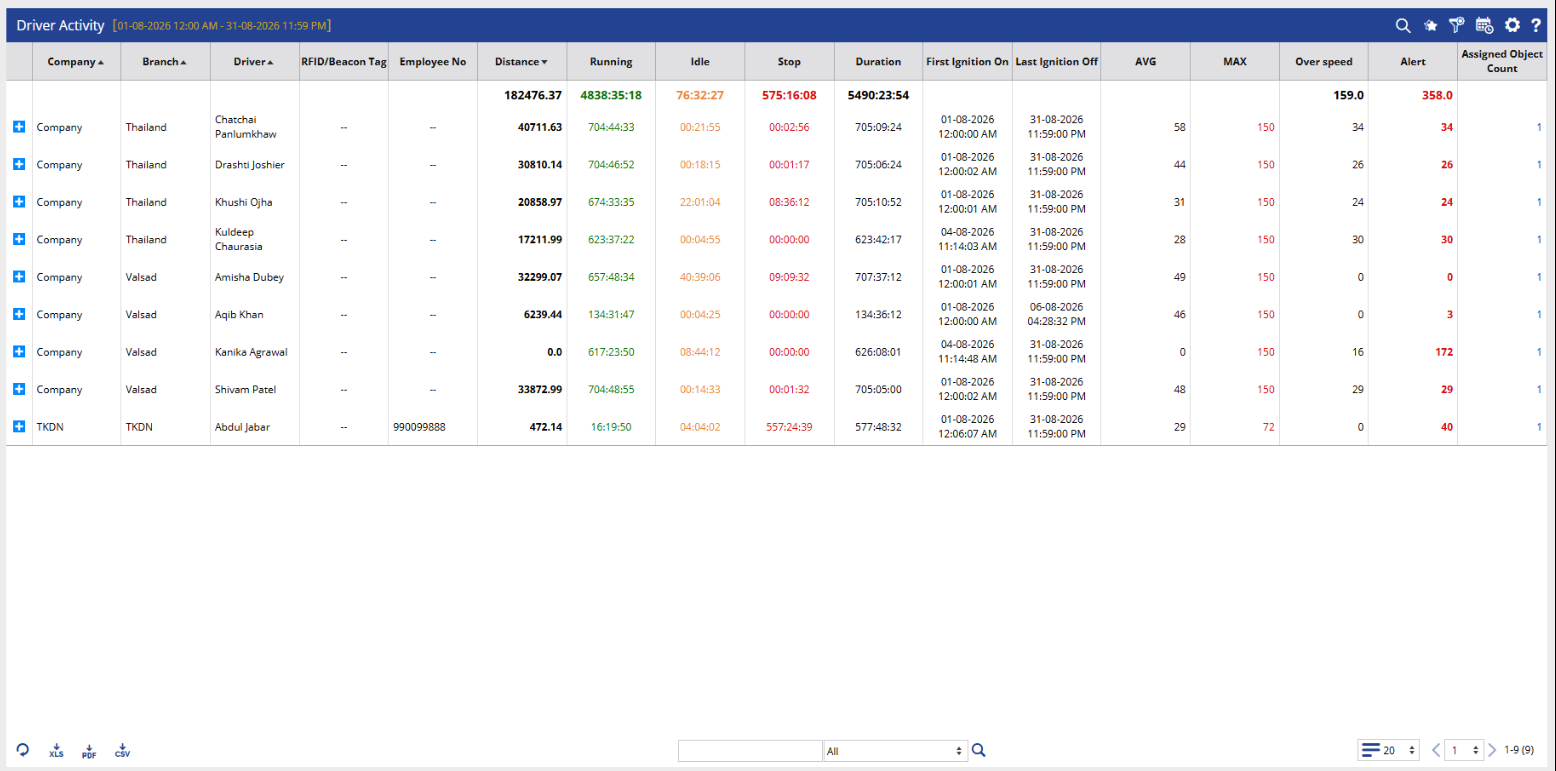
Layer 2 – Object Wise Work Hour
Provides object-level activity details for the selected driver, including start and reach information, distance, running, idle, stop, duration, speed, overspeed, and alerts.
Layer 3 – Driver Trips
Displays trip-level information for the selected driver and object, including start and reach details, distance, running time, idle time, stop duration, speed, overspeed, alerts, and playback.
How to Read
Driver Activity
- Company identifies the company associated with the driver.
- Branch shows the branch associated with the driver.
- Driver identifies the driver whose activity is being reported.
- RFID/Beacon Tag displays the RFID or beacon tag associated with the driver, where available.
- Employee No displays the employee number associated with the driver, where configured.
- Distance shows the total distance traveled by the driver during the selected period.
- Running shows the total time for which the assigned object was in motion.
- Idle shows the total duration for which the object remained idle.
- Stop shows the total duration for which the object remained stopped.
- Duration shows the overall activity duration for the selected period.
- First Ignition On shows the first recorded ignition-on time for the driver's assigned object.
- Last Ignition Off shows the last recorded ignition-off time.
- AVG displays the average speed recorded during the selected period.
- MAX displays the maximum speed recorded during the selected period.
- Overspeed shows the number of overspeed events recorded for the driver.
- Alert shows the number of alerts associated with the driver's activity.
- Assigned Object Count shows the number of objects assigned to the driver.
Object Wise Work Hour
- Object identifies the object assigned to the selected driver.
- Start Time shows when the activity period began.
- Start Location displays the location where the activity started.
- Reach Time shows the end or reach time of the activity period.
- Reach Location displays the location reached at the end of the activity period.
- Distance shows the distance traveled by the selected object.
- Running shows the total running duration.
- Idle shows the total idle duration.
- Stop shows the total stopped duration.
- Duration displays the overall activity duration.
- AVG shows the average speed.
- MAX shows the maximum speed recorded.
- Over Speed displays the overspeed events recorded during the activity.
- Alert displays the alerts generated during the activity.
Driver Trips
- Start Time shows the beginning of the trip.
- Start Location displays the trip starting location.
- Reach Time shows the trip end time.
- Reach Location displays the destination or ending location.
- Distance shows the distance covered during the trip.
- Running displays the total running time.
- Idle shows the idle duration during the trip.
- Stop displays the stopped duration.
- Duration shows the total trip duration.
- AVG displays the average speed during the trip.
- MAX displays the maximum speed recorded.
- Over Speed shows the overspeed events recorded during the trip.
- Alert displays the alerts generated during the trip.
- Playback allows users to review the trip movement through playback.
Take Action
- Select the required company, branch, date range, and drivers to generate the report.
- Use Distance and Distance Value to focus on drivers meeting a specific distance condition.
- Review Running, Idle, Stop, and Duration to understand driver utilization.
- Check AVG and MAX speed to review driving speed patterns.
- Review Overspeed and Alert values to identify events requiring attention.
- Use the + option to drill down into the selected driver's activity.
- Review Object Wise Work Hour to understand activity for individual assigned objects.
- Open Driver Trips to review individual trip details.
- Use Playback to visually review the selected trip.
- Export the report in XLS, PDF, or CSV format for further analysis or sharing.
Important Notes
- The report is generated according to the selected company, branch, date range, driver, and activity filters.
- Driver activity data is based on the tracking and activity information available for the assigned objects.
- Running, Idle, and Stop durations represent different activity states recorded during the selected period.
- Overspeed and Alert values depend on the events recorded for the selected driver and assigned objects.
- The Object Wise Work Hour and Driver Trips views provide additional details for the selected driver.
- The availability of driver and activity information depends on the driver-object assignments and tracking data configured in the system.