
The Object AIS Detail screen is used to register and configure AIS 140 compliant vehicles within the platform. It combines dealer information, customer information, object details, and AIS-specific information into a single screen, allowing administrators and authorized dealers to register vehicles, configure tracking devices, manage AIS certifications, and upload mandatory compliance documents.
This screen ensures that all vehicle, customer, and regulatory information is maintained in one place for seamless AIS compliance and fleet management.
To Get Started
-
Login to your account
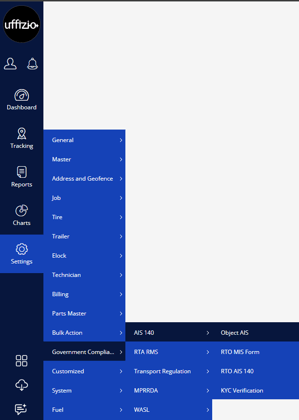
- Go to Setting > Government Compliance > AIS 140 > Object AIS
To Register an AIS Object
-
Click the + button.
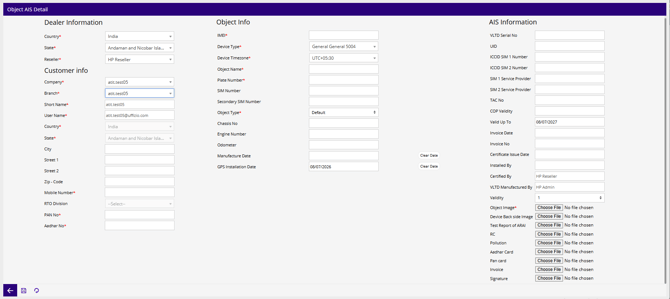
- Select the dealer
- Select the dealer's country.
- Select the dealer's state.
- Select the reseller responsible for the installation or registration.
- Select the customer details
- Select an existing company or create a new one.
- Enter the company's short name.
- Enter the username or email address for the company account.
- Select the customer's country.
- Select the customer's state.
- Enter the city.
- Enter the primary address.
- Enter additional address information if required.
- Enter the postal or ZIP code.
- Enter the customer's contact number.
- Select the access rights assigned to the customer.
- Enter the object (vehicle) information
- Enter the unique IMEI number of the tracking device.
- Select the installed GPS device model.
- Select the timezone used by the tracking device.
- Enter the vehicle or object name.
- Enter the vehicle registration number.
- Enter the primary SIM number installed in the device.
- Enter the secondary SIM number if applicable.
- Select the vehicle or asset type.
- Enter the vehicle chassis number.
- Enter the engine number.
- Enter the current odometer reading.
- Select the vehicle manufacturing date.
- Select the GPS installation date.
- Fill in the AIS device and certification details
- Enter the Vehicle Location Tracking Device serial number.
- Enter the unique device identification number.
- Enter the ICCID of the primary SIM card.
- Enter the ICCID of the secondary SIM card if available.
- Enter the primary SIM network provider.
- Enter the secondary SIM network provider.
- Enter the Type Approval Certificate number.
- Enter the Certificate of Production validity details.
- Select the AIS certificate expiry date.
- Select the installation invoice date.
- Enter the invoice number.
- Select the certificate issue date.
- Enter the installer or installation agency.
- Enter the certifying authority or dealer.
- Enter the manufacturer of the AIS tracking device.
- Select the validity period for the AIS registration.
- Upload all required documents.
- Upload a photograph of the vehicle.
- Upload an image of the back side of the installed device.
- Upload the ARAI test report.
- Upload the Vehicle Registration Certificate.
- Upload the Pollution Under Control (PUC) certificate.
- Upload the owner's Aadhaar card.
- Upload the PAN card.
- Upload the installation or purchase invoice.
- Upload the authorized signature document.
- Click the Save icon to register the AIS object