
The Trakzee Mobile App allows users to access and manage their fleet information directly from a mobile device. Before using the application, you need to download the app, select the appropriate server, and either sign in to an existing account or create a new account.
This guide provides an overview of the initial setup and helps you get started with the Trakzee Mobile App.
Download the Trakzee Mobile App
The Trakzee Mobile App is available on both Google Play Store and Apple App Store.
Download and install the application on your mobile device before proceeding.
Select the Server
When you open the application, you first need to select the server where your vehicle is configured.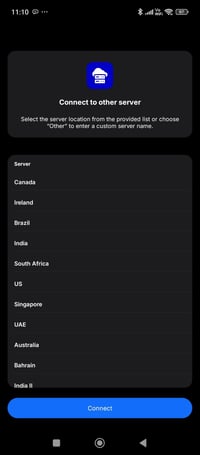
The application provides a list of available server locations. Select the server applicable to your account and vehicle.
If required, you can also select Other to enter a custom server name.
Note: Make sure you select the correct server before signing in or registering. The server determines where your vehicle and account data is hosted.
After selecting the server, you can proceed in either of the following ways:
- Sign In – Use this option if you already have a Trakzee account.
- Sign Up – Use this option to create a new account.
Sign In
If you already have an account:
- Enter your Username.
- Enter your Password.
- Select Sign in.
- Once the credentials are validated, you will be logged into the application.
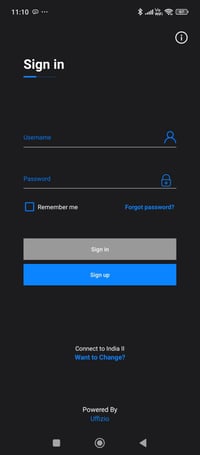
You can also use Remember me to save your login details for future access.
If you have forgotten your password, select Forgot password? to proceed with password recovery.
Sign Up
If you do not have an existing account, you can create one using the Sign up option.
Important: The Sign Up process works with the Inventory module. The required vehicle/device information is registered as part of the account creation process.
Enter the IMEI Number
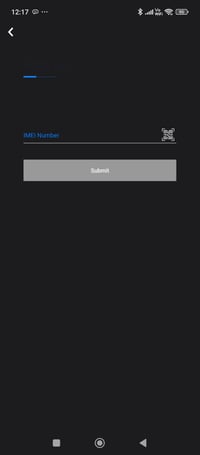
After selecting Sign Up, enter the IMEI Number of the device.
You can provide the IMEI in either of the following ways:
- Scan the QR Code: Use the QR code scanner available beside the IMEI field.
- Enter Manually: Type the device IMEI number manually.
Enter Registration Details
After entering the IMEI number, provide the required registration details, such as:
- Project
- Family or Company Name
- Email/User Name
- Password
- Retype Password
- Mobile Number
- Number Plate
- Object Type
- Contact Person
- Address details
- Country
- State
- ZIP Code
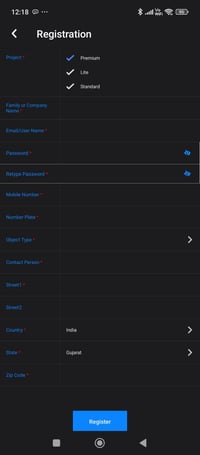
Select Register after entering the required information.
Once the registration is completed successfully, your user account is created.
Access the Trakzee Application
After completing either Sign In or Sign Up, you are taken into the Trakzee Mobile App and can start using the available features based on your account and assigned access.