
The LoRaWAN Gateway module allows users to add and manage LoRaWAN gateways used for communication between LoRaWAN devices and the platform. Users can configure the gateway's identification details, manufacturer, frequency band, installation location, and operational status.
To Get Started
- Log in to your account.
- Navigate to Settings > General > Object > LoRaWAN Gateway.
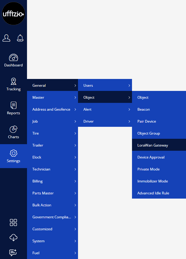
- The LoRaWAN Gateway overview screen will be displayed.
To Configure LoraWan Gateway
-
Click on the ➕ icon available on the bottom panel of the screen.

- Company: Select the company to which the LoRaWAN gateway belongs.
- Branch: Select the branch associated with the gateway.
- Gateway Name: Enter a unique name to identify the LoRaWAN gateway.
- Gateway ID: Enter the unique identification ID assigned to the LoRaWAN gateway.
- Gateway Type:
- Select the type of LoRaWAN gateway based on its installation environment.
- Indoor: Select if the gateway is installed inside a building or enclosed area.
- Outdoor: Select if the gateway is installed in an outdoor or exposed location.
- Manufacturer: Select the manufacturer of the LoRaWAN gateway.
Please Note: Manufacturer can be created from Vendor screen.
-
- Model: Enter the model of the LoRaWAN gateway.
-
Frequency Band: Select the frequency band supported by the LoRaWAN gateway.
- IN865: Select for gateways operating on the India 865 MHz frequency band.
- EU868: Select for gateways operating on the European 868 MHz frequency band.
- US915: Select for gateways operating on the US 915 MHz frequency band.
- Search Location: add the gateway's installation location. The selected location can be used to identify the corresponding geographical coordinates.
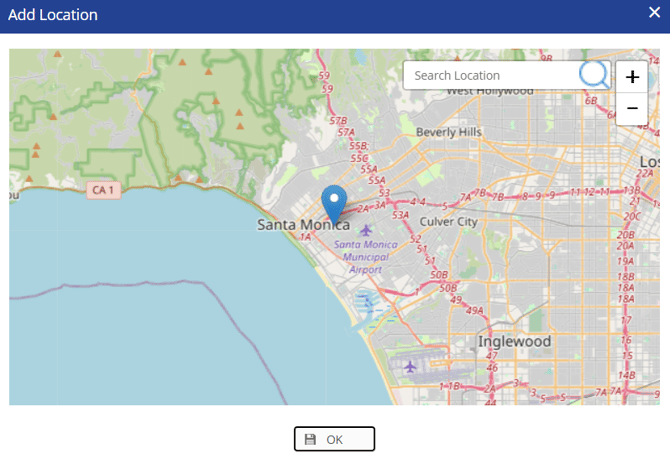
- Latitude: & Longitude will be added based on select location from Search Location screen
- Installation Address: Enter the physical address where the gateway is installed.
- Status: Specify whether the gateway is currently operational.
- Active: Select if the gateway is currently operational and being used for communication.
- Inactive: Select if the gateway is not currently operational.
- Remarks: Enter any additional information or notes related to the gateway.