
The Taxi Meter Status alert is used to notify users when the taxi meter status of an object changes to the configured condition. This helps monitor whether the taxi meter is currently Occupied or Vacant.
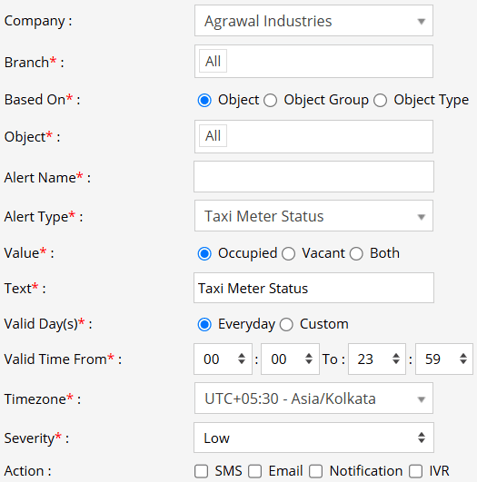
Parameters Considered (Prerequisites)
- Taxi Meter: The device installed in the vehicle must support taxi meter status data and be capable of sending the Occupied & Vacant status to the system.
How to Configure
- Select the appropriate Company and Branch for which the alert is to be configured.
- Based On: Choose on what you want to base the alert configuration (Object, Object Group, Object Type).
- Object: Select individual vehicles for whom you want the alert to generate.
- Object Group: Select a group of vehicles for whom you want the alert to generate.
- Object Type: Select vehicle or object type for whom you want the alert to generate.
- Select the required Object, Object Group, or Object Type based on the selection made in the previous step.
- Enter an Alert Name for identification of the alert.
- Select Taxi Meter Status from the Alert Type dropdown.
- Under Value, select the taxi meter status for which the alert should be generated:
- Occupied: The alert is triggered when the taxi meter reports the vehicle as occupied.
- Vacant: The alert is triggered when the taxi meter reports the vehicle as vacant.
- Both: The alert is triggered for both occupied and vacant status changes.
- In the Text field, enter the message that will be displayed when alert is triggered.
- Select the Valid Days, Everyday or Custom.
- Everyday: This alert will be triggered, everyday in case of a violation in accordance to these parameters set.
- Custom: Mark the checkboxes of the days, when you want this alert to be triggered for. (eg., Sun, Mon and Sat)

- Enter the Valid Time From and To to define the time period during which the alert should be active.
- Select the required Timezone. The alert will be evaluated according to the selected timezone.
- Select the Severity of the alert (Low, Medium, or High).
- Under Action, select the required method for receiving the alert:
- SMS: To receive an alert by SMS, enable the checkbox, enter the phone numbers.
- Email: To receive an alert by Email, enable the checkbox, enter the recipients of the email.
- Notification: To receive an alert on the system Push Notification, enable checkbox.
- From Users, select the users that will receive the notification.
- From Notification Sound. Select the sound from the drop-down that will be played for this notification.
- IVR: To receive the alert through an automated voice call, enable the checkbox and enter the required phone numbers.
- Click the Save 💾 icon to save the alert configuration.
Please Note: To receive alerts through SMS, Email, or IVR, the respective API must be configured at the Admin, Reseller, or Company level.