
The Storage Failure alert is used to notify users when a storage failure event is received from the connected device. This alert is specifically developed for BSJ devices that support storage failure detection and reporting.
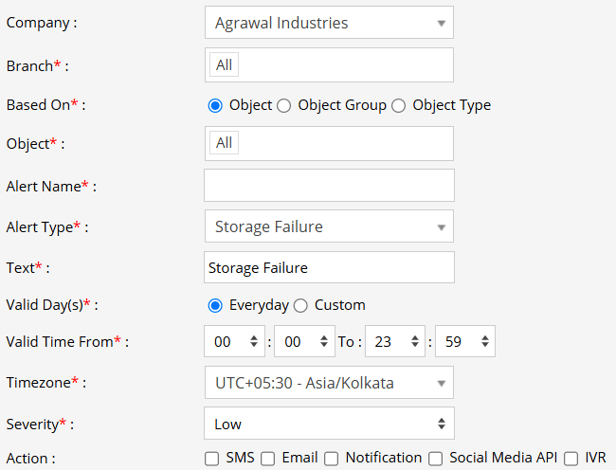
Parameters Considered (Prerequisites)
- Device Support: The device must support storage failure detection and send the corresponding event to the platform.
How to Configure
- Select the appropriate Company and Branch for which the alert is to be configured.
- Based On: Choose on what you want to base the alert configuration (Object, Object Group, Object Type).
- Object: Select individual vehicles for whom you want the alert to generate.
- Object Group: Select a group of vehicles for whom you want the alert to generate.
- Object Type: Select vehicle or object type for whom you want the alert to generate.
- Select the required Object, Object Group, or Object Type based on the selection made in the previous step.
- Enter an Alert Name for identification of the alert.
- Select the Alert Type as Storage Failure.
- In the Text field, enter the message that will be displayed when Storage failure alert is triggered.
- Select the Valid Days, Everyday or Custom.
- Everyday: This alert will be triggered, everyday in case of a violation in accordance to these parameters set.
- Custom: Mark the checkboxes of the days, when you want this alert to be triggered for. (eg., Sun, Mon and Sat)

- Enter the Valid Time From and To to define the time period during which the alert should be active.
- Select the required Timezone. The alert will be evaluated according to the selected timezone.
- Select the Severity of the alert (Low, Medium, or High).
- Under Action, select the required method for receiving the alert:
- SMS: To receive an alert by SMS, enable the checkbox, enter the phone numbers.
- Email: To receive an alert by Email, enable the checkbox, enter the recipients of the email.
- Notification: To receive an alert on the system Push Notification, enable checkbox.
- From Users, select the users that will receive the notification.
- From Notification Sound. Select the sound from the drop-down that will be played for this notification.
- Social Media API: To receive the alert through WhatsApp or Telegram, enable the checkbox and configure the required gateway and recipient details.
- WhatsApp: Select to send notification via WhatsApp
- In Recipient Number, enter the recipient's mobile number along with the country code.
- To add multiple recipients, separate the mobile numbers using a comma (,).
- Telegram: Select Telegram to send notification via Telegram.
- In Telegram Chat ID, enter the Chat ID to which the alert should be sent.
- To send the alert to multiple Telegram chats, separate the Chat IDs using a comma (,).
- WhatsApp: Select to send notification via WhatsApp
- IVR: To receive the alert through an automated voice call, enable the checkbox and enter the required phone numbers.
- Click the Save 💾 icon to save the alert configuration.
Please Note: To receive alerts through SMS, Email, Social Media API, or IVR, the respective API must be configured at the Admin, Reseller, or Company level.