
The Proximity Violation alert is used to notify users when a vehicle/object enters a defined proximity area or comes within a specified distance of a configured Beacon. This alert helps organizations monitor vehicle proximity events, identify unauthorized or unexpected presence near designated locations, and take timely action when a proximity condition is detected.
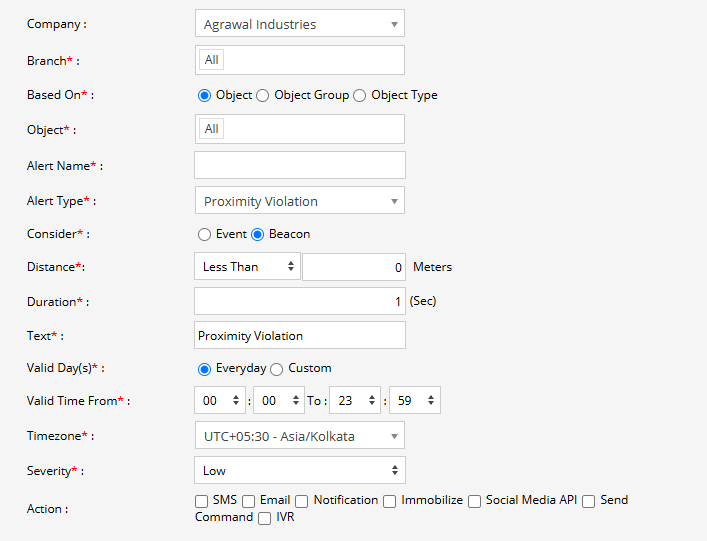
Parameters Considered (Prerequisites)
- Proximity Event/Beacon: The required proximity event or beacon must be configured for the selected object.
- Beacon: When Beacon is selected under Consider, a beacon must be available and configured for proximity monitoring.
- Distance and Duration: These parameters are required when the alert is configured based on a Beacon.
How to Configure
- Select the correct Company and Branch for whom the alert is to be configured.
- Based On: Choose what you want to base the alert configuration on (Object, Object Group, Object Type).
- Object: Select individual vehicles/objects for whom you want the alert to generate.
- Object Group: Select a group of vehicles/objects for whom you want the alert to generate.
- Object Type: Select a vehicle or object type for whom you want the alert to generate.
- Select the Object based on the previous step selection.
- Set an Alert Name for identification of the alert.
- Select the Alert Type as Proximity Violation.
- Under Consider, select how the proximity violation should be evaluated:
- Event: Select Event to generate the alert based on a proximity event received by the system.
- Beacon: Select Beacon to configure the alert based on the distance between the object and a beacon.
- If Beacon is selected:
- From Distance, select the required condition, such as Less Than, and enter the distance in Meters.
- In Duration, enter the time in seconds for which the object must satisfy the configured proximity condition before the alert is triggered.
- In the Text field, enter the message that will be displayed when the Proximity Violation alert is triggered.
- Select the Valid Day(s) as Everyday or Custom.
- Everyday: The alert will be triggered every day when the configured proximity condition is met.
- Custom: Select the specific days on which you want this alert to be triggered.
- Enter the Valid Time From and To. The alert will be generated only within the selected time range.
- Select the required Timezone.
- Select the Severity of the alert (Low, Medium, or High).
- Under Action, select the medium through which the alert or action should be performed.
- SMS: To receive the alert by SMS, enable the checkbox and enter the required phone numbers.
- Email: To receive the alert by email, enable the checkbox and enter the email recipients.
- Notification: To receive the alert as a system push notification, enable the checkbox and select the users who should receive it.
- Immobilize: Enable this option if the configured immobilization action should be performed when the alert is triggered.
- Social Media API: To receive the alert through WhatsApp or Telegram, enable the checkbox and configure the required gateway and recipient details.
- Send Command: Enable this option to send the configured command to the object when the alert is triggered.
- IVR: To receive the alert through an automated voice call, enable the checkbox and enter the required phone numbers.
- Click the Save 💾 icon to save the alert configuration.
Please Note: To receive alerts through SMS, Email, Social Media API, or IVR, the respective API/gateway must be configured at the Admin, Reseller, or Company level. Actions such as Immobilize or Send Command depend on the device and its supported commands.
Example
A beacon is installed at a restricted area, and a vehicle is configured for Proximity Violation monitoring. The alert is set to Less Than 50 meters with a duration of 10 seconds. If the vehicle remains within 50 meters of the beacon for the configured duration, the Proximity Violation alert is triggered and the selected users receive a notification. Depending on the configuration, an additional action such as Send Command or Immobilize can also be performed.