
The OverStay alert is triggered when a vehicle remains stopped or idle beyond the defined time threshold. This alert helps fleet managers monitor excessive stoppages, improve fleet utilization, and identify inefficiencies or unauthorized halts
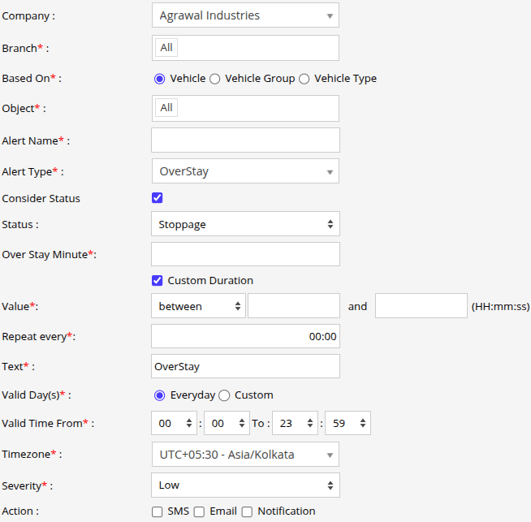
Parameters Considered (Prerequisites)
- Live Device: For this alert to work, the device needs to send live data in the system.
- RPM sensor: RPM sensor needs to be attached for consider RPM option in the alert.
Please Note: To calibrate RPM sensor, click here.
How to Configure
- Select the correct Company and Branch for whom the alert is to be configured.
- Based On: Choose on what you want to base the alert configuration (Object, Object Group, Object Type).
- Object: Select individual vehicles for whom you want the alert to generate.
- Object Group: Select a group of vehicles for whom you want the alert to generate.
- Object Type: Select vehicle or object type for whom you want the alert to generate.
- Select the Object based on the previous step selection.
- Set an Alert Name for identification of the alert.
- Select the Alert Type as OverStay.
- Select Consider Status, to include the vehicle’s current status while triggering the alert. You can choose from Idle, Stoppage, or Idle + Stoppage.
- In Status, Select the vehicle status based on which the alert should be triggered.
- In Overstay Minutes, specify the number of minutes a vehicle is allowed to remain at a single location. Once this limit is exceeded, the alert will be triggered.
- Select Consider Duration, To apply a time-based condition to the overstay alert.
- In Value, Mention the time range between which the alert will be triggered.
- In Repeat Every, specify the interval after which the alert will be triggered again if the condition continues to be met.
-
In the Text field, enter the message that will be displayed when the alert is triggered.
- Select the Valid Days, Everyday or Custom.
- Everyday: This alert will be triggered, everyday in case of a violation in accordance to these parameters set.
- Custom: Mark the checkboxes of the days, when you want this alert to be triggered for. (eg., Sun, Mon and Sat)

- Enter the Valid Time From and To. The alert will be generated inside the time range that you have selected.
- Select the Timezone.
- Select the Severity of the alert (Low, Medium, or High).
- Mark the checkboxes of the medium via which you want the Action or Notification to be sent. (eg., SMS, Email or Notification)
- SMS: To receive an alert by SMS, enable the checkbox, enter the phone numbers.
- Email: To receive an alert by Email, enable the checkbox, enter the recipients of the email.
- Notification: To receive an alert on the system Push Notification, enable checkbox.
- From Users, select the users that will receive the notification.
- From Notification Sound. Select the sound from the drop-down that will be played for this notification.
- Click in the Save 💾 icon.
Please Note: To Receive the alert on SMS & Email, the api should be configured either on Admin, Reseller or Company.
Example
A vehicle is idle or stopped at a location, and the fleet manager has set the OverStay Minutes threshold to 15 minutes with the status considered as Idle + Stoppage. If the vehicle remains in either of these states beyond 15 minutes at the same location, the OverStay alert is triggered. The system then sends notifications through the configured channels (SMS, Email, or In-App Notification), allowing the fleet manager to promptly investigate the cause of the prolonged inactivity or take necessary action.