
The Night Driving alert is triggered when a vehicle operates during configured night-time hours, within a defined duration. This alert helps fleet managers monitor off-hours vehicle movement, enforce operational policies, prevent unauthorized usage, and enhance driver safety.
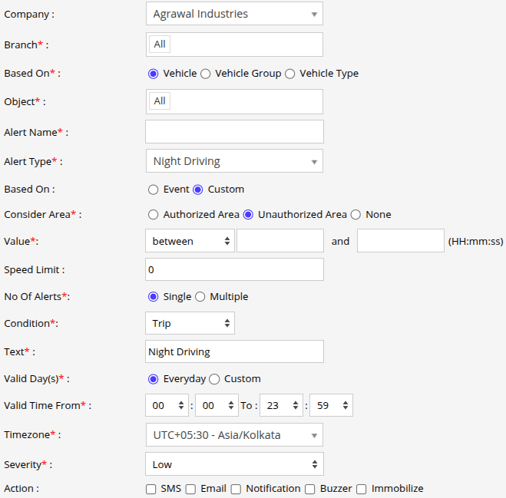
How to Configure
-
Select the correct Company and Branch for whom the alert is to be configured.
-
Based On: Choose on what you want to base the alert configuration (Object, Object Group, Object Type).
- Object: Select individual vehicles for whom you want the alert to generate.
- Object Group: Select a group of vehicles for whom you want the alert to generate.
- Object Type: Select vehicle or object type for whom you want the alert to generate.
-
Select the Object based on the previous step selection.
-
Set an Alert Name for identification of the alert.
-
Select the Alert Type as Night Driving.
- From Based On, Select the mode for triggering the alert.
- Select Event, if the alert should be triggered based on night driving events received directly from the device.
- Select Custom, if you want to define a specific night-time duration. The alert will be triggered when vehicle movement occurs within the configured time range. ( the Value option will appear if you select custom )
- From Consider Area, You can configure whether the geofence should be included or excluded when triggering the alert.
- Select Authorized Area, If you want to exclude this geofence from the alert, The driver can move freely within the authorized geofence, and the alert will not be triggered.
- Select Unauthorized Area to include this geofence for the alert. The alert will be triggered when the driver enters or moves within this geofence.
- Select None if you do not want to apply any geofence condition.
- From Value, you can configure the time for the Night Driving, ( Value option will appear if you have selected Custom form Based On )
- Select Between, to trigger the alert when the vehicle is driven within the defined time frame.
- Select Not Between, to trigger the alert when the vehicle is driven outside the defined time frame.
- From Speed Limit, enter the speed value. The alert will be triggered if the vehicle exceeds this speed within the defined time range. To trigger the alert for any vehicle movement, keep the speed limit set to 0.
- From No of Alerts, select if you want to trigger the one time or multiple times.
- Select Single, if you want to trigger the alert one time.
- Select Trip to trigger the alert once per trip.(a trip is considered from ignition ON to ignition OFF).
- Select Duration, to trigger the alert repeatedly after a specified time interval.
- Select Multiple, to trigger the alert Multiple time.
- Select Single, if you want to trigger the alert one time.
-
In the Text field, enter the message that will be displayed when the alert is triggered.
- Select the Valid Days, Everyday or Custom.
- Everyday: This alert will be triggered, everyday in case of a violation in accordance to these parameters set.
- Custom: Mark the checkboxes of the days, when you want this alert to be triggered for. (eg., Sun, Mon and Sat)

- Enter the Valid Time From and To. The alert will be generated inside the time range that you have selected.
- Select the Timezone.
- Select the Severity of the alert (Low, Medium, or High).
- Mark the checkboxes of the medium via which you want the Action or Notification to be sent. (eg., SMS, Email or Notification)
- SMS: To receive an alert by SMS, enable the checkbox, enter the phone numbers.
- Email: To receive an alert by Email, enable the checkbox, enter the recipients of the email.
- Notification: To receive an alert on the system Push Notification, enable checkbox.
- From Users, select the users that will receive the notification.
- From Notification Sound. Select the sound from the drop-down that will be played for this notification.
- Buzzer: To play the buzzer when the alert is triggered, enable the checkbox & select weather the buzzer should Turn On/Off or Both.
- Immobilize: To Trigger the immobilize when the alert is generated, enable the checkbox, you can configure for it to be turned on/off.
- Click in the Save 💾 icon.
Example
A logistics company wants to monitor and restrict vehicle movement during night hours (10:00 PM to 5:00 AM). If any vehicle moves during this period at any speed, an alert should be sent to the fleet manager via SMS and in-app notification.