
Hijack alert is used to notify the vehicle owner or fleet manager of any stolen Vehicle. The alert can be triggered through a connected Digital Input sensor or when the GPS device directly sends a Hijack event to the server.
Parameters Considered (Prerequisites)
-
Enable Event: for triggering the alert based on Event, the Hijack functionality must be enabled on the device.
- Hijack Sensor: To trigger the alert based on Custom, the Hijack Sensor must be configured in the software and connected to the device.
Please Note : To Configure Hijack sesnor (for custom Option) navigate to Settings - General - Object/Vehicle - Sensor.
How to Configure
-
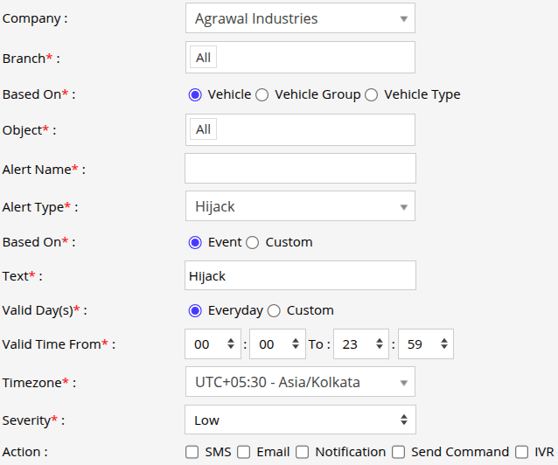
Select the correct Company and Branch for whom the alert is to be configured.
-
Based On: Choose on what you want to base the alert configuration (Object, Object Group, Object Type).
-
Object: Select individual vehicles for whom you want the alert to generate.
-
Object Group: Select a group of vehicles for whom you want the alert to generate.
-
-
Object Type: Select vehicle or object type for whom you want the alert to generate.
- Select the Object based on the previous step selection.
- Set an Alert Name for identification of the alert.
- Select the Alert Type as Hijack.
- In Based On, Select Event or Custom.
- Select Event, if you want to trigger the alert when a Hijack event is received directly from the device.
- Select Custom, if you want to trigger the alert based on the Hijack Sensor configured in the software.
-
In the Text field, enter the message that will be displayed when the alert is triggered.
- Select the Valid Days, Everyday or Custom.
- Everyday: This alert will be triggered, everyday in case of a violation in accordance to these parameters set.
- Custom: Mark the checkboxes of the days, when you want this alert to be triggered for. (eg., Sun, Mon and Sat)

- Enter the Valid Time From and To. The alert will be generated inside the time range that you have selected.
- Select the Timezone.
- Select the Severity of the alert (Low, Medium, or High).
- Mark the checkboxes of the medium via which you want the Action or Notification to be sent. (eg., SMS, Email or Notification)
- SMS: To receive an alert by SMS, enable the checkbox, enter the phone numbers.
- Email: To receive an alert by Email, enable the checkbox, enter the recipients of the email.
- Notification: To receive an alert on the system Push Notification, enable checkbox.
- From Users, select the users that will receive the notification.
- From Notification Sound. Select the sound from the drop-down that will be played for this notification.
- Send Command: To send a command when the alert is triggered, enable the checkbox & enter the command that is to be send.
- IVR: To receive alerts through IVR ( automated voice call ), enable the checkbox.
- In To Numbers, enter the phone numbers.
- Click Save 💾 icon. to save the alert configuration.
Please Note: To Receive the alert on SMS, Email, & IVR the api should be configured either on Admin, Reseller or Company.