
The Address Overstay alert is used to notify users when a vehicle remains at a configured address for longer than the specified duration. This alert helps fleet operators monitor excessive or unauthorized stays at specific locations, improve vehicle utilization, and identify delays in fleet operations. 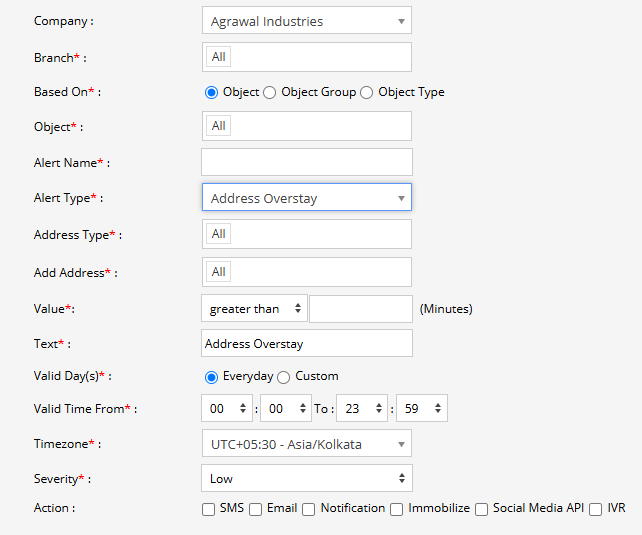
Parameters Considered (Prerequisites)
- Address Data: The required addresses must be configured in the system.
- Address Type: The system must have the relevant address type configured and available for selection.
- Vehicle Location Data: The selected vehicle must provide valid GPS location data to determine when it enters and remains at an address.
- Overstay Duration: A duration threshold must be configured to determine when the vehicle is considered to have overstayed.
How to Configure
- Select the correct Company and Branch for whom the alert is to be configured.
- Based On: Choose what you want to base the alert configuration on (Object, Object Group, Object Type).
- Object: Select individual vehicles/objects for whom you want the alert to generate.
- Object Group: Select a group of vehicles/objects for whom you want the alert to generate.
- Object Type: Select a vehicle or object type for whom you want the alert to generate.
- Select the Object based on the previous step selection.
- Set an Alert Name for identification of the alert.
- Select the Alert Type as Address Overstay.
- Select the required Address Type. This determines the category of addresses to which the alert will apply.
- Select the required Add Address from the available addresses.
- Under Value, select the comparison condition and enter the required duration in minutes.
- Greater Than: The alert will be triggered when the vehicle remains at the selected address for longer than the configured duration.
- In the Text field, enter the message that will be displayed when the Address Overstay alert is triggered.
- Select the Valid Day(s) as Everyday or Custom.
- Everyday: The alert will be triggered every day when the configured overstay condition is met.
- Custom: Select the specific days on which you want this alert to be triggered.
- Enter the Valid Time From and To. The alert will be generated only within the selected time range.
- Select the required Timezone.
- Select the Severity of the alert (Low, Medium, or High).
- Under Action, select the medium through which the alert or notification should be sent (SMS, Email, Notification, Immobilize, Social Media API, or IVR).
- SMS: To receive the alert by SMS, enable the checkbox and enter the required phone numbers.
- Email: To receive the alert by email, enable the checkbox and enter the email recipients.
- Notification: To receive the alert as a system push notification, enable the checkbox and select the users who should receive it.
- Immobilize: Enable this option to initiate the configured vehicle immobilization action when the alert condition is triggered.
- Social Media API: To receive the alert through WhatsApp or Telegram, enable the checkbox and configure the required gateway and recipient details.
- IVR: To receive the alert through an automated voice call, enable the checkbox and enter the required phone numbers.
- Click the Save 💾 icon to save the alert configuration.
Please Note: To receive alerts through SMS, Email, Social Media API, or IVR, the respective API/gateway must be configured at the Admin, Reseller, or Company level.
Example
If the Address Overstay threshold is configured as greater than 30 minutes, and a vehicle remains at the selected address for more than 30 minutes, the Address Overstay alert is triggered. The selected users receive a notification, allowing the fleet operator to investigate the extended stay and take appropriate action.