
A Representative is a person assigned to a driver to assist during the job. The representative supports the driver in completing tasks efficiently and ensures smooth execution of the assigned work. This role helps in better coordination and management of job-related activities
To Get Started
- Log in to your account.
- Go to Settings > General > Driver.
Upon clicking on the Driver, you will be directed to the Driver Overview page, where you can easily view and manage all different designation records.
To Add Representative Individually
-
Click on the ➕ button on the taskbar.

Navigate to Profile
- From the drop-down menus, select the Company, and Branch under which you want to add the employee.
- Select Employee Designation as Representative from the drop-down list.
- Please input the employee's First Name, Last Name, and, if applicable, the Employee Number into the designated fields provided.
- Upload the Photo of the Representative.
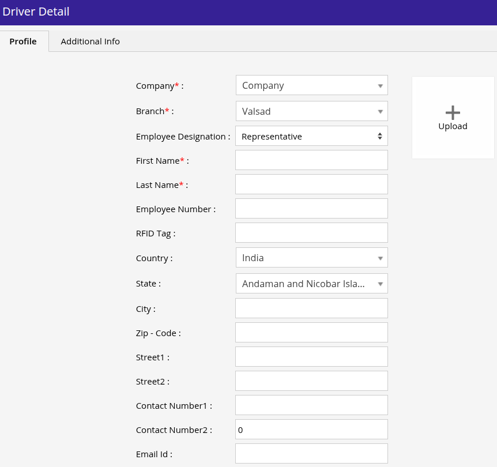
- Provide the Country, State, City, Zip - Code of the representative.
- Add the address in Street1 & Street2.
- Provide the Contact number1 & Contact number2 of the representative.
- Provide the Email Id of the representative.
Navigate to Additional Info
The user can add the additional details of the engineer in the mentioned fields.
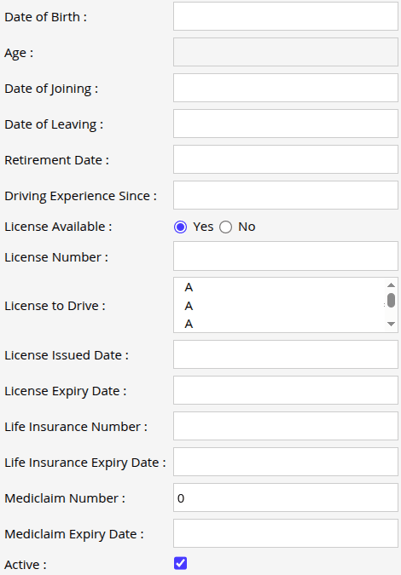
- Enter the Date of Birth of the representative.
- The Age will be calculated based on date of birth.
- You can enter the Date of Joining and Retirement Date for the representative.
- In Driving Experience Since enter the year from which the representative started driving to record their driving experience.
- In License Available select Yes if representative has driving license, Select NO if representative dosen't have the driving license.
- If you have selected Yes you will get the additional option.
- In License Number, Enter the representative's driving license number.
- In License to Drive, select what type of vehicle the representative is allowed to drive as per the license.
- In License Issued Date & License Expiry Date, enter the issue & expiry date for the driving license.
- If you have selected Yes you will get the additional option.
- In Life Insurance Number, enter the isurance policy number if provided to representative.
- In Life Insurance Expiry Date, enter the insurance policy expiry date.
- In Mediclaim Number, enter the mediclaim policy number if provided to representative.
- In Mediclaim Expiry Date, enter the mediclaim policy expiry date.
- From Active checkbox, you can keep the check if representative is still working with the organization, you can uncheck the box if engineer is not working with the organization.
- Click on Save 💾 button.
To Upload Multiple Records
- To initiate the bulk upload process, kindly click on the upload button located on the taskbar. This action will open a new window designed for driver bulk uploads.

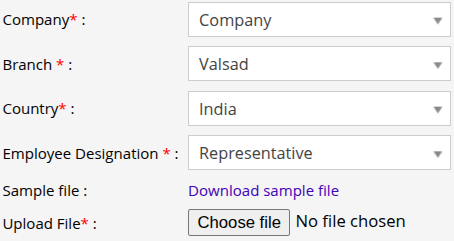
- From the drop-down menus, select the Company, and Branch under which you want to add the driver.
- Choose the Country of the driver.
- Please choose the appropriate Employee Designation from the drop-down list.
-
- Download the provided sample file from the given link. This file contains essential information regarding the Employee, Fill in the appropriate information in the file according to your requirement.

- Upload the XLS file from Upload File option.
- Click on the Save 💾 icon.
- Download the provided sample file from the given link. This file contains essential information regarding the Employee, Fill in the appropriate information in the file according to your requirement.
Need to Create a Job, Click here.
To Add Driver, Click here.
To Add Engineer, Click here.
To Add Employee, Click here.