This section provides quick access to key actions for drivers, such as starting a trip, updating work status, adding expenses, inspections, documents, and parking.
To Get Started
- Log in to your account.
- Go to Maps > Activity Button

The Following screen will appear.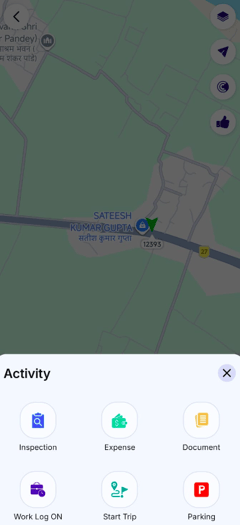
- The Activity Section icludes.
To Inspect a Vehicle:
- Tap on Inspect icon.
- Select the Vehicle Number and Inspection Type from the list mentioned in the field.
- Add Odometer Value.
- Select the Check Point from the list mentioned in the field.
- Select the Remarks from the list provided below.
- Click on Save.

To Add Expense:
- Tap on Expense icon.
- Select the Category from the options mentioned.
- Select Expense Type from the list mentioned in the field.
- Select From Date from the calendar in the field.
- Select To Date from the calendar in the field.
- Add the Amount.
- Add the Reference Number.
- If you wish to upload the bill of the expense made, click on the field and select the mode via which you will upload it.
- Add the Description.
- Click on Save.

View Documents.
-
Tap on the document
 icon to view vehicle documents uploaded by the company account.
 - The Following screen will appear.
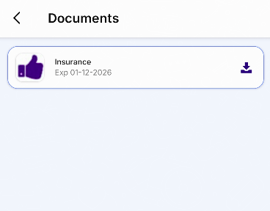
- Tap on the document to view.
- Tap on the download
 icon to download the document to local device.
To Use Work Log On :
- Tap on Work Log On
 icon.
icon. - The application will find your current location and will enable your work log as ON.
- To end the work log, click on Work Log Off icon available in the same location.
- The Application will ask for confirmation to end the Log.
- Tap on "Yes" to end the log.
- Tap on "No" to continue the log.
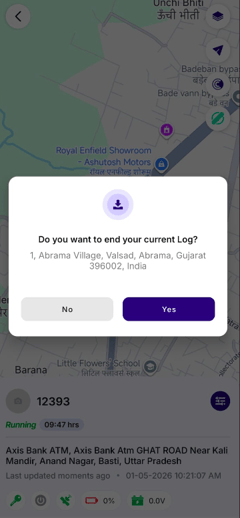
- Once Work Log is Turned Off, The following screen will appear.
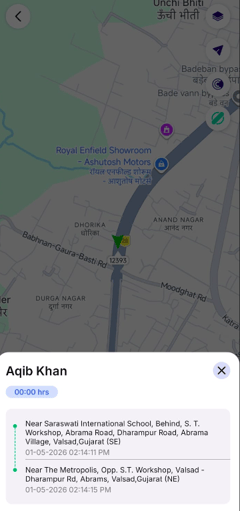
Please Note: Work Log ON is used to capture the Time & Location of the driver when they are working on any task.
Start Trip:
- Tap on Start Trip
 icon
icon - Select the Trip Type and the trip will start.
- To End the Trip click on the end trip icon on same location.
Check In is must for starting the trip, so go to the home screen and click on Check In.
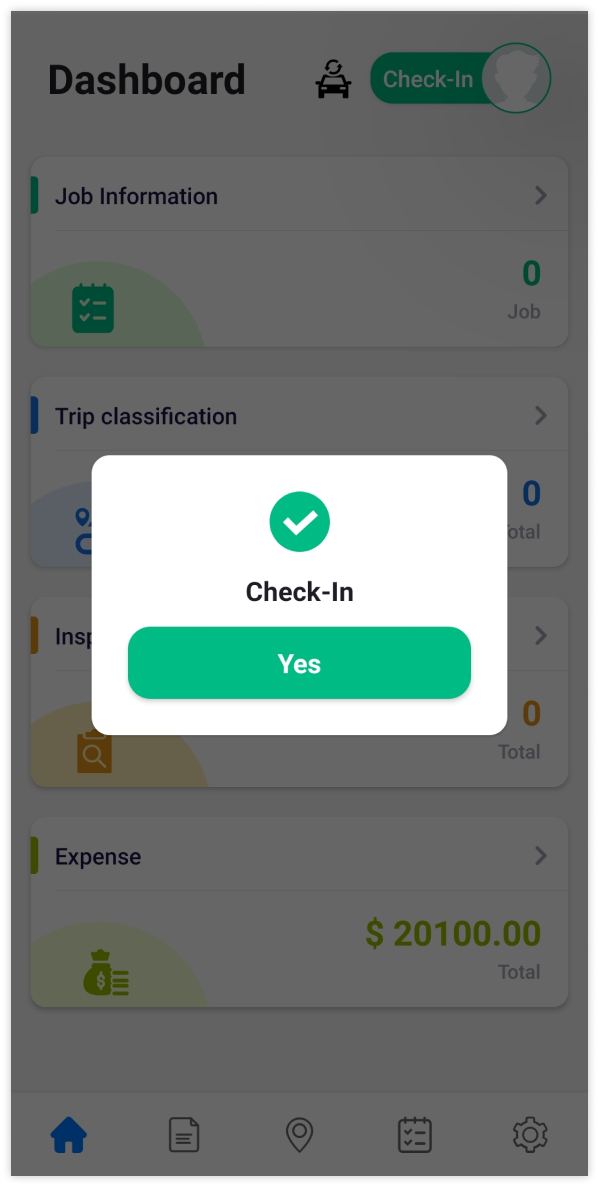
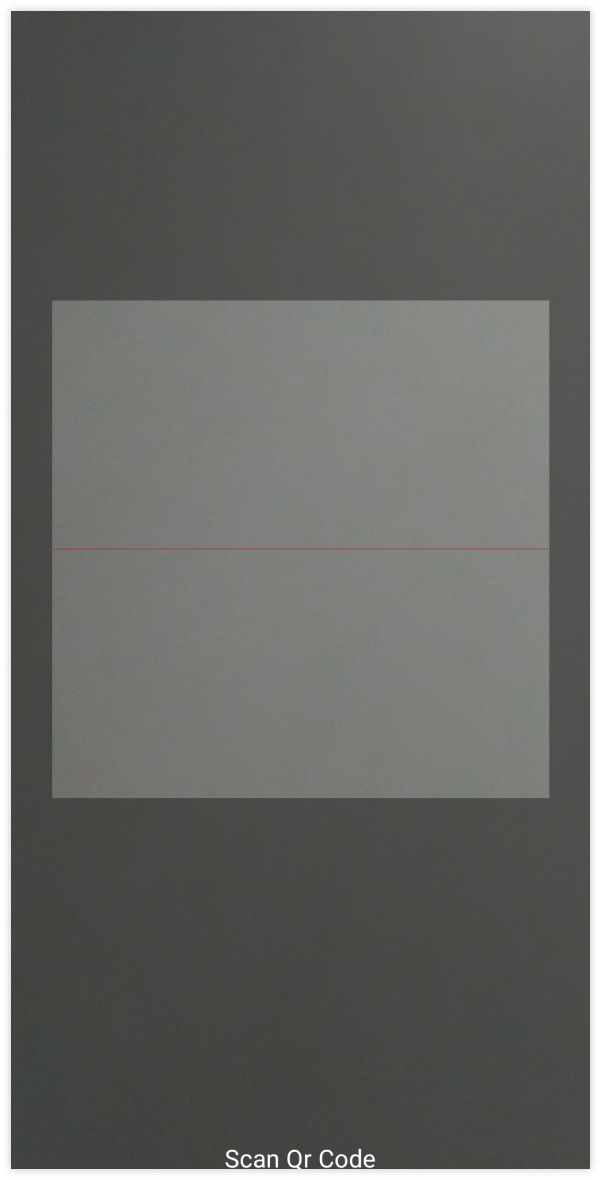
- For checking in, you will have to click on Yes and Scan OR Code.
Parking Mode:
- Tap on the Parking
 icon.
icon. - The Popup will appear.
- Select Yes to enable the Parking Mode.
- Select No to cancel.
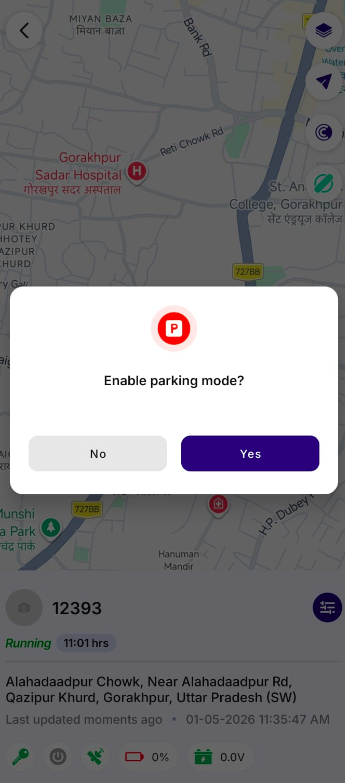
- If Parking Mode id Enabled, a marker will appear on the live tracking page.
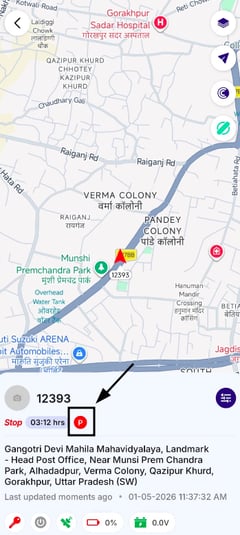
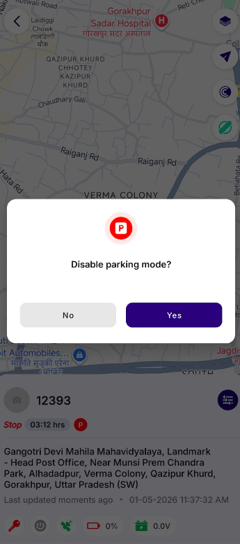
To turn off the parking mode.
- Tap on the Parking icon.
- The Popup will appear.
- Select Yes to Disable the Parking Mode.
- Select No to cancel.