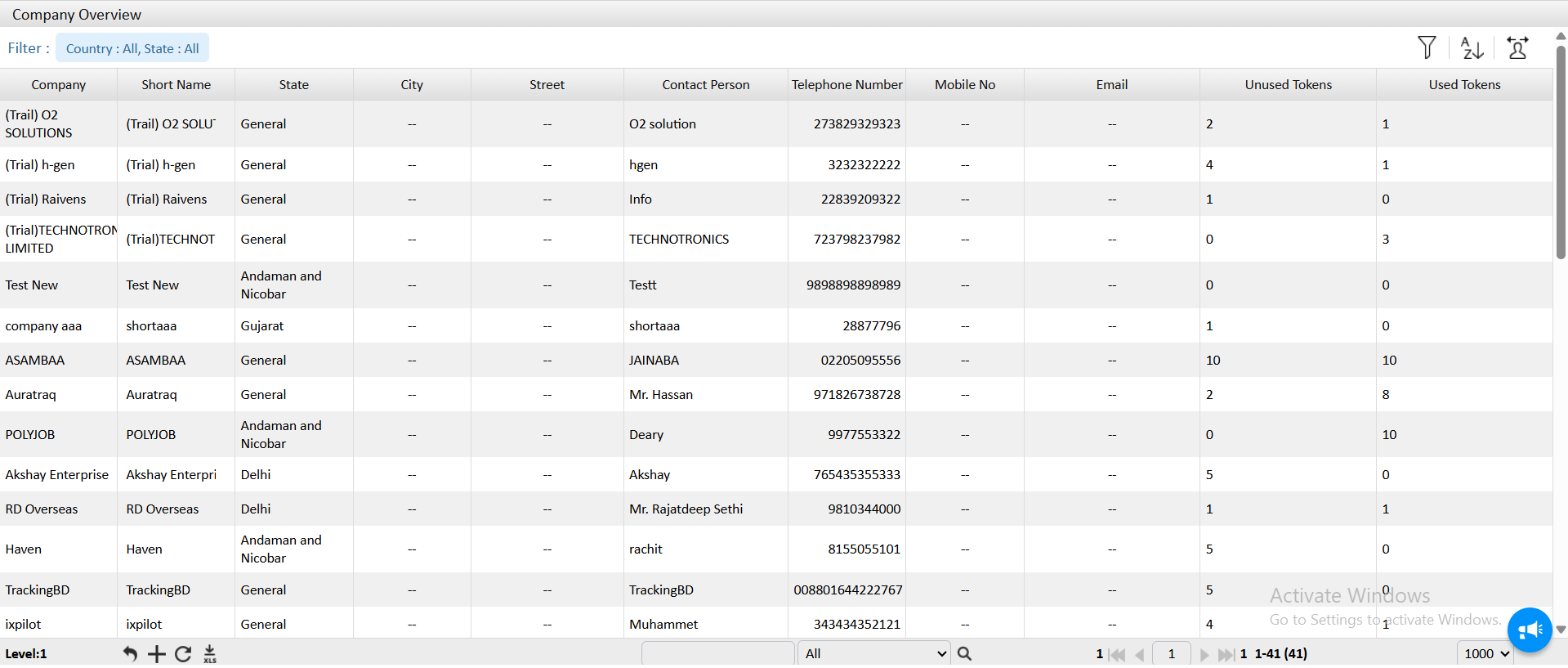
The Company Entity Overview screen provides a consolidated view of all company accounts created within the system. It helps administrators, superusers and reseller monitor details, token usage, and contact information in a structured tabular format.
This dashboard allows filtering based on Country and State, making it easy to locate specific resellers or analyze performance in particular regions. The data displayed helps in managing partner accounts, tracking active or trial comapny, and maintaining updated contact information for communication and support.
Understanding Screen Field
- Company
- Displays the name of the company account or organization
- Short Name
- Displays the short name of the company account or organization.
- State
- Indicates the company’s registered location or operational state
- City and Street
- Represents street or area details
- Contact Person
- The main point of contact for the company; useful for direct communication and support
- Telephone Number
- Displays the company’s helpline or registered contact number for technical or operational queries.
- Email
- Shows the reseller’s email ID for official communication
- Fax Number
- Reserved for fax contact details
- Unused Tokens
- Indicates the number of tokens allocated but not yet used by the reseller. Helps track available usage capacity.
- Used Tokens
- Displays the number of tokens already consumed. Useful for analyzing active engagement and token utilization.
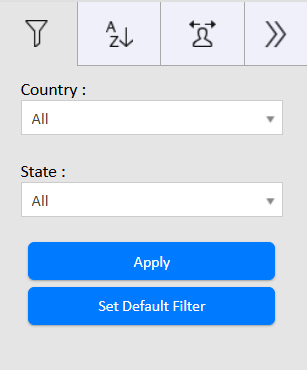
- Filter Option
- Allows filtering user groups based on Country and State
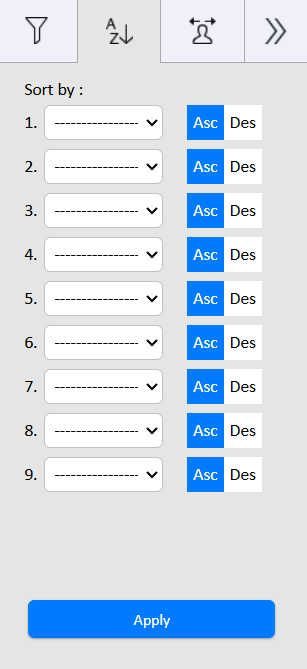
- Sorting option
- A pop-up window appears (as shown in the image) where you can define the sorting criteria.
- Sort by (Dropdown):
- Allows you to select the parameter on which sorting will be applied.
- The available sorting fields are:
- Group Name:
- Sorts user groups alphabetically by their name.
- User Structure
- Sorts based on the type of user structure (e.g., Company Admin, Reseller, Normal User).
- Project Name
- Sorts user groups based on the project name.
- User Structure
- Sorts user groups alphabetically by their name.
- Asc / Des:
- Asc
- Displays data in ascending order (A–Z or 0–9).
- Des
- Displays data in descending order (Z–A or 9–0).
- Asc
- Apply Button:
- Once sorting preferences are set, click on Apply to rearrange the user group list accordingly.
- Group Name:
- Sort by (Dropdown):