
The Object Alert report provides a summary of alerts generated by selected objects (vehicles/assets) during a specified period. It helps users monitor alert occurrences, alert severity, alert duration, and the total number of alerts generated.
The report supports a wide range of alert types, including fuel alerts, driver behavior alerts, temperature alerts, geofence alerts, and other configured notifications. Users can drill down into individual alert records to view detailed event information, locations, alert descriptions, and notification status.
This report is useful for identifying operational issues, monitoring fleet activities, and analyzing alert trends across objects.
This report is available in Trakzee Lite, Trakzee Standard, Trakzee Premium and Smart Waste management
Before you get started
Before using this report, ensure that:
- Objects (vehicles/assets) are properly configured in the system.
- Alert configurations are enabled for the required objects.
- Devices are actively reporting data.
- Alert notifications are configured and operational.
- You have permission to access Alert reports.
- Relevant alert types have been generated during the selected period.
To Open Object Alert Report
- Log in to your account
- Go to Reports → Alert → Object Alert
Filter Explanation
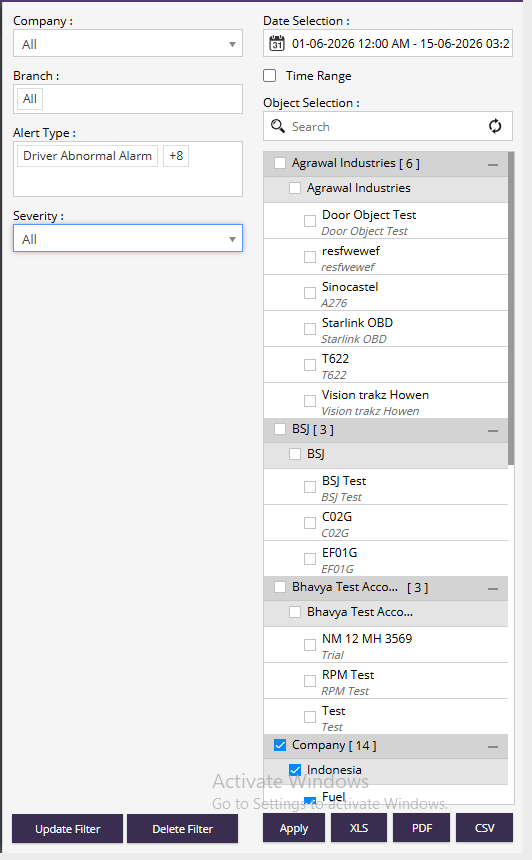
- Company : Select a specific company or choose All to view alerts from all companies.
- Branch : Allows users to filter alerts by branch.
- Date Selection : Select the reporting period for which alert data should be displayed.
- Examples:
- Today
- Yesterday
- Last 7 Days
- Last Month
- Custom Date Range
- Time Range : Enable this option to specify a custom time interval along with the selected date range.
- Alert Type : Allows users to filter alerts based on one or more alert categories.
- Examples:
- Fuel Refill
- Fuel Pilferage
- Driver Abnormal Alarm
- Overspeed
- Temperature
- Ignition
- Geofence
- Harsh Braking
- Harsh Acceleration
- Multiple alert types can be selected simultaneously.
- Severity : Filters alerts based on their severity level.
- Examples:
- Low
- Medium
- High
- Critical
- All
- Object Selection : Allows users to select one or multiple objects for which alert information should be displayed.
- Features :
- Search objects using the search box.
- Select individual objects.
- Select multiple objects simultaneously.
- Expand or collapse company groups.
- Refresh object list when required.
- Apply : Generates the report using the selected filter criteria.
- Export Options :
- XLS – Export the report in Excel format.
- PDF – Export the report in PDF format.
- CSV – Export the report in CSV format.
Report Explanation
Summary View
Displays object-wise alert statistics, including alert type, severity, alert duration, and total alert count.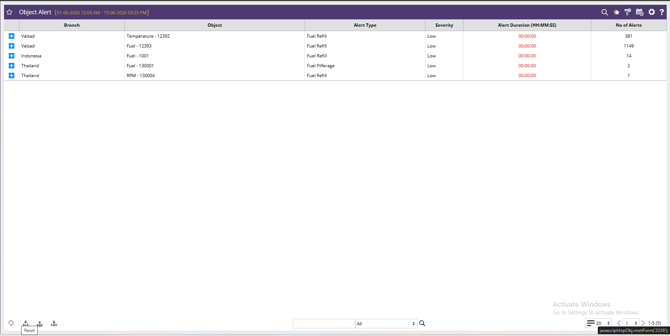
- Branch : Displays the branch associated with the object.
- Object : Displays the object (vehicle/asset) that generated the alert.
- Alert Type : Shows the type of alert generated by the object.
- Examples:
- Fuel Refill
- Fuel Pilferage
- Temperature Alert
- Driver Abnormal Alarm
- Severity : Displays the priority level assigned to the alert.
- Alert Duration (HH:MM:SS) : Shows the duration for which the alert condition remained active.
- No of Alerts : Displays the total number of times the selected alert occurred during the reporting period.
Detail View
Displays individual alert occurrences with event timings, locations, alert descriptions, driver information, and notification status.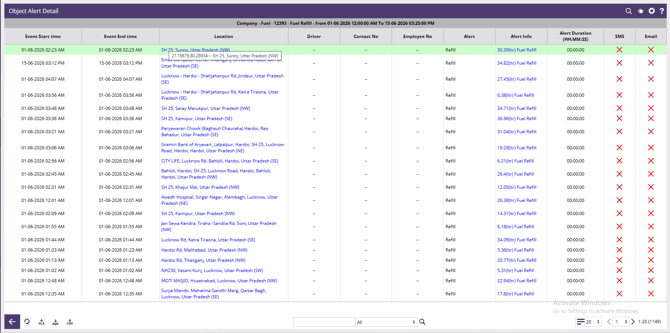
- Event Start Time : Displays the date and time when the alert event started.
- Event End Time : Displays the date and time when the alert event ended.
- Location : Shows the location where the alert occurred.
- Driver : Displays the name of the driver associated with the object at the time of the alert.
- Contact No : Shows the driver's or assigned person's contact number.
- Employee No : Displays the employee identification number, if available.
- Alert : Displays the alert category generated by the system.
- Example:
- Refill
- Fuel Pilferage
- Temperature
- Overspeed
- Alert Info : Provides detailed information about the alert event.
- Example:
- 30.39 Ltr Fuel Refill
- 10.50 Ltr Fuel Theft
- Temperature exceeded threshold
- Alert Duration (HH:MM:SS) : Shows the duration of the individual alert event.
- SMS : Indicates whether an SMS notification was sent for the alert.
- Possible values:
- ✓ Sent
- ✗ Not Sent
- Email : Indicates whether an email notification was sent for the alert.
- Possible values:
- ✓ Sent
- ✗ Not Sent