
The Company Service Detail report provides a comprehensive overview of service activities performed for each company within a selected period. It summarizes the number of installation and maintenance tasks, service tickets generated, service frequency statistics, and task completion status.
Users can expand a company record to view detailed information about individual service tasks, including task category, fault details, resolution information, images, authorized personnel details, and task status.
This report helps organizations monitor service performance, analyze service workload, and track maintenance activities performed for customers.
This report is available in Trakzee Lite, Trakzee Standard, Trakzee Premium and Smart Waste management
Before You Get Started
Before using this report, ensure that:
- Technician activities are configured in the system.
- Companies and branches are properly created.
- Service tasks such as Installation and Maintenance are assigned and recorded.
- Service task are generated and updated regularly.
- Technicians are updating task statuses and resolutions.
- You have permission to access Hardware Maintenance reports.
To Open Company Service Detail
- Log in to your reseller account
- Go to Reports→ Hardware Maintenance → Company Service Detail
Filter Explanation
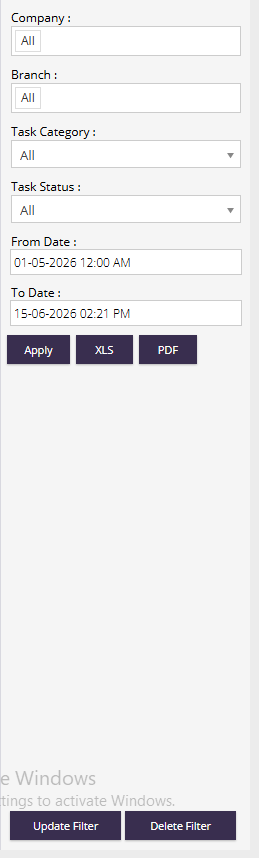
- Company : Select a specific company or choose All to view service details for all companies.
- Branch : Allows users to filter service records based on a particular branch.
- Task Category : Filter records based on the type of task.Available options may include:
- Installation
- Maintenance
- Other configured service categories
- Task Status : Displays tasks based on their current status.
- Examples:
- Completed
- Incomplete
- Missed
- All
- From Date : Select the start date and time for the report period.
- To Date : Select the end date and time for the report period.
- Apply : Generates the report using the selected filter criteria.
- Export Options :
- XLS – Export report data to Excel format.
- PDF – Export report data to PDF format.
Report Explaination
Summary Section
Provides company-wise service statistics including installations, maintenance activities, service tickets, service frequency, and task completion details.
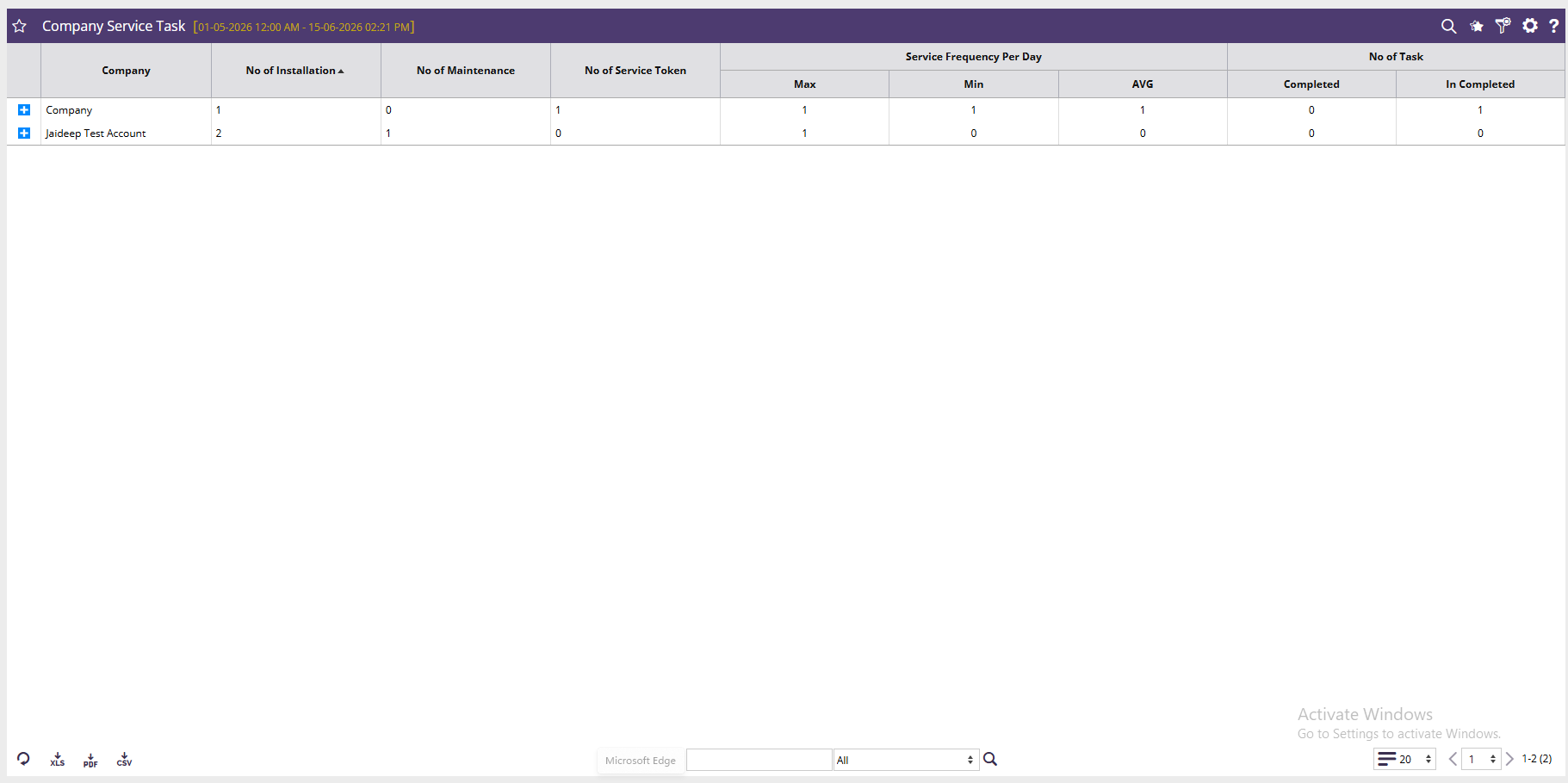
- Company : Displays the name of the company for which service activities were recorded.
- No of Installation : Shows the total number of installation-related service tasks.
- No of Maintenance : Shows the total number of maintenance-related service tasks.
- No of Service Token : Displays the total number of service tickets or service requests generated.
- Service Frequency Per Day - Max : Shows the highest number of service activities performed in a single day during the selected period.
- Service Frequency Per Day - Min : Shows the lowest number of service activities recorded in a day during the selected period.
- Service Frequency Per Day - AVG : Displays the average number of service activities performed per day.
- Completed : Shows the number of tasks successfully completed.
- In Completed : Shows the number of tasks that remain unfinished or pending.
Detail Section
Displays individual service task records for the selected company, including fault information, resolutions, images, authorization details, and task status.
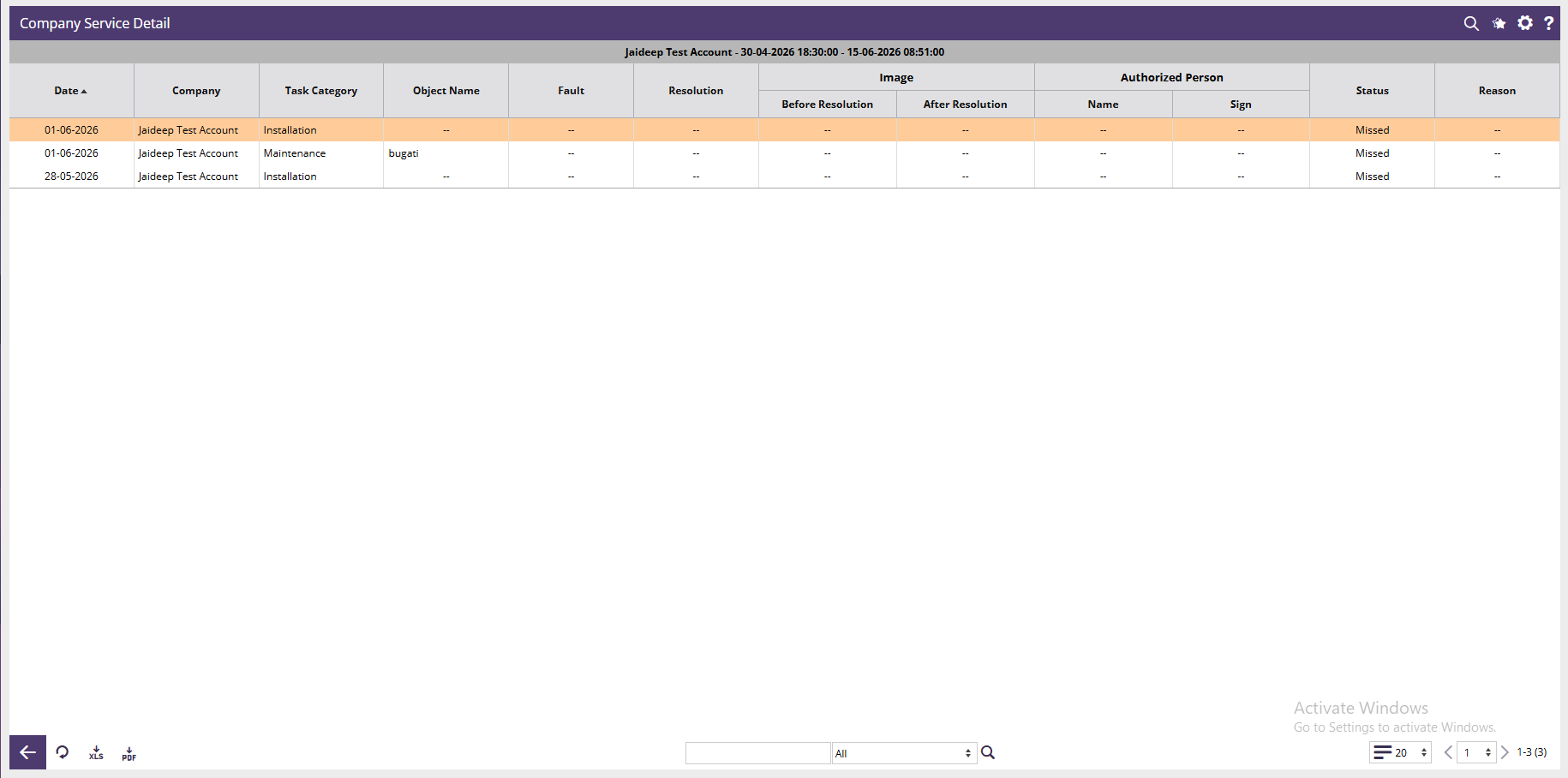
- Date : Displays the date on which the service task was scheduled or performed.
- Company : Shows the company associated with the service task.
- Task Category : Displays the type of service task.
- Examples:
- Installation
- Maintenance
- Object Name : Displays the asset, vehicle, device, or equipment related to the service request.
- Fault : Shows the issue or problem reported during the service request.
- Resolution : Displays the corrective action or solution provided by the technician.
- Image - Before Resolution : Displays images captured before the issue was resolved.
- Image - After Resolution : Displays images captured after the resolution was completed.
- Authorized Person - Name : Shows the name of the person who approved or acknowledged the service activity.
- Authorized Person - Sign : Displays the signature or acknowledgment provided by the authorized person.
- Status : Displays the current status of the service task.
- Examples:
- Completed
- Incomplete
- Missed
- Reason : Shows remarks, comments, or reasons associated with the task status, especially for missed or incomplete tasks.