
The Vehicle Efficiency Report provides a performance overview of vehicles by comparing actual vehicle utilization against expected working hours and distance targets. The report helps analyze vehicle productivity & travel activity.
Please Note: This report is available in Trakzee Premium.
Before You Get Started
- This report uses the Status of the Ignition sensor to generate data for Running, Idle & Stop.
- To know more about ignition sensor configuration, Click here.
Please Note:
If ignition sensor is not configured than the speed condition will be used to determine Running, Idle & Stop status,
- Running: Speed > 5
- Idle: Speed = 0 ( will be displayed for 1 minute )
- Stop: Speed < 5 ( Default observation set to 1 min )
All of the parameters can be changed from the Rule section.
To configure reseller rule click here.
To configure company rule click here.
- Idle Duration: Displays the time vehicle was in Idle state. The Idle alert must be configured for data to appear in this column.
- Minimum Working Hour / Minimum Distance Traveled: The data needs to be added for comparison This configuration must be set individually for each vehicle from the Profile section under Vehicle/Object Configuration.

To Open Vehicle Efficiency Report.
- Log in to your account.
- Go to Reports > Activity > Travel Summary.
When the user clicks on the Vehicle Efficiency Report, the filter panel opens. The user must then select the vehicle, date range, and time range to generate the report. Additional filter options are also available and are explained below.
Filter Explanation:
-
The Travel Summary Report provides a range of filter options to help users generate a customized report based on their requirements. Users can filter data by company, branch, vehicle group, vehicle type, vehicle brand, vehicle model, date range, duration, distance, and specific vehicles. Applying the appropriate filters helps narrow down the results and display only the relevant travel information. Once the desired filters are selected, click Apply to generate the report. The available filter options are explained below.
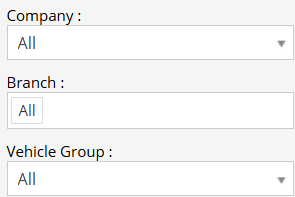
- Company: Select the company for which the report needs to be generated. Branch & vehicles associated with the selected company will be displayed in the list.
- Branch: Select a specific branch for which the report needs to be generated. vehicles associated with the selected branch & company will be displayed in the list.
- Vehicle Group: Filter vehicles based on the configured vehicle groups. Vehicle will be listed from the selected Group.
- Vehicle Type: Select the vehicle type (e.g., Car, Truck, Bus) vehicle will be listed based on selected type.
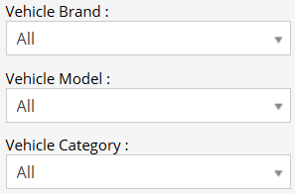
- Vehicle Brand: Select the vehicle brand (e.g., Mercedes, Scania, TATA) vehicle will be listed based on selected brand.
- Vehicle Model: Select a vehicle model (e.g., E class, 5 series, Safari) vehicle will be listed based on selected model.
- Duration Status: Use this filter to display records based on a specific vehicle status duration, Vehicle will be shown for the selected status in the report.
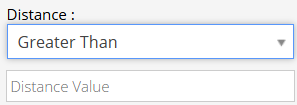
- Distance:Use this filter to display records based on the distance traveled by the vehicle.
- Greater Than – Displays records where the traveled distance is greater than the specified value.
- Less Than – Displays records where the traveled distance is less than the specified value.
- After selecting the condition, enter the distance value in the Distance Value field. The report will display only those records that match the selected distance criteria.
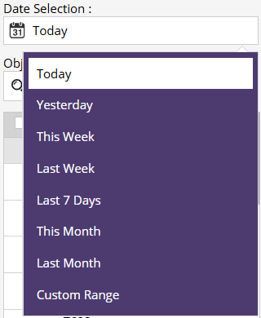
- Date Selection: Select the date range for which the report is to be generated.
-
-
- Today: Select to generate the report for the current day.
- Yesterday: Select to generate the report for the previous day.
- This Week: Select to generate the report for the current week. The report includes data up to the current day of the week.
- Last Week: Select to generate the report for the previous week.
- Last 7 Days: Select to generate the report for the previous 7 days..
- This Month: Select to generate the report for the current month. The report includes data up to the current date.
- Last Month: Select to generate the report for the previous month.
- Custom Range: Select to generate the report for a specific date range by manually choosing the start and end dates.
- Object Selection: Users can select the required object(s) from the list. Multiple vehicles/objects can be selected simultaneously for report generation.
- Search: Users can search for vehicles/objects from the available list using the search field.
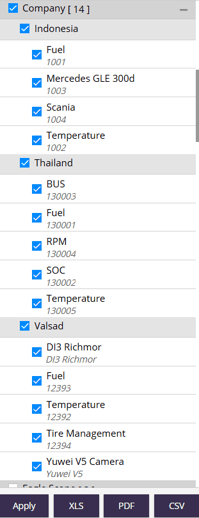
- Search: Users can search for vehicles/objects from the available list using the search field.
- Apply: Click to generate report based on configured parameters.
- XLS/PDF/CSV: Click to download the report based on the configured parameters and selected format.
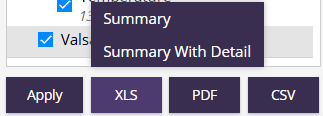
- Summary: Click to download the Summary Layer (1st Layer) report.
- Summary with Detail: Click to download the Summary and Detail Layer (1st + 2nd Layer) report.
-
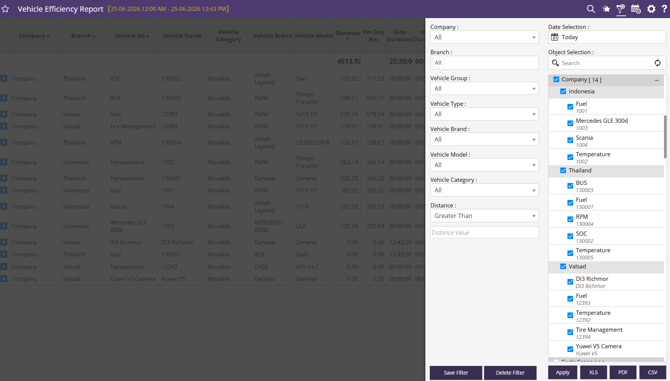
Please Note: Once the filter configuration is completed, the report will load automatically. The report data will be divided into multiple layers for better analysis and visibility.
Report Layers
The Vehicle Efficiency Report is divided into two layers to help users analyze data at different levels of detail:
- Summary Layer (Vehicle Efficiency Report) – The Summary layer provides vehicle-level efficiency information. Each row represents one vehicle
- Day-wise Layer(Vehicle Efficiency Detail) – The Vehicle Efficiency Detail report provides a daily operational breakdown for a selected vehicle.
- Vehicle Efficiency Report: This layer displays one row per vehicle/object and summarizes the complete operational activity for the selected time range.
- Company: Company associated with the vehicle.
- Branch: Branch associated with the vehicle.
- Vehicle No: Vehicle or asset Plate No.
- Vehicle Name: Vehicle or asset Name.
- Vehicle Brand: Manufacturer of the vehicle.
- Vehicle Model: Model/type of vehicle.
- Distance: Displays the total distance traveled by the vehicle when report is generated.
- Per Day Km: Average kilometers traveled per day during the selected period.
- Stop (HH:MM): Total stoppage duration.
-
- Idle (HH:MM): Time when ignition was ON but vehicle was stationary.
- Travel Duration: Total active movement duration of the vehicle based on GPS tracking.
- Total Working Time: Total calculated operational time combining vehicle activity periods.
- Avg Working Hours: Average working duration of the vehicle per day during the selected report period.
- Minimum Working Hrs: Minimum working hours target configured for the vehicle. Used as a benchmark for efficiency calculation.
- Minimum Distance: Minimum distance target configured for the vehicle. Used for distance performance comparison.
- Difference – Working Hrs: Difference between actual working hours and minimum required working hours.
- Difference – Distance: Difference between actual distance and minimum expected distance.
- Efficiency (%) – Working Hrs: Percentage showing achieved working hours compared to the required working hour target.
- Efficiency (%) – Distance: Percentage showing achieved distance compared to the required distance target.
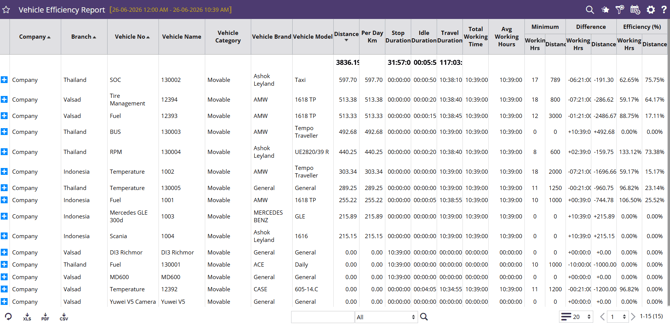
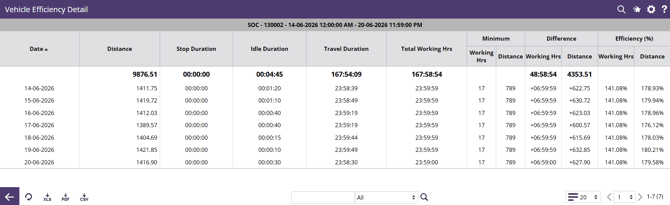
- Vehicle Efficiency Detail: The report provides a detailed view of vehicle performance for a selected period. It helps analyze operational activity by presenting a day-wise breakdown of vehicle utilization, movement behavior, target comparison, and overall performance measurement. The report supports fleet monitoring by helping identify usage patterns, productivity levels, and performance variations over time.
- Date: Date for which the travel summary is generated.
- Distance: Displays the total distance traveled by the vehicle when report is generated.
- Stop Duration (HH:MM:SS): Total duration the vehicle remained stopped during the particular day.
- Idle Duration (HH:MM:SS): Total time where the vehicle was detected as idle for the particular day.
- Travel Duration (HH:MM:SS): Total active movement duration of the vehicle based on GPS movement.
- Total Working Duration (HH:MM:SS): Total operational duration of the vehicle for the day. Represents combined vehicle activity time.
- Minimum Working Hrs: Minimum working hours target configured for the vehicle. Used as a benchmark for efficiency calculation.
- Minimum Distance: Minimum distance target configured for the vehicle. Used for distance performance comparison.
- Difference – Working Hrs: Difference between actual working hours and minimum required working hours.
- Difference – Distance: Difference between actual distance and minimum expected distance.
- Efficiency (%) – Working Hrs: Percentage showing achieved working hours compared to the required working hour target.
- Efficiency (%) – Distance: Percentage showing achieved distance compared to the required distance target.
Additional Features:
The report includes additional features and actions for easier analysis and navigation. To learn more about these features, click here.