
The Vehicle Battery Status report provides a real-time view of vehicle battery information along with related vehicle identification and tracking details. The report displays battery voltage values, GPS availability, latest data transmission time, and vehicle status indicators.
Please Note: This report is available in Trakzee Premium.
Before You Get Started
- This report uses the Status of the Ignition sensor to generate data for Running, Idle & Stop.
- To know more about ignition sensor configuration, Click here.
Please Note:
Idle Time: To calculate Idle Time, the Ignition sensor must be configured.
Running & Stop Time: If the Ignition sensor is not configured, Running and Stop Time will be calculated based on vehicle speed:
- Running Time: Speed > 5
- Stop Time: Speed < 5
In such cases, Idle Time will not be available.
To Open Stoppage Report.
- Log in to your account.
- Go to Reports > Activity > Vehicle Battery Status.
When the user clicks on the Vehicle Battery Status Report, the filter panel opens. The user must then select the vehicle, date range, and time range to generate the report. Additional filter options are also available and are explained below.
Filter Explanation:
- The Vehicle Battery Status Report provides a range of filter options to help users generate a customized report based on their requirements. Once the desired filters are selected, click Apply to generate the report. The available filter options are explained below.
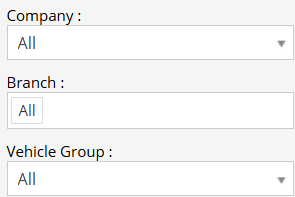
- Company: Select the company for which the report needs to be generated. Branch & vehicles associated with the selected company will be displayed in the list.
- Branch: Select a specific branch for which the report needs to be generated. vehicles associated with the selected branch & company will be displayed in the list.
- Vehicle Group: Filter vehicles based on the configured vehicle groups. Vehicle will be listed from the selected Group.
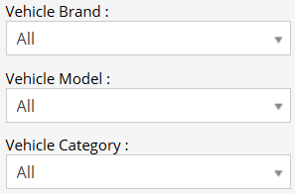
- Vehicle Type: Select the vehicle type (e.g., Car, Truck, Bus) vehicle will be listed based on selected type.
- Vehicle Brand: Select the vehicle brand (e.g., Mercedes, Scania, TATA) vehicle will be listed based on selected brand.
- Vehicle Model: Select a vehicle model (e.g., E class, 5 series, Safari) vehicle will be listed based on selected model.
- Status: Filters objects based on their current operational status.
- Running: Select to show all vehicle with running status.
- Idle: Select to show all vehicle with Idle status.
- Stop: Select to show all vehicle with Stop status.
- Inactive: Select to show all vehicle with Inactive status.
- No Data: Select to show all vehicle with No Data status.
- Battery Voltage: Specify the Voltage tolerance.
Please Note: Value above the threshold limit will be in Red Colour.
- Object Selection: Users can select the required object(s) from the list. Multiple vehicles/objects can be selected simultaneously for report generation.
- Search: Users can search for vehicles/objects from the available list using the search field.
- Apply: Click to generate report based on configured parameters.
- XLS/PDF: Click to download the report based on the configured parameters and selected format.
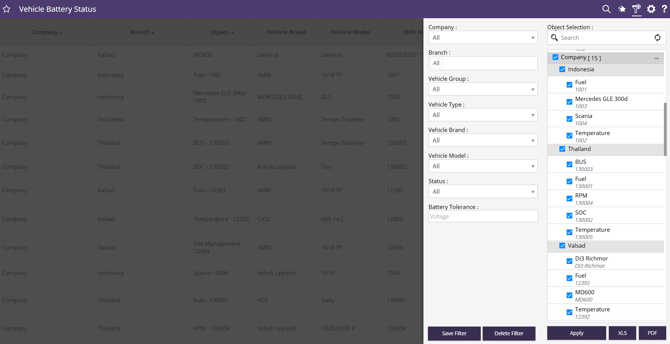
Please Note: Once the filter configuration is completed, the report will load.
Report Layers
-
The Vehicle Battery Status Report is a single layer Report.
Report Explanation:
- Company: Company associated with the vehicle.
- Branch: Branch associated with the vehicle.
- Object: Object or asset identifier/name.
- Vehicle Brand: Manufacturer of the vehicle.
- Vehicle Model: Model/type of vehicle.
- IMEI No: GPS device unique identification number.
- Vehicle Battery Voltage: Displays the latest measured battery voltage value from the Object.
- GPS: Displays GPS communication/status indicator.
- Green: Indicates GPS is available.
- Red: Indicates GPS id not available.
- Grey: Indicates NO data received.
- Last Data Update: Displays the timestamp of the latest data received from the vehicle device.
- Status: Displays Vehicle current status.
- Green: l vehicle with running status.
- Yellow: Vehicle with Idle status.
- Red: Vehicle with Stop status.
- Blue: Vehicle with Inactive status.
- Grey: Vehicle with No Data status.

Additional Features:
The report includes additional features and actions for easier analysis and navigation. To learn more about these features, click here.