
The Trip Report provides a consolidated overview of vehicle trip activities within a selected period. It helps users monitor vehicle utilization, movement patterns, operational efficiency, and driving behavior by presenting key trip-related information in a single report. Users can also access detailed trip-level records for deeper analysis and tracking of individual vehicle journeys.
Please Note: This report is available in Trakzee Lite, Trakzee Standard, Trakzee Premium & Smart Waste Management.
Before You Get Started
- This report uses the Status of the Ignition sensor to determine running, idle & stop..
- To know more about ignition sensor configuration, Click here.
Please Note:
If ignition sensor is not configured than the speed condition will be used to determine Running, Idle & Stop status,
- Running: Speed > 5
- Idle: Speed = 0 ( will be displayed for 1 minute )
- Stop: Speed < 5 ( Default observation set to 1 min )
All of the parameters can be changed from the Rule section.
To configure reseller rule click here.
To configure company rule click here.
- The report displays data related to Alert Count, Overspeed Violations, Immobilization and Cost based on Distance or Duration. To view accurate data, the required configurations must be completed.
- Overspeed: Displays the number of times a vehicle exceeded the configured speed limit. The Overspeed alert must be configured for data to appear in this column.
- Immobilize: Displays the current immobilizer configuration status.
- Alert Count: Displays the total number of alerts generated by the vehicle during the selected reporting period. Alert configurations must be set up to receive data in this column.
- Cost Based on Distance/Duration: Displays the estimated operational cost calculated based on the vehicle's traveled distance or usage duration. This configuration must be set individually for each vehicle from the Profile section under Vehicle/Object Configuration.
- Approx toll charges calculated based on toll data available in the backend system. Currently, toll cost calculation is supported only for India. Toll data support for other countries can be added based on user requirements.
To Open Trip Report.
- Log in to your account.
- Go to Reports > Activity > Trip.
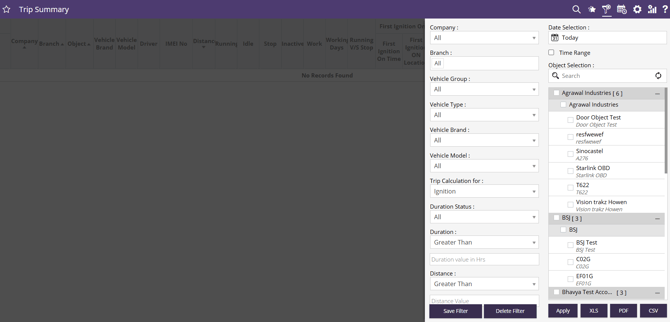
When the user clicks on the Trip Report, the filter panel opens. The user must then select the vehicle, date range, and time range to generate the report. Additional filter options are also available and are explained below.
Filter Explanation:
- The Trip Report provides a range of filter options to help users generate a customized report based on their requirements. Once the desired filters are selected, click Apply to generate the report. The available filter options are explained below.
- Company: Select the company for which the report needs to be generated. Branch & vehicles associated with the selected company will be displayed in the list.
- Branch: Select a specific branch for which the report needs to be generated. vehicles associated with the selected branch & company will be displayed in the list.
- Vehicle Group: Filter vehicles based on the configured vehicle groups. Vehicle will be listed from the selected Group.
- Vehicle Type: Select the vehicle type (e.g., Car, Truck, Bus) vehicle will be listed based on selected type.
- Vehicle Brand: Select the vehicle brand (e.g., Mercedes, Scania, TATA) vehicle will be listed based on selected brand.
- Vehicle Model: Select a vehicle model (e.g., E class, 5 series, Safari) vehicle will be listed based on selected model.
- Trip Calculation for: Defines the method used by the system to determine the start and end of a trip.
- Ignition: A trip starts when the ignition turns ON and ends when the ignition turns OFF.
- Speed: A trip starts when the vehicle speed rises above the defined threshold and ends when the speed falls below the threshold. (Default threshold: 5 km/h).
Please Note: The speed threshold used for trip calculation can be modified from the Rules section. Configure the Speed Consideration Movement setting to define the speed value.
- Duration Status: Use this filter to display records based on a specific vehicle status duration, Vehicle will be shown for the selected status in the report.
- Duration: Use this filter to display records based on the duration of a selected Duration status.
- Greater Than: Displays records in report where the selected status duration is greater than the specified value.
- Less Than – Displays records in report where the selected status duration is less than the specified value.
After selecting the condition, enter the duration value (in hours) in the Duration Value field. The report will display only those records that match the selected duration criteria.
- Distance: Use this filter to display records based on the distance traveled by the vehicle.
- Greater Than – Displays records where the traveled distance is greater than the specified value.
- Less Than – Displays records where the traveled distance is less than the specified value.
After selecting the condition, enter the distance value in the Distance Value field. The report will display only those records that match the selected distance criteria.
- Date Selection: Select the date range for which the report is to be generated.
- Today: Select to generate the report for the current day.
- Yesterday: Select to generate the report for the previous day.
- This Week: Select to generate the report for the current week. The report includes data up to the current day of the week.
- Last Week: Select to generate the report for the previous week.
- Last 7 Days: Select to generate the report for the previous 7 days..
- This Month: Select to generate the report for the current month. The report includes data up to the current date.
- Last Month: Select to generate the report for the previous month.
- Custom Range: Select to generate the report for a specific date range by manually choosing the start and end dates.
- Time Range: Select the time range for which the report data should be generated. When multiple days are selected, the data for the chosen time range will be displayed separately for each day.
- Object Selection: Users can select the required object(s) from the list. Multiple vehicles/objects can be selected simultaneously for report generation.
- Search: Users can search for vehicles/objects from the available list using the search field.
- Apply: Click to generate report based on configured parameters.
- XLS/PDF/CSV: Click to download the report based on the configured parameters and selected format.
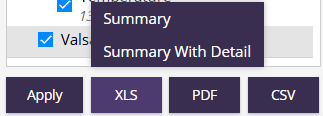
- Summary: Click to download the Summary Layer (1st Layer) report.
- Summary with Detail: Click to download the Summary and Detail Layer (1st + 2nd Layer) report.
Report Layers
The Trip Report is divided into two layers to help users analyze data at different levels of detail:
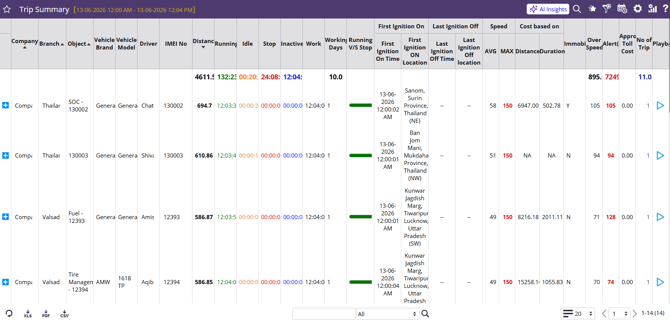
- Summary Layer (Trip Summary)– This layer displays a summarized view of trip activity for each vehicle during the selected period.
- Day-wise Layer(Trip Details) – his layer provides detailed trip information for the selected vehicle from the summary layer.
Report Explanation
- Trip Summary Fields: This layer provides a consolidated overview of trip and vehicle activity for the selected time range.
- Company: Company associated with the vehicle.
- Branch: Branch associated with the vehicle.
- Object: Vehicle or asset identifier/name.
- Vehicle Brand: Manufacturer of the vehicle.
- Vehicle Model: Model/type of vehicle.
- Driver: Assigned driver name.
- IMEI No: GPS device unique identification number.
-
- Distance: Total distance traveled during the selected period.
- Running (HH:MM): Total moving/running time.
- Idle (HH:MM): Total idle time.
- Stop (HH:MM): Total stoppage duration.
- Inactive (HH:MM): Total duration when the GPS device did not send any data to the server.
- Work: Total working duration (Running + Idle).
- Working Days: Number of days the vehicle was active during the selected period.
- Running v/s Stop: Graphical comparison of running and stop duration.
- First Ignition On Time: Timestamp of the first ignition ON event within the selected period.
- First Ignition ON Location: Location where the first ignition ON event occurred.
- Last Ignition Off Time: Timestamp of the last ignition OFF event within the selected period.
- Last Ignition Off Location – Location where the last ignition OFF event occurred.
- Speed AVG: Average vehicle speed.
- Speed MAX: Maximum vehicle speed achieved.
- Cost Based on Distance: Estimated cost calculated from distance traveled.
- Cost Based on Duration: Estimated cost calculated from operational duration.
- Immobilizer: Indicates the immobilizer configuration on device.
- Y = configured.
- N = not configured.
- Over Speed: Count of overspeed violations.
- Alert: Total number of generated alerts/events.
- Approx Toll Cost: Estimated toll expenses.
- No of Trip: Total number of trips completed during the selected period.
- Playback: Option to replay vehicle route/travel history.
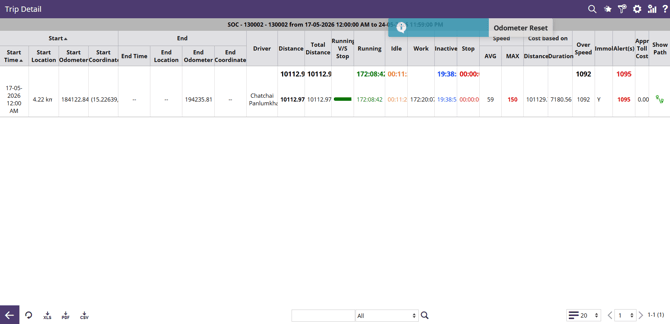
- Trip Details Feilds: The Trip Detail layer provides detailed information about individual trips performed by a selected vehicle during the specified reporting period
-
Start Time: Date and time when the trip started.
-
Start Location: Location where the vehicle started the trip.
-
Start Odometer: Vehicle odometer reading at the beginning of the trip.
-
Start Coordinate: GPS coordinates recorded at the trip start location.
-
End Time: Date and time when the trip ended.
-
End Location: Location where the vehicle ended the trip.
-
End Odometer: Vehicle odometer reading at the end of the trip.
-
End Coordinate: GPS coordinates recorded at the trip end location.
-
Driver: Name of the driver associated with the trip.
-
Distance: Distance covered during the trip.
-
Total Distance: Total trip distance calculated by the system for the selected trip.
-
Running V/S Stop: Graphical comparison between running and stop duration for the particular day.
-
Running (HH:MM): Total moving/running time for the particular day.
- Idle (HH:MM): Total idle duration for the particular day.
-
Work: Total working duration (Running + Idle).
- Inactive (HH:MM): Total duration when the GPS device did not send any data to the server.
- Stop (HH:MM): Total stoppage duration.
- Speed AVG: Average vehicle speed.
- Speed MAX: Maximum vehicle speed achieved.
- Cost Based on Distance: Estimated cost calculated from distance traveled.
- Cost Based on Duration: Estimated cost calculated from operational duration.
- Over Speed: Count of overspeed violations.
- Immobilizer: Indicates the immobilizer configuration on device.
- Y = configured.
- N = not configured.
- Alert: Total number of generated alerts/events.
- Approx Toll Cost: Estimated toll expenses.
- Show Path: Replays the complete route movement for the selected trip.
-
AI Insight
The AI Insight provides an automatically generated interpretation of the trip data, helping users quickly understand the overall vehicle activity during the selected reporting period. It converts report data into easy-to-understand insights, enabling faster review and better decision-making without the need for manual analysis.
To Generate the AI Insight for the report:
- Generate the Trip Report.
- Once the report is generated, the AI Insight button will appear in the top-right corner of the report.

- Click the AI Insight button.
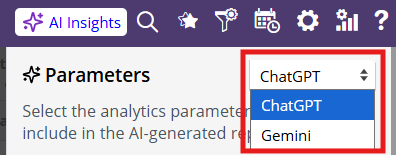
- From the Parameters section, select the AI model you want to use (ChatGPT or Gemini).
- Click Generate.
- The AI Insight report will be generated and displayed on the screen.
- To download the AI Insight report, click the Download icon at the bottom of the generated report. The report will be downloaded in PDF format.
Additional Features:
The report includes additional features and actions for easier analysis and navigation. To learn more about these features, click here.