
Resellers can customize various feature permissions for sub-users through the User Settings. These permissions are assigned based on the roles and responsibilities of the sub-users
To Get Started
- Login to your Reseller account.
- Go to Settings > General > Reseller.
- Double-click on the account.
- Navigate to the Reseller Subuser tab.

To Provide Access
- Click on Add New (to create a new account) or Edit (to edit the existing account), and the Reseller Subuser window will open.
- Navigate to the User Settings tab.
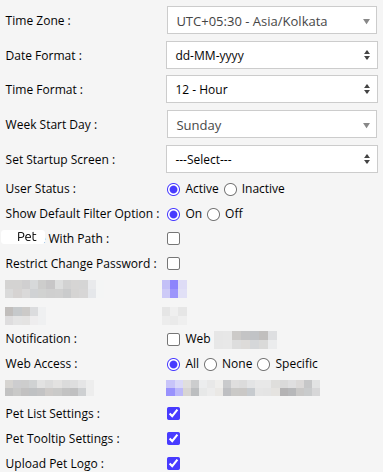
- Select the preferred Time Zone for the reseller sub-user from the given drop-down.
- Under the Date Format dropdown menu, select the preferable Date Format for the sub-user account.
- Under the Time Format dropdown menu, select the preferable Time Format for the sub-user account.
- Under the Week Start Day drop-down menu, choose the preferred start day of the week for the reseller sub-user account. The application will display weekly reports based on the selected start day of the week.
- In Set Startup Screen, select the screen on which the user will see after login.
- User Status: This option indicates the current status of the sub-user's account. Additionally, the reseller can activate or deactivate the account, controlling the user access as needed.
- Show Default Filter Option: You can turn on/off the "Records per page" drop-down being displayed on the bottom right of all the screens on the platform.
.png?width=221&height=60&name=Frame%20660%20(5).png)
- Navigate to the User Settings tab.
-
- Pet With Path: You have the option to check the box if you would like to allow the sub-user to view the playback of pe atlong with their traveled paths on the live tracking screen.
- Restrict Change Password: You can restrict the sub-user to changing the password for their account by selecting this option.
- The Notification field will allow you to grant permission to the reseller sub-user to get notifications via Web platform.
- Web Notification Sound: This option allows you to customize the web notification sound, enabling it to play either once or repeatedly according to your preferences.
Please Note: Web Notification Sound option will be available only if the Notification for Web checkbox is selected.
-
- You can provide Web Access as per your needs.
-
- You can grant the sub-users the ability to utilize the Pet List Settings and Pet Tooltip Settings available on the Tracking screen by selecting the corresponding checkbox.
-
- Pet list Setting:

- Pet list Setting:
-
- Pet Tooltip Setting:

- By enabling the Upload Pet Logo checkbox, the Reseller subuser can upload custom logos for their Pets in the account
- Pet Tooltip Setting:
- Click on the Save 💾 icon.