
The Calories screen shows how many calories your pet has burned during the day, along with weekly averages and month-to-month comparisons. It helps you track your pet’s activity level and understand calorie-burn trends over time.
To Get Started
- Log in to your account.
- Go to Fitness > Calories.
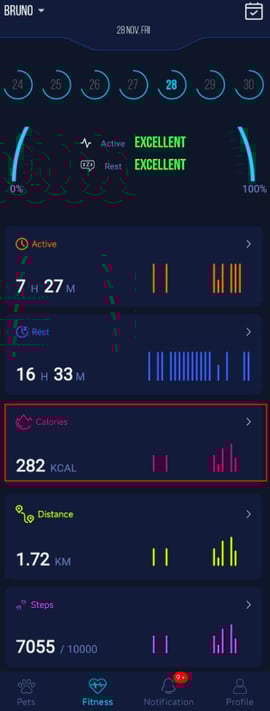
Please Note: The data in Calories summary is loaded based on the Date & Month selected from the fitness screen.
Calories Screen Details
- Once you tap on Calories, the following screen will open. From this screen, you can view multiple types of information:
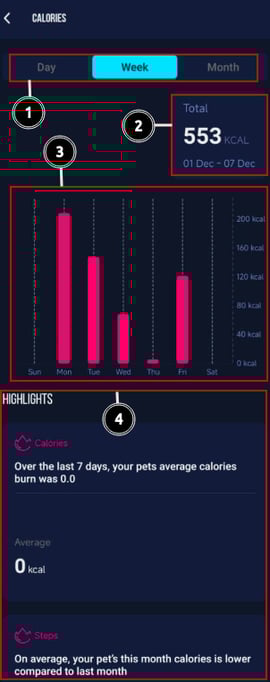
- The User can Get multiple information from this screen.
- View Selector: You can switch between,
- Day: for hour-by-hour Calorie tracking.
- Week: for a seven-day Calorie pattern.
- Month: for long-term trends.
- Total Calories Burned: This section displays the total calories burned for the selected Day / Week / Month, along with the corresponding date range. It gives a quick snapshot of your pet’s activity level for the selected period.
- Calories Graph: The graph visually represents how many calories your pet burned during the selected Day / Week / Month, making it easy to compare activity levels across different days.
- Highlights Section: The Highlights section provides deeper insights into your pet’s calorie data:
- Calories (7-Day Average): The app calculates your pet’s average calories burned over the last 7 days.
- Calories (Month Comparison): This section compares your pet’s total calories burned in the current month with the previous month.
In the current example:
December 2025: 553 kcal
November 2025: Lower than December
This comparison helps you understand whether your pet is becoming more or less active compared to last month.
- View Selector: You can switch between,