
In the context of our platform, a Pet refers to any entity or item that can be managed, tracked, or interacted with in the system through a tracking device configured with the Pet. Pets typically represent physical devices, such as IoT hardware.
To efficiently upload Pet records, whether individually or in bulk, please follow these outlined steps.
To Get Started
- Log in to your account.
- Go to Settings > General > Pet.
Upon clicking on the Pet, users will be directed to the Pet Overview page, where they can easily view and manage all Pet records.
To Add Pet Individually
- Click on the ➕ button on the taskbar.
Navigate to General
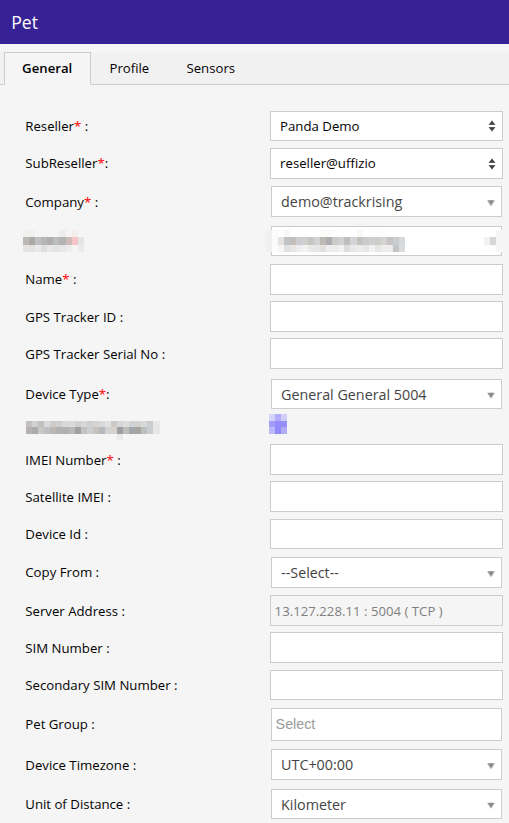
-
- From the dropdown menus, select the Reseller, SubReseller, and Company under which you want to add the Pet.
- Enter the Name of the Pet.
- Device Type will be selected automatically once you enter the imei number.
- Enter the IMEI Number of the device that you want to add.
Please Note: You need to add the device in the inventory before you add vehicle in the software.
-
- You have the option to utilize the Copy From feature, which allows you to replicate the specifications of an existing object associated with the same device model.
-
- The system will provide the corresponding Server Address as you select the integrated device.
- Please provide the SIM Number and, if necessary, the Secondary SIM Number for accurate tracking and management.
- DeviceTimezone should be added as per the timezone configured on the device.
- Choose the Unit of Distance from the dropdown.
Navigate to Profile
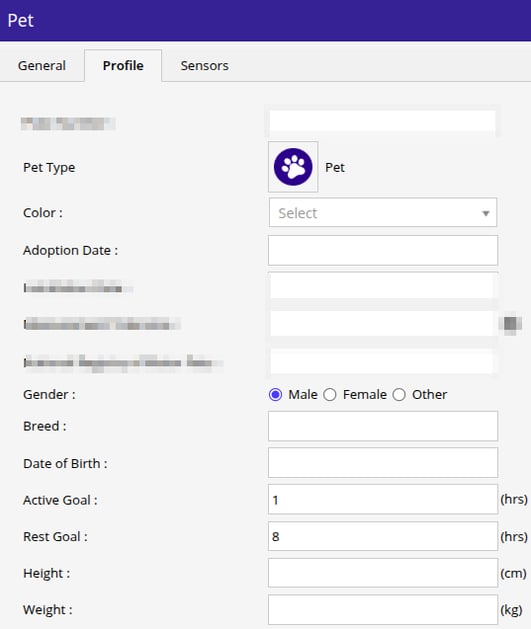
-
- Choose the appropriate Pet Type of your Pet by clicking on the corresponding icon.
- Choose the Adoption Date of the pet.
- Choose the Gender of the Pet from Male, Female Or Others.
- You can Write the Breed of the Pet for your reference.
- Choose the Date of Birth of the Pet.
- In Active Goal: Set the number of hours you want your pet to stay active each day.
- In Rest Goals: Set the daily rest duration you want your pet to achieve each day.
- Mention the Height & Weight Of the Pet.
Navigate to Sensor
You can add the sensor related to device from here.
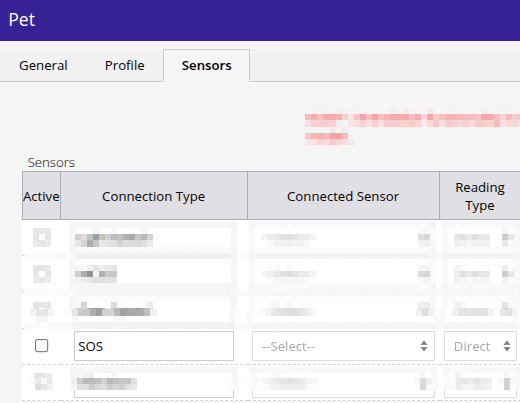
-
- Check Active for the sensor you want to connect.
- From the Connection Type, select the sensor which you want to connect.
- In the Connected Sensor, search for the same sensor.
- In Reading Type:
- Direct: Select this option to display the data exactly as received from the device.
- Inverse: Select this option to display the opposite (inverted) value of the data received from the device.
- Click on the Save 💾 icon to save the Pet.
To Add Objects in Bulk
- Click on the Upload button on the taskbar.

- A new Bulk Pet Insert window will appear.
Please Note: The information you enter in this section will serve as standard details, which will be applied to all the Pets you include in the Excel sheet.
- From the dropdown menus, select the Reseller & Company under which you want to add the Pet.
- Choose the GPS device model you wish to add from the Device Type dropdown menu.
- You have the option to utilize the Copy From feature, which allows you to replicate the specifications of an existing object associated with the same device model.
- The system will provide the corresponding Server Address as you select the integrated device.
- Device Timezone should be added as per the timezone configured on the device.
- Select the Unit of Distance, and the system will operate according to the chosen unit.
- To upload a file, first you need to Download the sample format from the given link.
- Fill in the details of objects in the required format and then Upload the file by clicking on the ➕ icon.
- Based on the selected device type, a detailed Sensors table will be generated, outlining the connection type, associated sensors, reading types, and calculations for work hours. You can then proceed to configure the necessary sensor settings according to your requirements.
- Activate the connection type by clicking on the checkbox given in the Active column.
- Click on the dropdown of Connected Sensor and select the sensor.
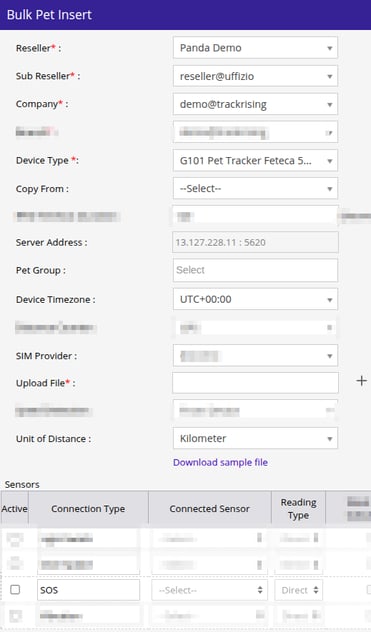
- Click on the Save 💾 icon to save the setting.