
This feature allows users to Edit Points of Interest on the map to highlight important locations or key areas.
To efficiently Edit POI, please follow these outlined steps.
To Get Started
- Log in to your account.
- Go to Settings > Master> POI.
Please Note: Upon clicking on POI, users will be directed to the POI Overview page, where they can easily view and manage all POI records.

To Edit POI
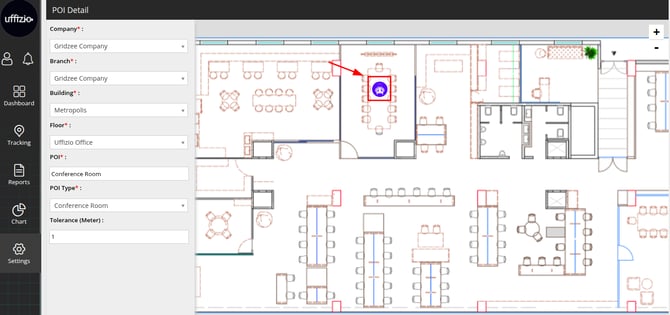
- Double click on the Record you want to edit.
- You cannot Edit the Compamy, Branch, Building & Floor.
- POI: You can Edit the Name of POI.
- POI Type: you can change the type of POI, you can click on Add New to create a new POI.
- Add New: Once you click on add new, the POI Type Name option will appear. write the name for the new type you want to list.
Please Note: Once save the new type by adding it on the Map, you will find the type listed while creating the next POI.
- Tolereance (Meters): You can edit the tolerance for the POI.
To edit POI on Floor Map.
- Click & hold the icon, you can now move the icon to your desired lication available on the Floor Map.
Please Note: The Icon for pre-listed Type are different, for Add New you will find the following icon. 
- Click on the Save 💾 icon to save the configuration.
To Add POI, click Here